Manage your profile
Control how your identity, experience, media and participation appear to other Buzzmint Engage members.
Profile.mov · Reviewed against the Buzzmint Engage interface on 16 July 2026. The original full-motion master remains in the private BUZZMINT VIDEOS Drive folder.
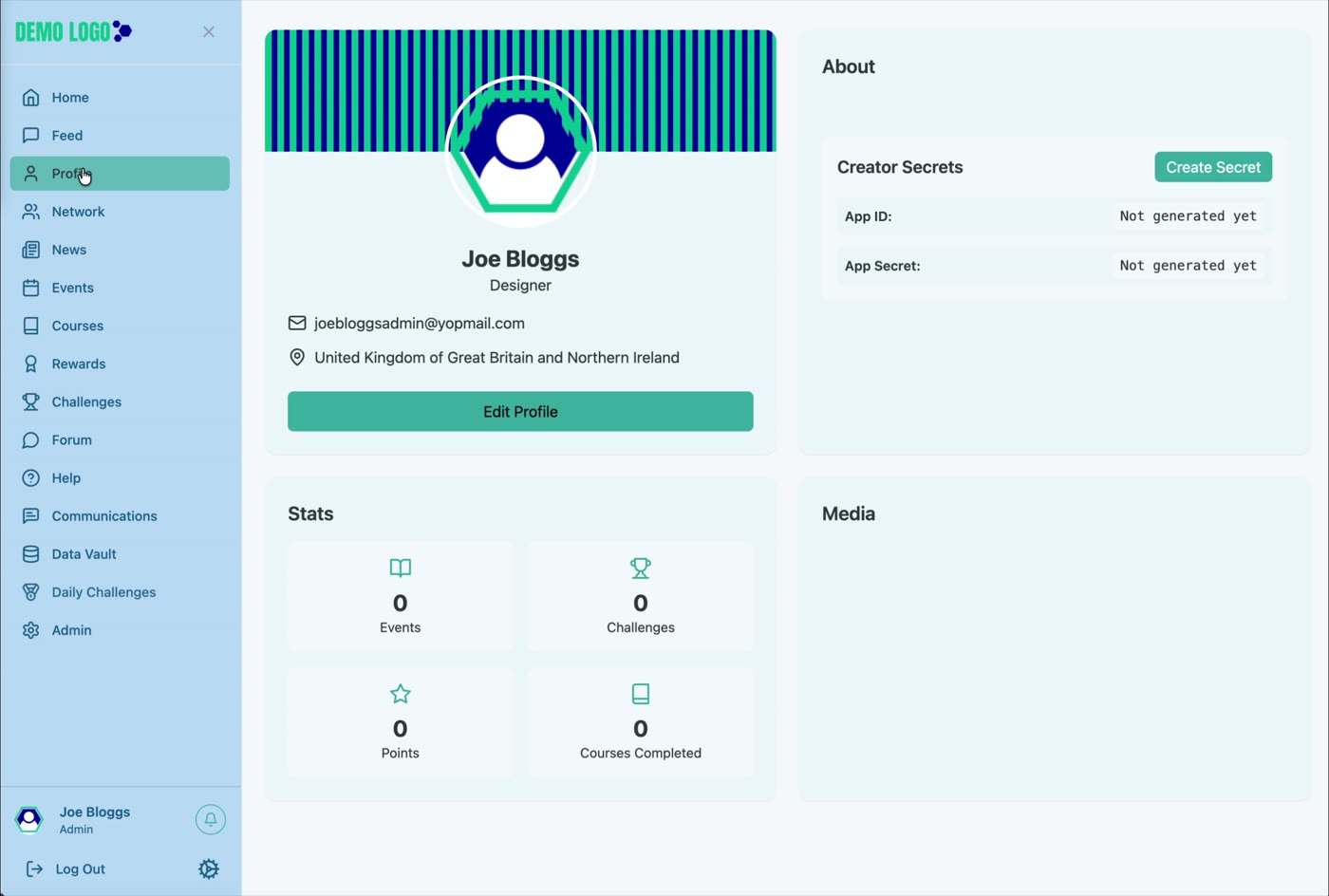
- 00:00Review the profile page
See the identity, About, statistics, media and Creator Secrets areas.
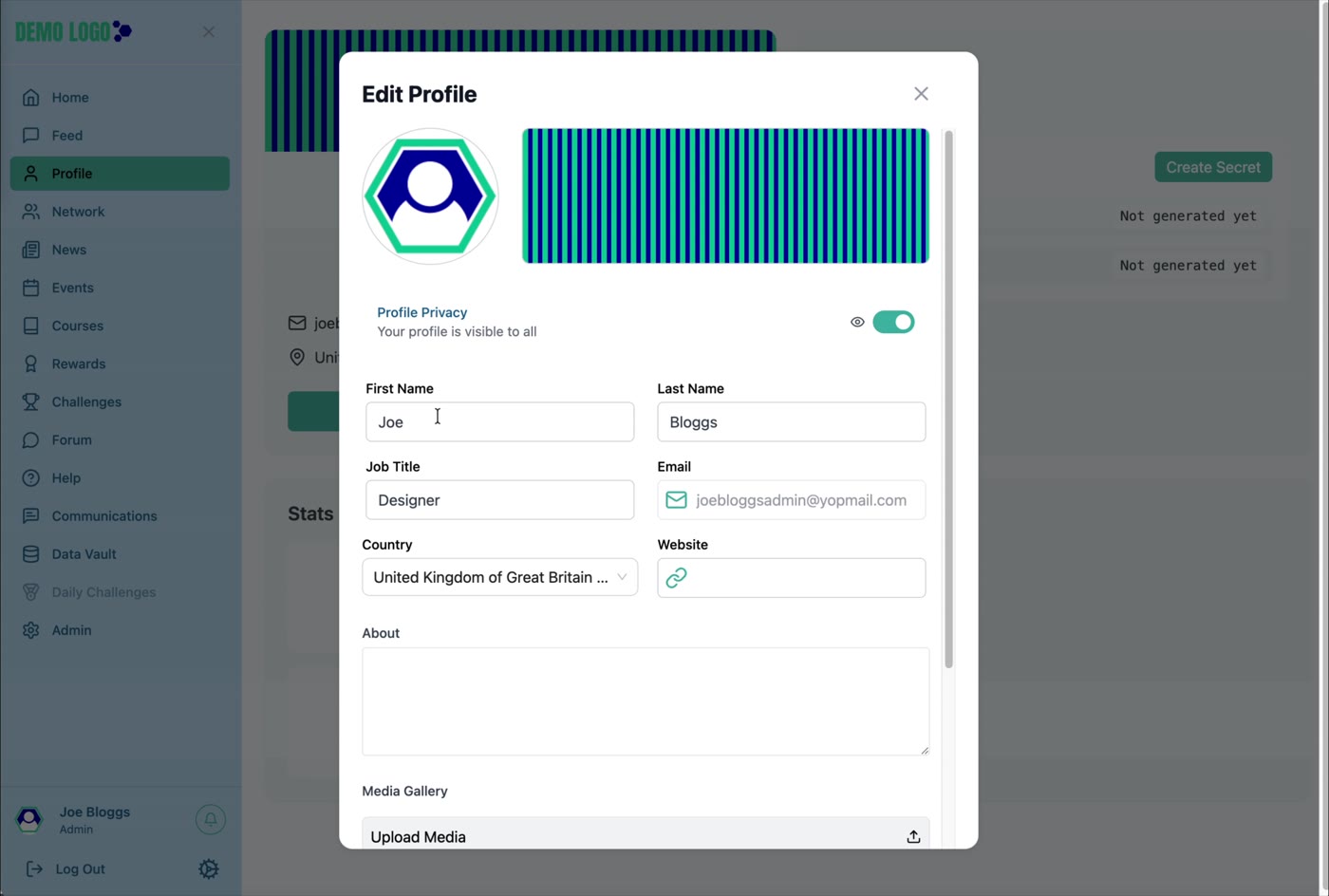
- 00:22Open Edit Profile
Update profile visibility and personal or professional details.
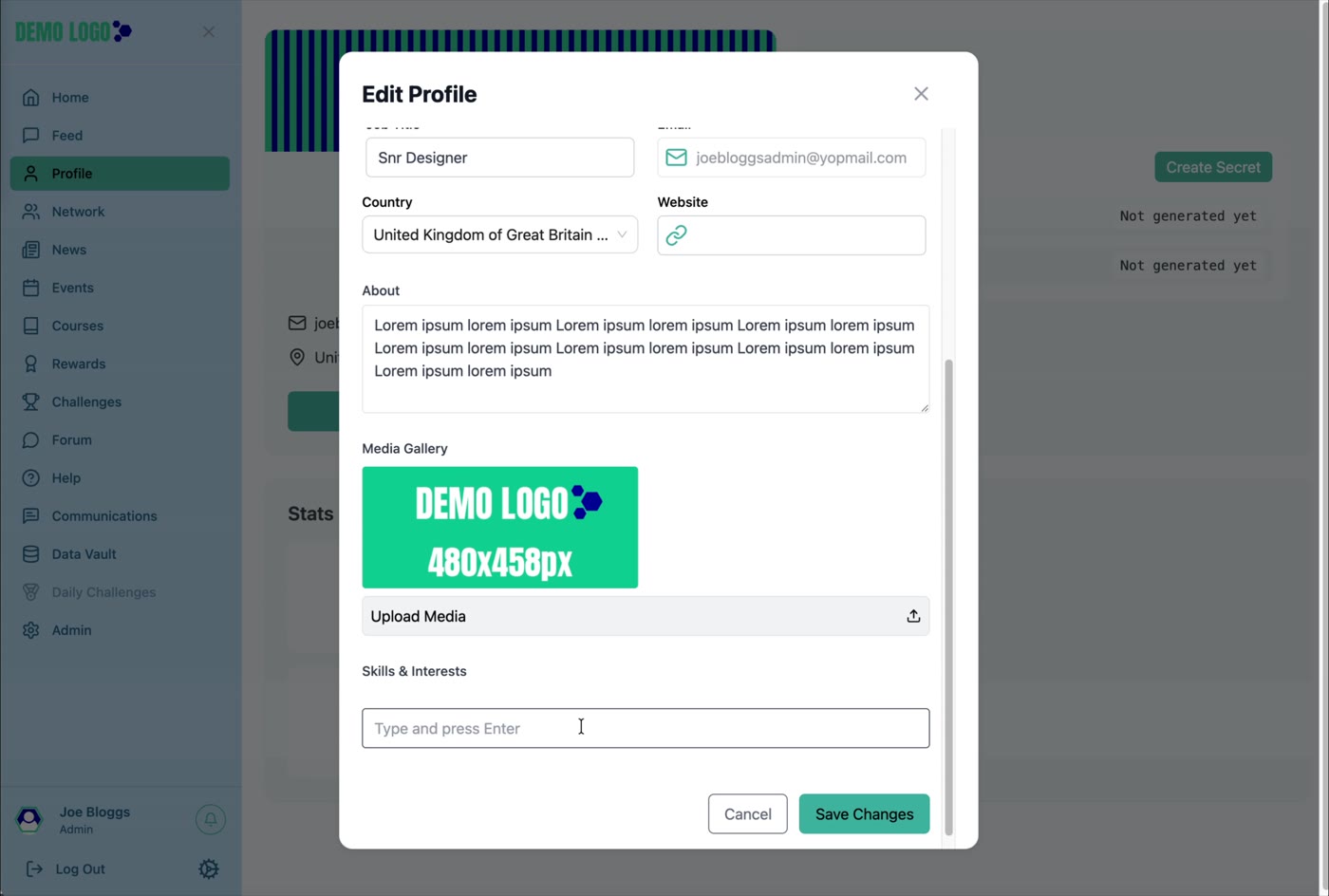
- 00:44Add About and media
Write the profile introduction and upload gallery media.
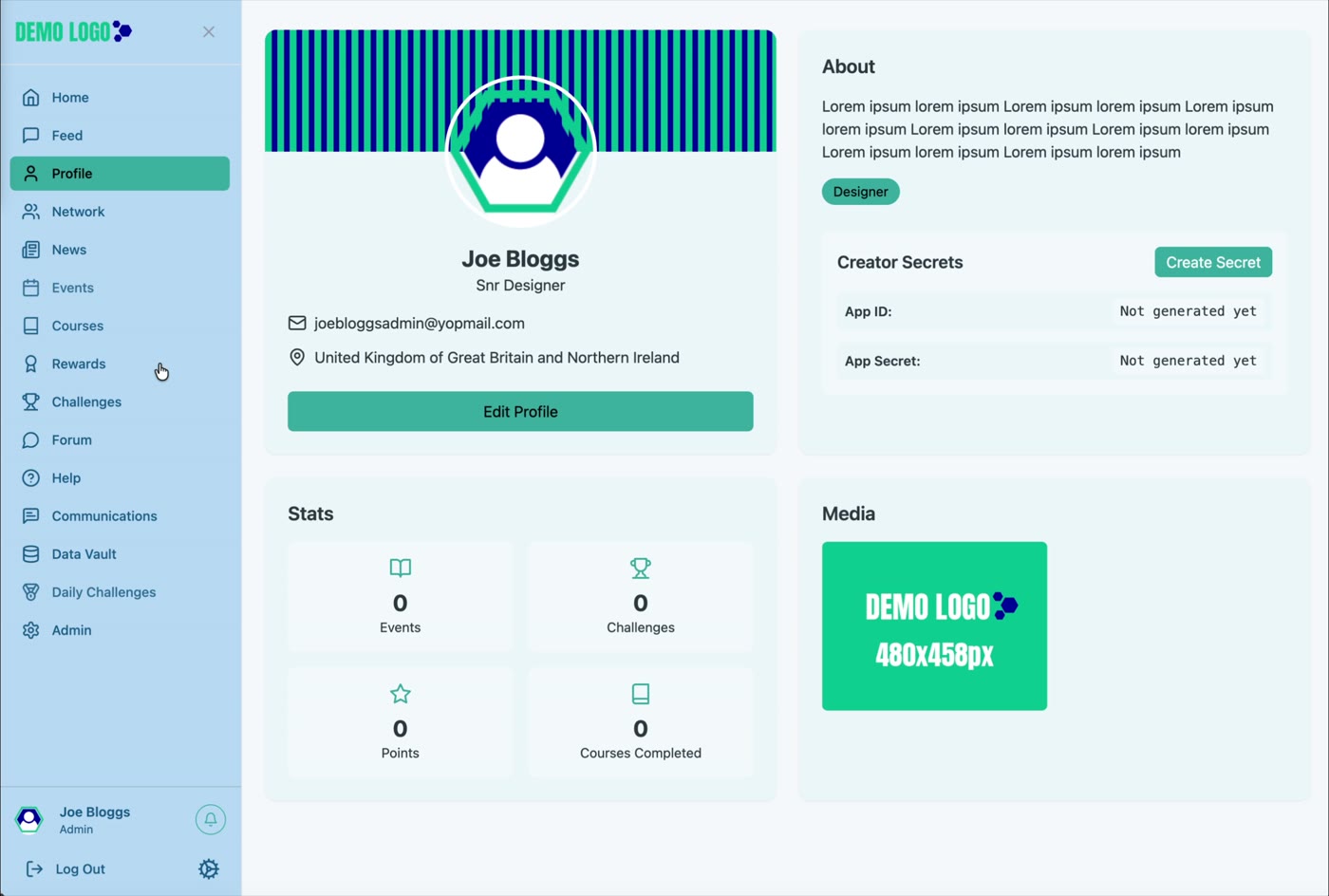
- 01:04Check the saved profile
Confirm the public-facing profile and statistics display correctly.
What the Profile contains
Your Profile is the identity other community members see when they open your name from the Network or another module. It brings together your role, location, About information, media, interests and participation statistics.
Edit your profile
Open Profile
Select Profile from the left-hand navigation, then choose Edit Profile.
Choose profile visibility
Use the Profile Privacy switch to decide whether the profile is visible to other members. The wording shown in the interface indicates when the profile is visible to all.
Review the account details
Update the first name, last name, job title, country and website where appropriate. The account email is displayed in the form; changes to login identity may be controlled elsewhere.
Write the About section
Add a concise introduction that helps other members understand your role, experience and interests.
Add media and interests
Use Upload Media to add approved profile media. Enter skills or interests as tags, pressing Enter after each item.
Save and verify
Select Save Changes, then check the completed profile as another member would see it.
Understand profile statistics
The profile summary displays counts for Events, Challenges, Points and Courses Completed. These figures help members understand their participation but should not be treated as a complete measure of contribution.
Handle Creator Secrets safely
The Profile includes a Creator Secrets area with App ID and App Secret values. These controls are intended for authorised integrations or technical use—not ordinary profile customisation.
Profile best practice
- Use a recognisable, approved profile image.
- Keep job title and About text current.
- Do not add sensitive personal information to public profile fields.
- Use media that you have permission to publish.
- Explain profile visibility and directory behaviour during onboarding.
Profile checklist
- Name and job title are accurate.
- Profile visibility matches the member’s preference.
- Country and website are correct.
- About text is concise and useful.
- Media displays correctly.
- Skills and interests have been saved as separate tags.
- No App Secret has been exposed.
Common issues
Changes do not appear
Confirm Save Changes was selected successfully, then refresh the Profile page.
A profile is missing from Network
Check the profile privacy setting and confirm the member account is active.
Media will not upload
Use a supported image or media format and check that the file is not unusually large or corrupt.
Hub version 0.3.7 · Last updated 16 July 2026