Use and maintain the Help Centre
Direct users to documentation, tutorials, peer support, FAQs and a clear route to contact the support team.
help.mov · Reviewed against the Buzzmint Engage interface on 16 July 2026. The original full-motion master remains in the private BUZZMINT VIDEOS Drive folder.
- 00:00Review Help Centre
See Documentation, Tutorials, Community Support, FAQs and Contact Support.
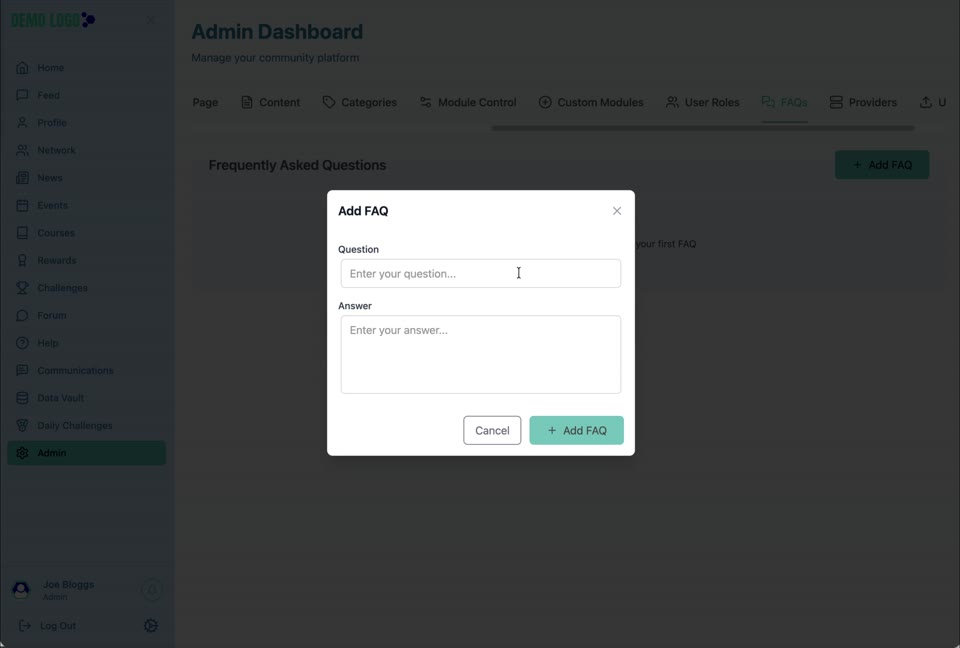
- 00:48Open FAQ administration
Use Admin → FAQs to maintain common answers.
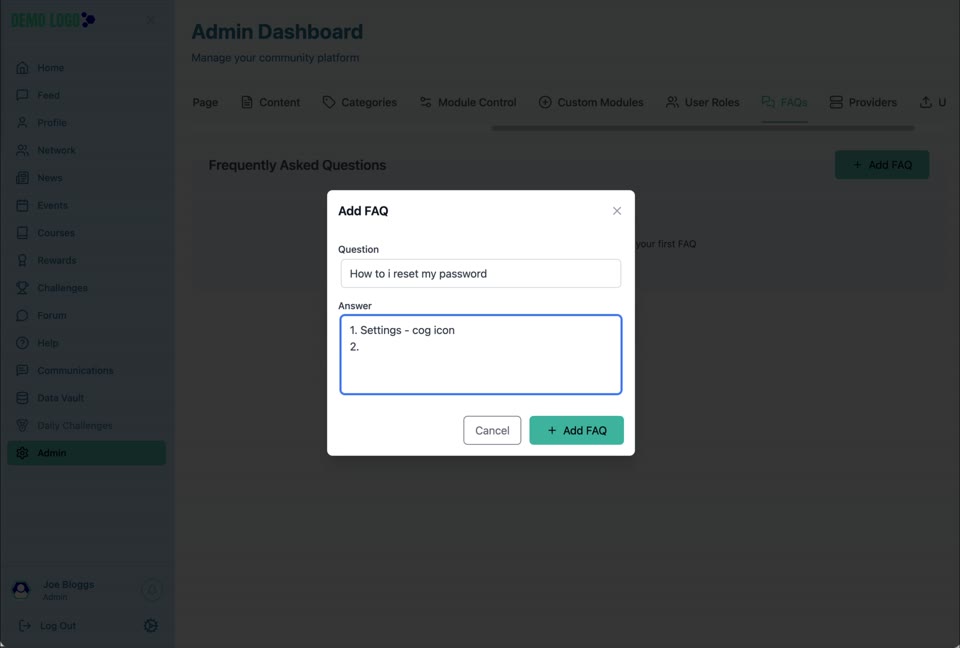
- 00:55Add an FAQ
Enter the question and answer.
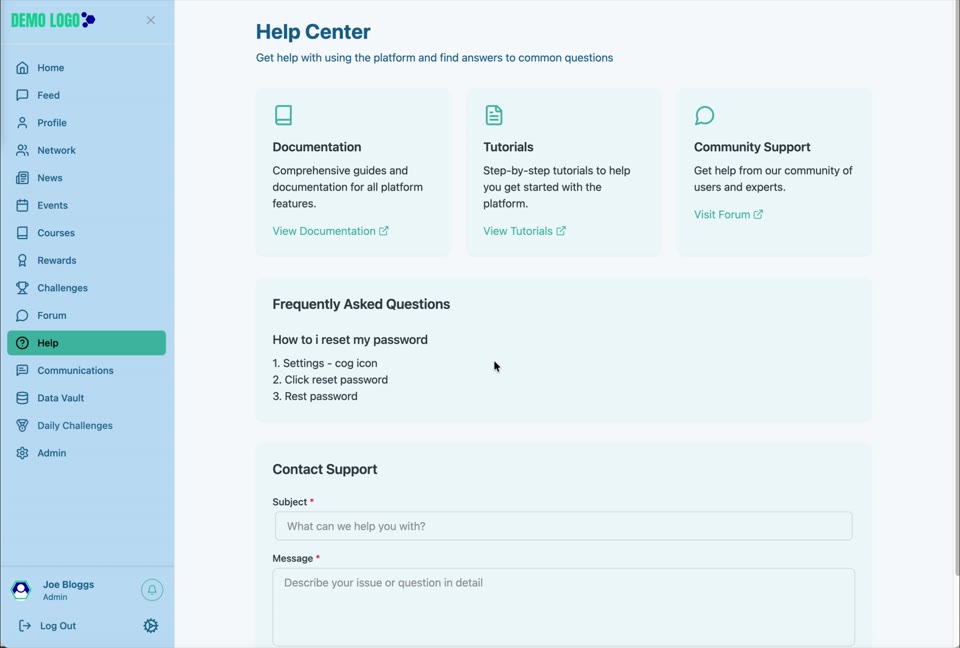
- 01:27Check the published answer
Confirm the FAQ appears for users.
What the Help Centre contains
The Help Centre brings together product documentation, tutorials, community support, frequently asked questions and a support contact form.
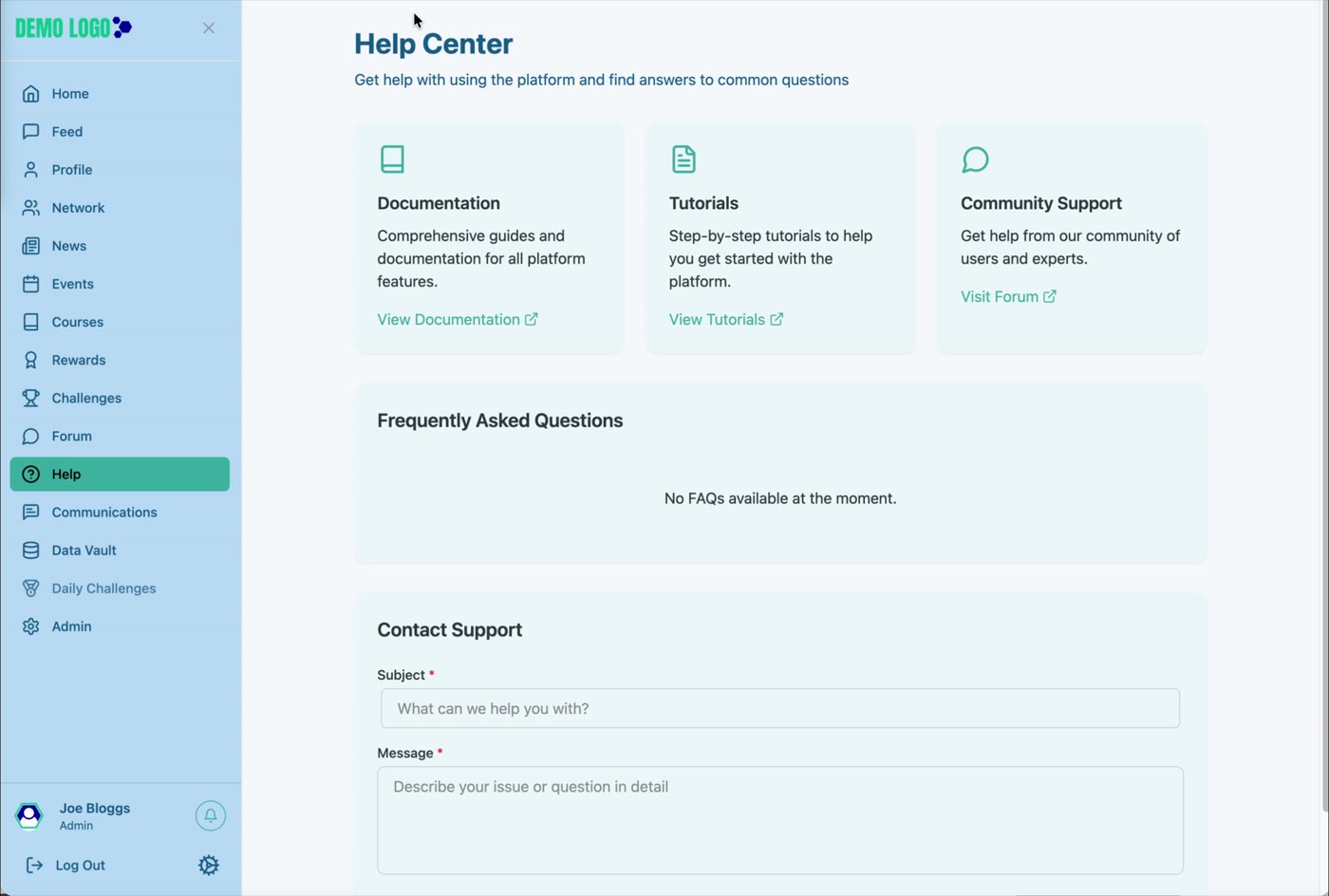
Use the support routes
Read detailed guidance
Use for complete product and process explanations.
Watch task walkthroughs
Use for short, visual demonstrations.
Ask other users
Use the Forum where peer discussion is appropriate.
Send a direct request
Add a useful subject and enough detail for the support team to investigate.
Add a Frequently Asked Question
Open Admin
Select Admin, then open FAQs.
Select Add FAQ
Enter the exact question users are likely to ask.
Write the answer
Use clear steps, links and terminology consistent with the platform.
Publish and verify
Add the FAQ, return to Help and confirm the answer displays correctly.
Support content best practice
- Write questions in the language users actually use.
- Answer the task directly before adding background.
- Link to the relevant detailed guide.
- Review FAQs after product releases and recurring support tickets.
- Avoid publishing account-specific or sensitive information.
Help Centre checklist
- Documentation and Tutorial links work.
- Community Support opens the intended Forum.
- FAQ content is current.
- Contact Support reaches a monitored team.
- Subjects and message content are transmitted securely.
- Response expectations are communicated.
Common issues
An FAQ is missing
Confirm it was added successfully and refresh the Help page.
A support link opens the wrong destination
Review the platform configuration and the client-specific support URLs.
A support message receives no reply
Confirm the destination is monitored and that the user supplied a usable subject and contact route.
Hub version 0.3.7 · Last updated 16 July 2026