Create, publish and read News
Organise formal announcements into categories, publish a structured article and help members find and read it.
News.mov · Reviewed against the Buzzmint Engage interface on 16 July 2026. The original full-motion master remains in the private BUZZMINT VIDEOS Drive folder.
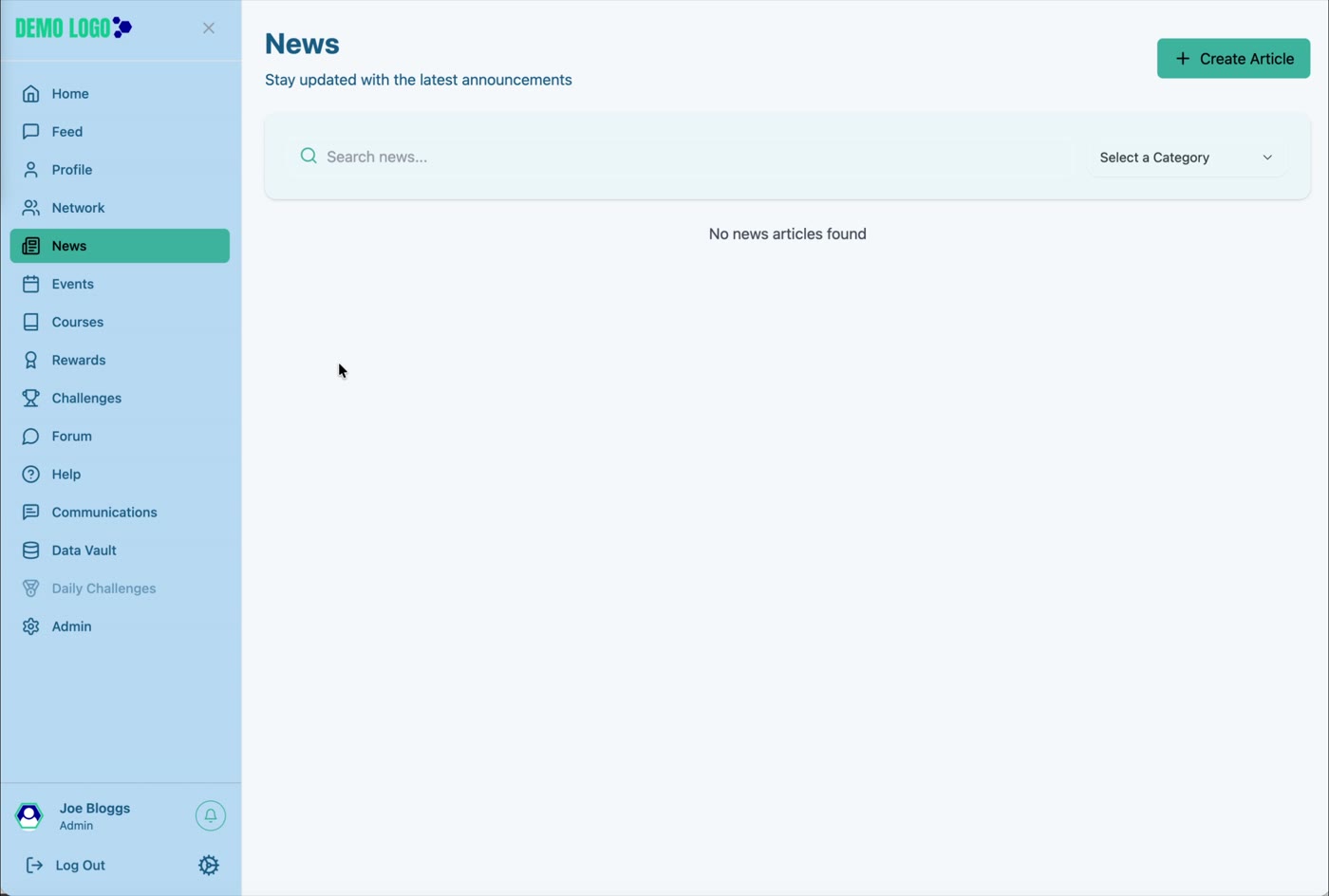
- 00:00Review the News page
See search, category filtering and article creation.
- 00:25Create News categories
Add category names and descriptions in Admin.
- 01:16Create an article
Add title, date, rich text, image, category and pin status.
- 02:20Read the published article
Open the article, mark it as read and use the share control.
- 03:12Filter the News page
Switch between News categories.
What News is for
News provides a structured home for formal announcements and longer-lived community information. Use it when members may need to find the item again, filter it by topic or confirm that they have read it.
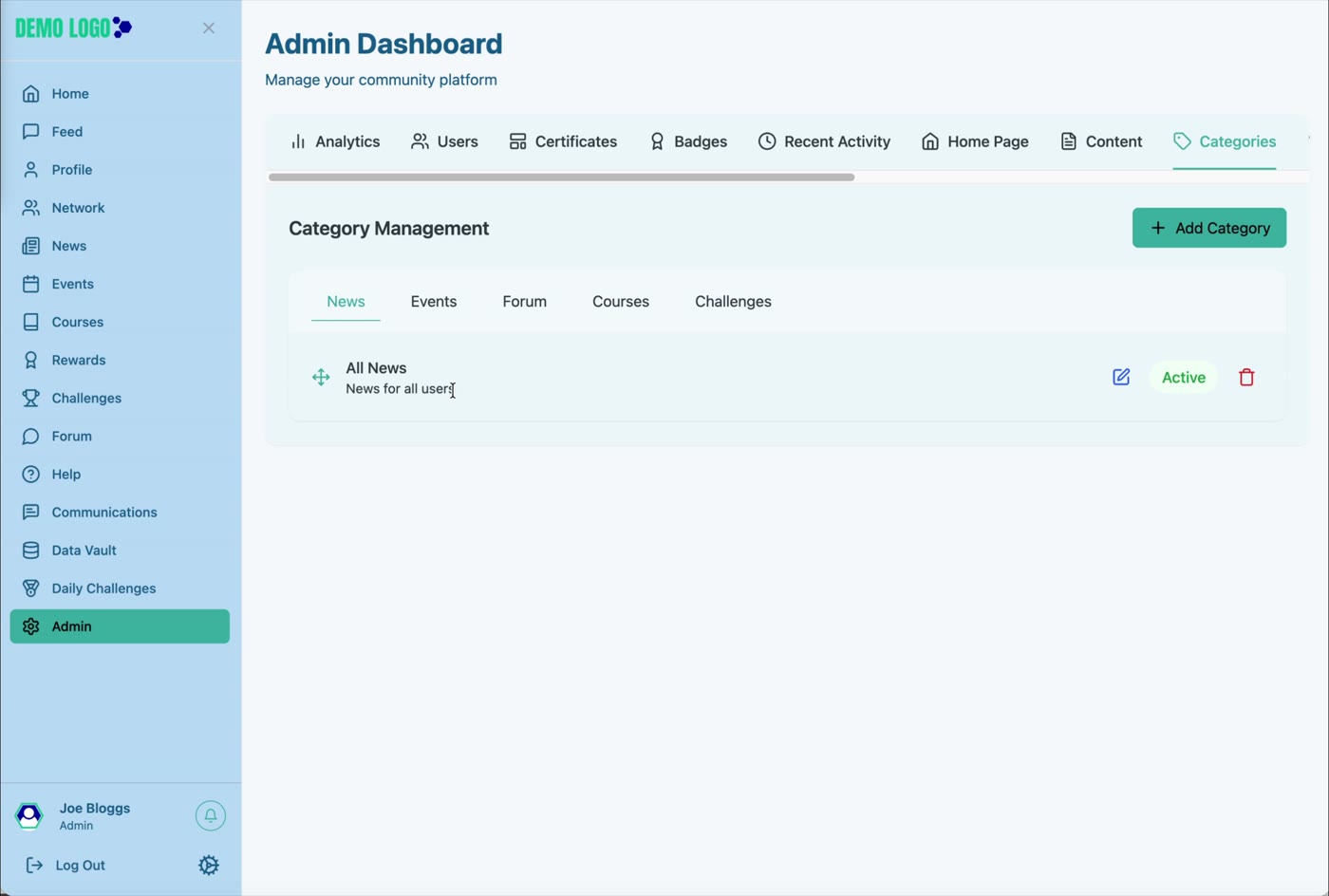
Create News categories
Open Admin
Select Admin from the left-hand navigation and open Categories.
Open the News tab
Category Management separates categories by module. Choose News before adding the category.
Select Add Category
Enter a clear category name and a short description, then create the category.
Check status
Confirm the category appears in the list and is Active before using it in an article.
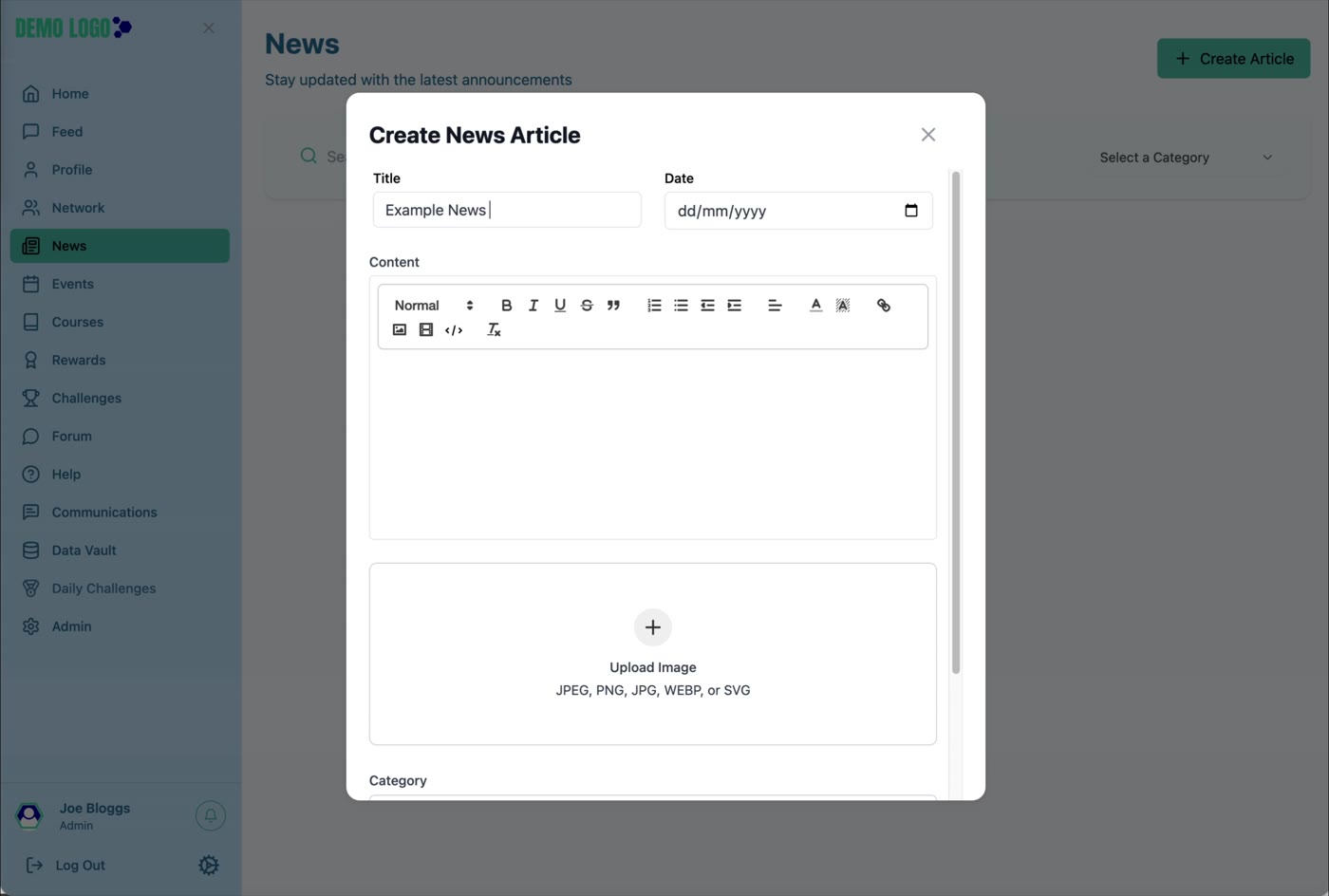
Create a News article
Return to News
Select News, then choose Create Article.
Add the title and date
Use a direct title and confirm the displayed publication date.
Write the article
Use the rich-text editor for headings, paragraphs, lists, links and supported formatting.
Upload the lead image
The walkthrough accepts JPEG, PNG, JPG, WEBP and SVG files.
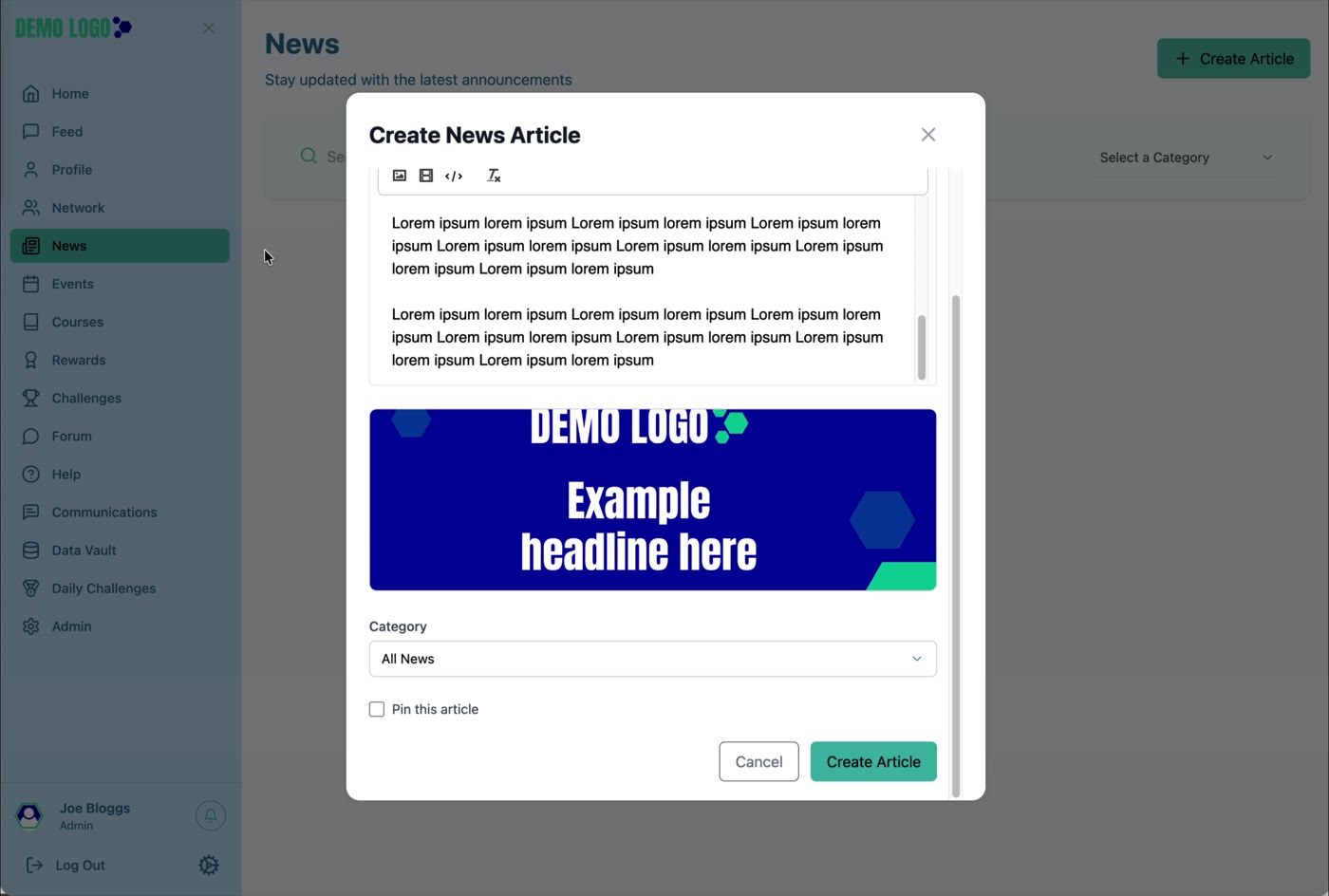
Choose a category
Assign the article to the category members will use to find it.
Choose whether to pin it
Select Pin this article only when it should remain prominent above routine updates.
Create and review
Publish the article and immediately check its card and full detail page.
How published News appears
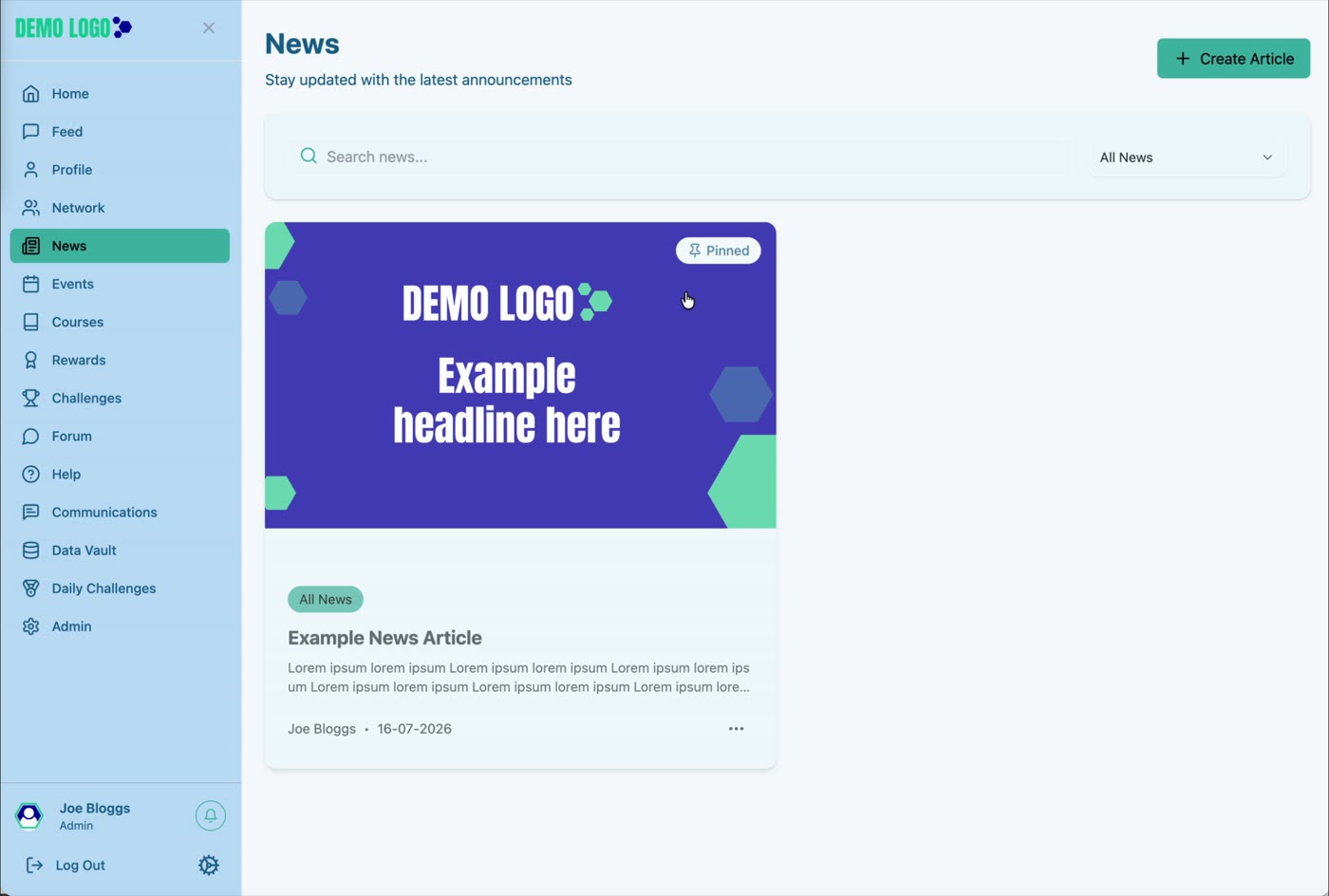
The News card displays the category, lead image, title, excerpt, author and date. A Pinned label identifies a priority article.
Read and manage an article
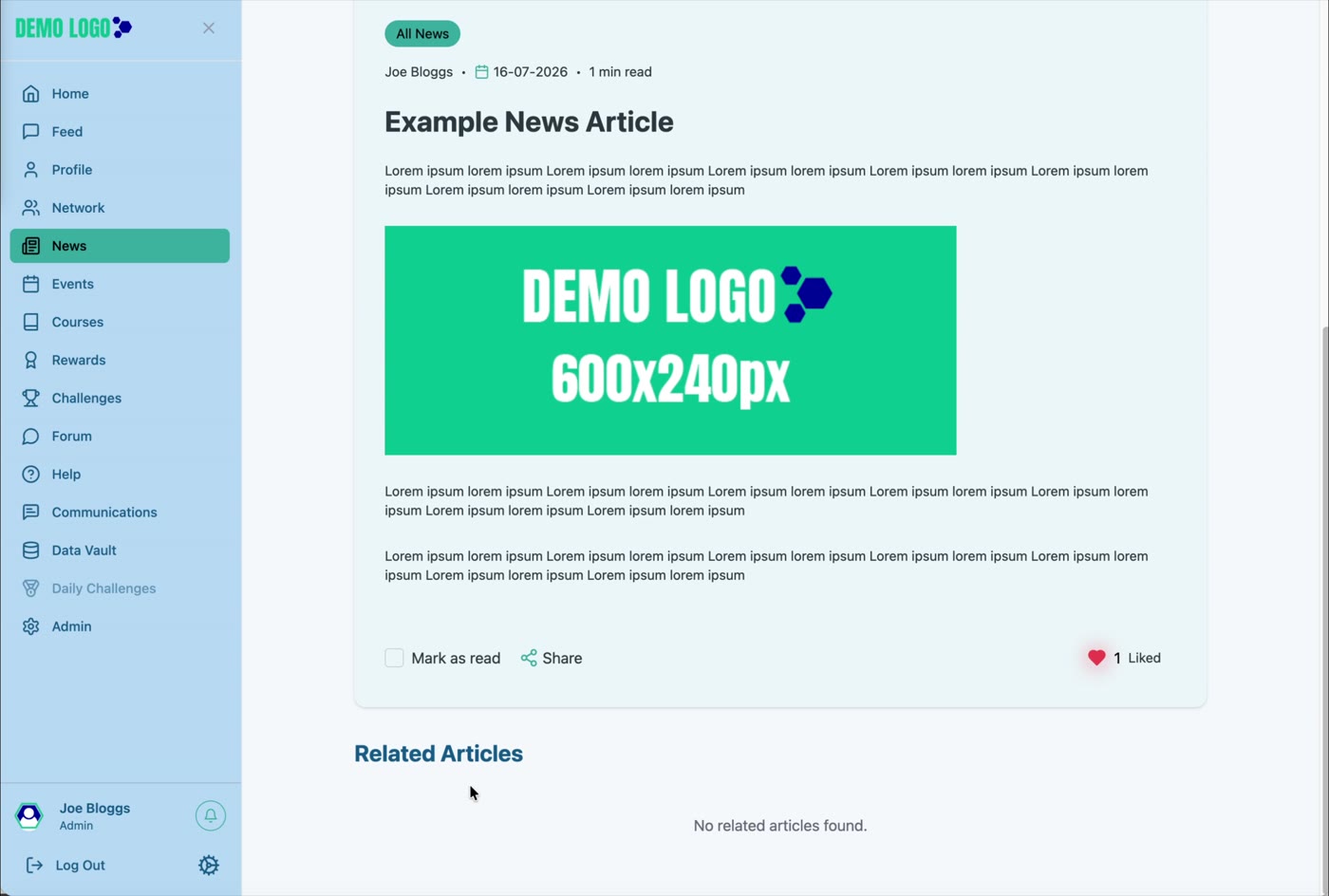
Opening the card shows the full content and image. The detail view includes controls such as Mark as read and Share, and can display Related Articles beneath the main item.
Search and filter News
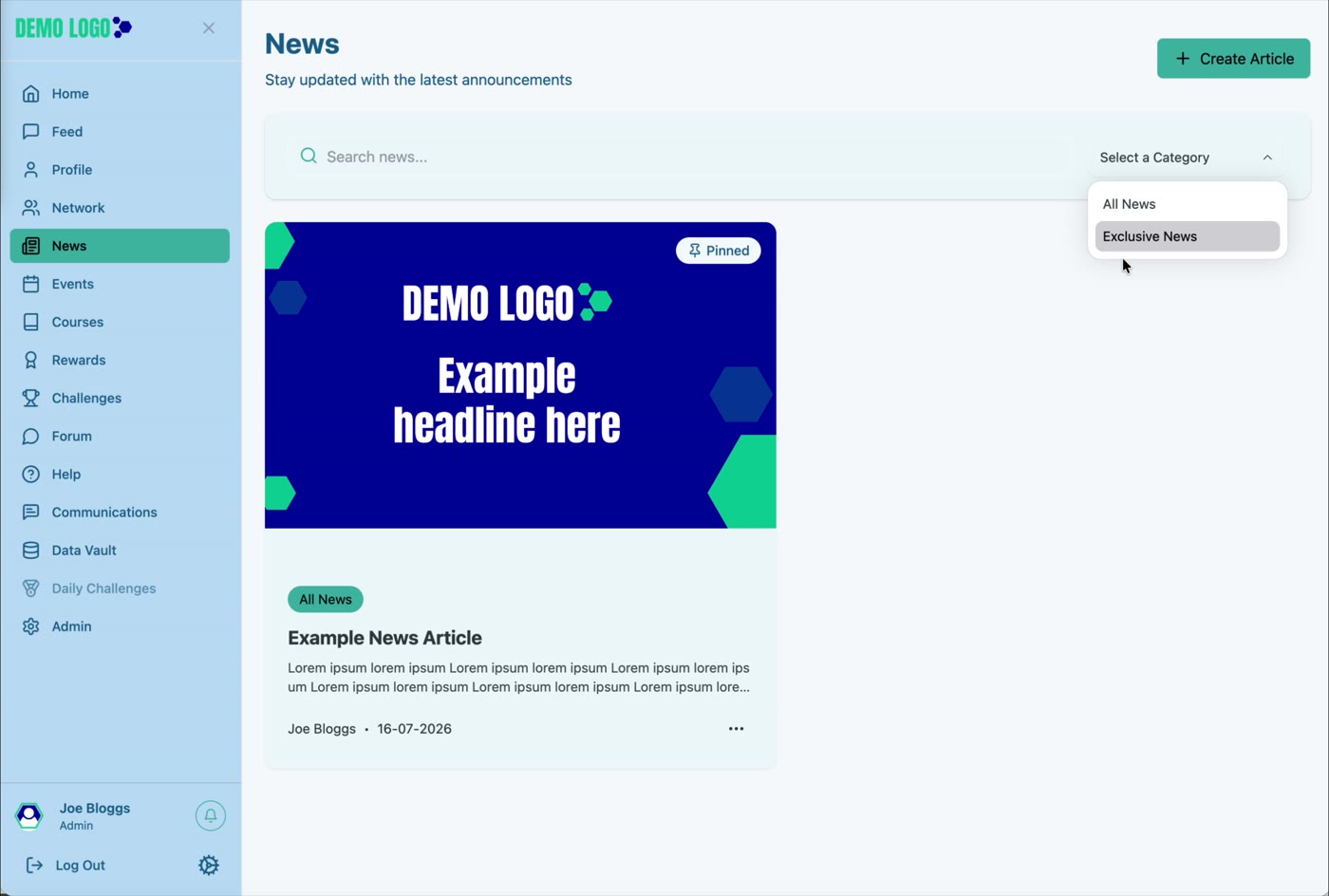
Use Search news to find matching content, or select a category such as All News or Exclusive News. Category labels should be meaningful to members and used consistently.
Publishing best practice
- Use News for formal or durable information; use Feed for faster conversation.
- Use a headline that communicates the change or action.
- Keep category names stable and understandable.
- Pin sparingly so the label retains meaning.
- Use approved imagery with useful alternative text where supported.
- Preview links and dates before publication.
News checklist
- The article is assigned to the correct category.
- The title and date are correct.
- No placeholder copy remains.
- The image is approved and crops correctly.
- Pin status is intentional.
- The full article opens successfully.
- Mark as read, Share and related content behave as expected.
Common issues
The category is not available
Confirm it was created under the News tab and remains Active.
The article cannot be found
Clear the category filter, check the search term and confirm the article was created in the correct portal.
The image looks wrong
Use an appropriately proportioned image and review the card and article detail separately.
Hub version 0.3.7 · Last updated 16 July 2026