Control module availability
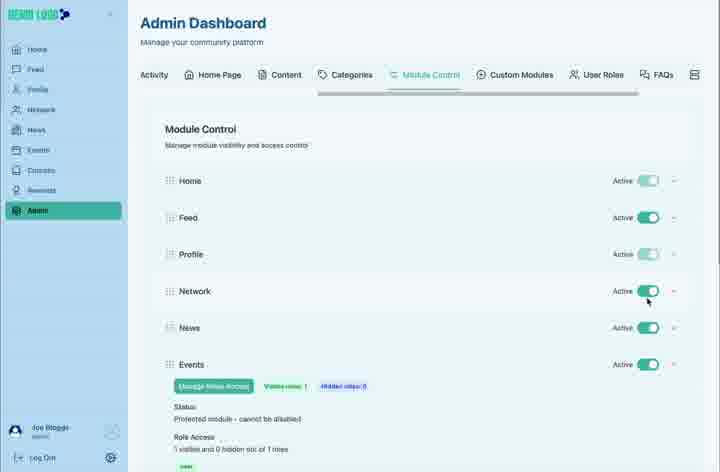
Enable or disable modules, inspect protection status and decide which roles can see each part of Engage.
admin_module control.mov · Reviewed against the Buzzmint Engage Admin interface on 16 July 2026. The full-motion master remains in the private BUZZMINT VIDEOS Drive folder.
- 00:00Review the module list
See current active status for each module.
- 00:30Change module status
Activate or deactivate an available module.
- 01:17Inspect details
Review protection and visible/hidden role summaries.
- 01:32Manage role access
Move roles between visible and hidden states.
- 02:35Verify the change
Confirm the updated module and role configuration.
What Module Control does
Module Control determines which platform modules are active and which roles can see them. It is one of the highest-impact administration areas because changes alter the navigation and member experience.
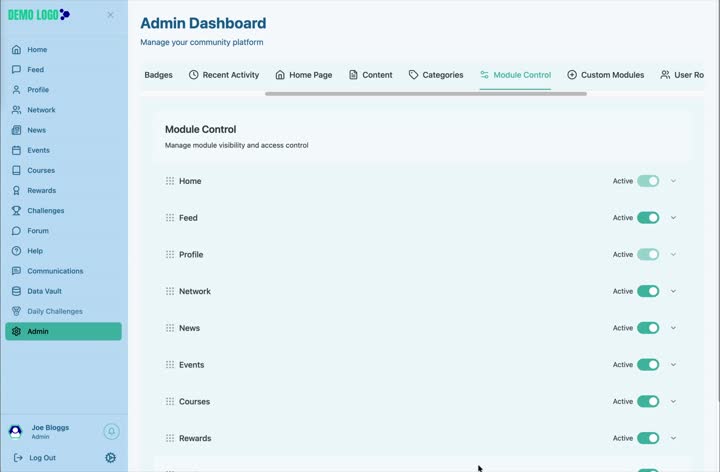
Activate or deactivate a module
Use the Active toggle to change module availability. Some protected modules cannot be disabled. After every change, verify the left-hand member navigation and any Home links that point to the module.
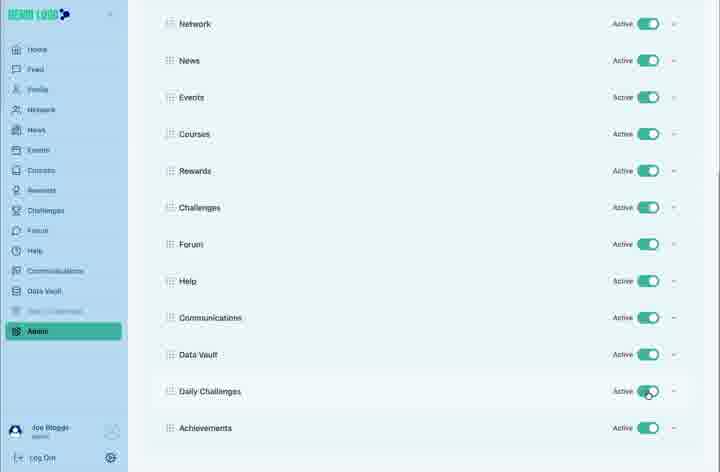
Inspect module details
Expand a module row to see its protection status, visible roles, hidden roles and access summary. This is the safest place to understand the current configuration before editing.
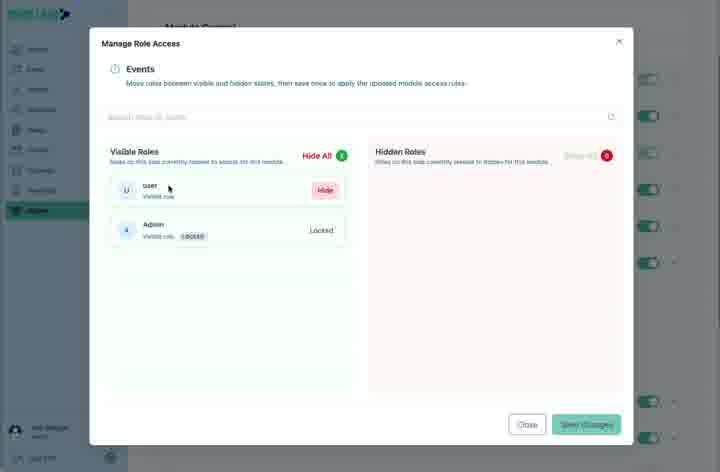
Manage role access
Select Manage Role Access
Open the role-access modal for the chosen module.
Review visible roles
These roles currently see the module.
Review hidden roles
These roles are currently excluded.
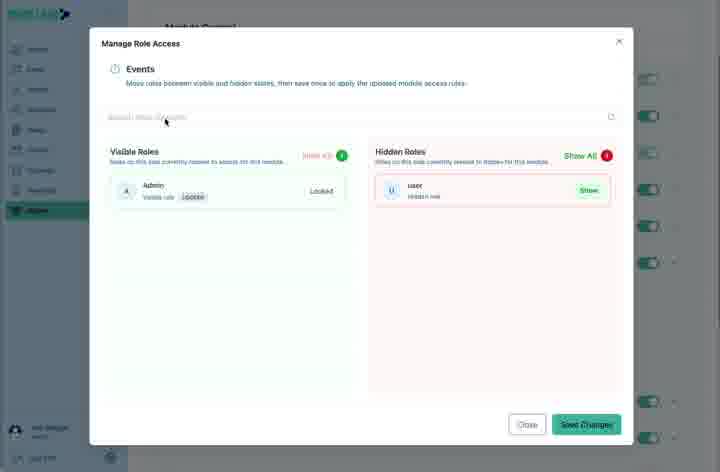
Move only the intended roles
Use Hide or Show to change access.
Save Changes
Commit the new access model and verify it with a relevant account.
Module-control best practice
- Use role access rather than disabling a module for everybody when only one group should be excluded.
- Record significant access changes.
- Test with representative member roles.
- Review protected modules before escalating a perceived problem.
- Coordinate module changes with content owners.
Module Control checklist
- The correct module was selected.
- Active status matches the agreed platform scope.
- Visible and hidden roles are correct.
- Home and custom-module links remain valid.
- A test account sees the expected navigation.
Common issues
A role still sees a hidden module
Sign out and back in, then confirm both Module Control and the role’s permissions.
A module cannot be disabled
Check whether the module is protected and whether the action requires a different governance decision.
Home links now fail
Edit or remove Home sections that point to the disabled module.
Hub version 0.3.7 · Last updated 16 July 2026