Create and interact with Feed posts
Publish timely community updates and understand how members can like, comment on and share Feed posts.
Feed module.mov · Reviewed against the Buzzmint Engage interface on 16 July 2026.
What the Feed is for
The Feed provides a conversational stream for timely updates, discussion and lightweight member interaction. It is different from formal News content: Feed posts are designed for faster, more social communication.
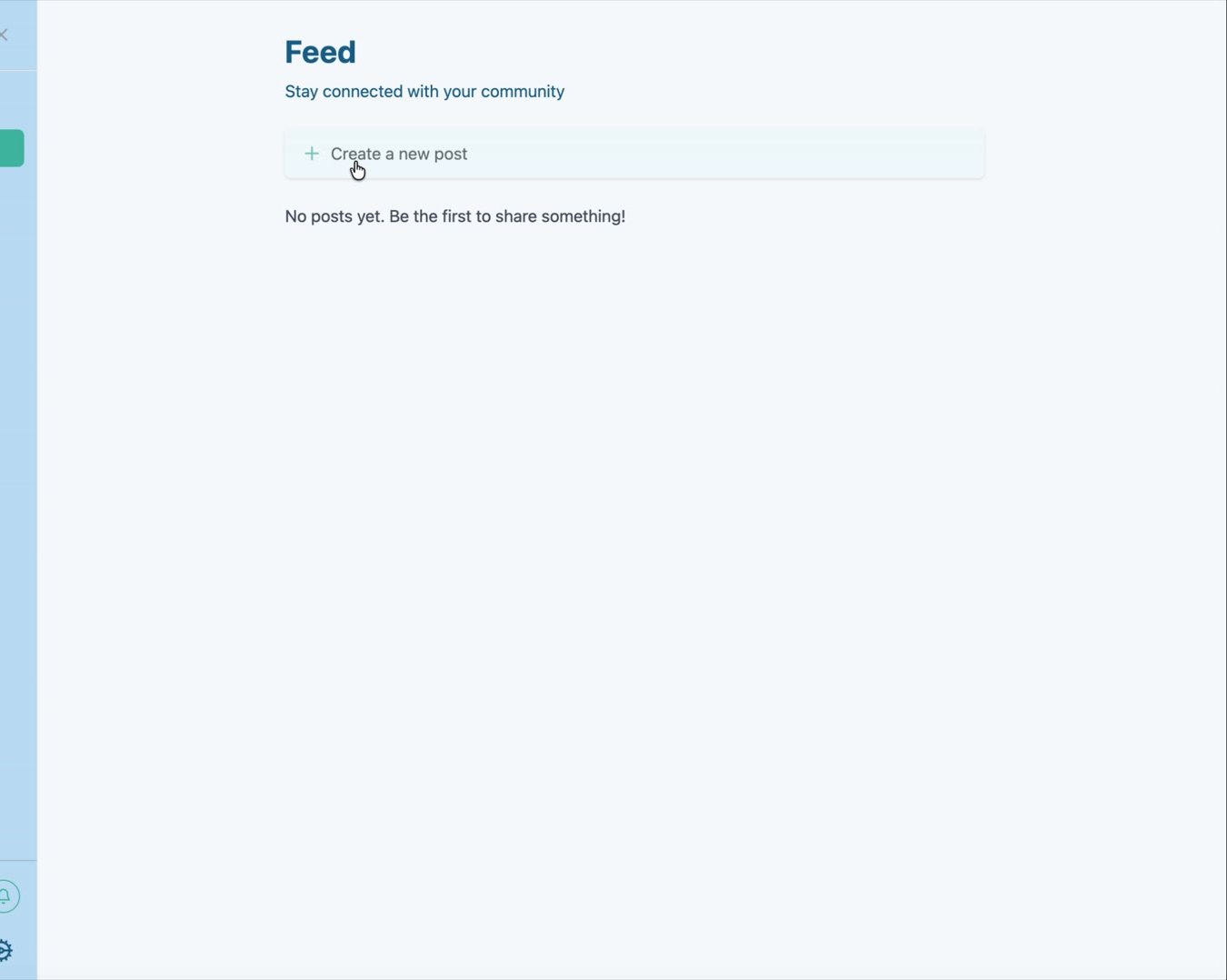
Create a Feed post
Open Feed
Select Feed from the left-hand portal navigation.
Select Create a new post
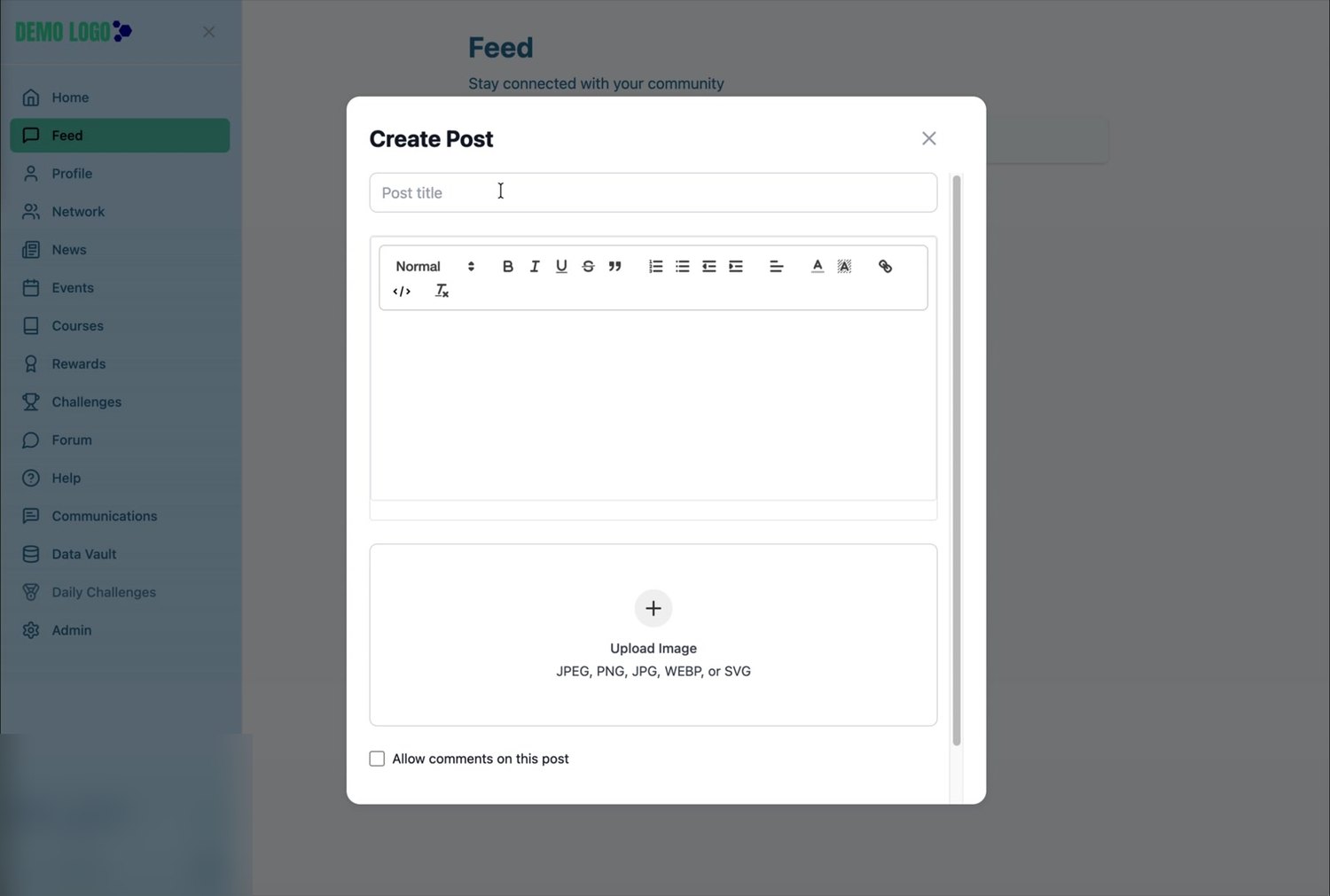
The Create Post form opens over the Feed.
Add a title
Use a clear title that tells members what the post is about before they read the body.
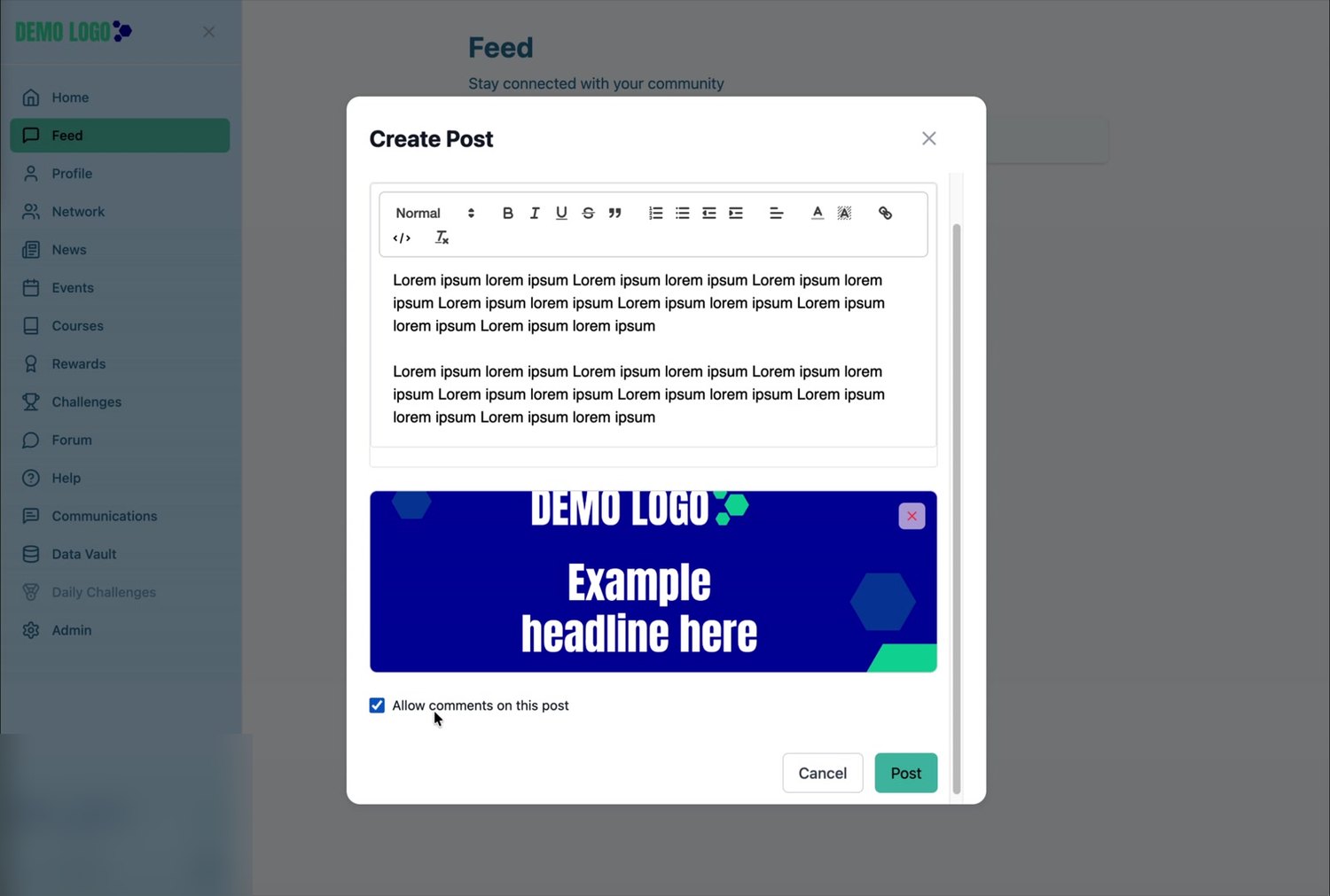
Write and format the body
Use the rich-text toolbar for headings or paragraph style, emphasis, lists, alignment, links and other supported formatting. Keep the message easy to scan.
Upload an optional image
The upload control accepts JPEG, PNG, JPG, WEBP and SVG files.
Choose whether to allow comments
Select Allow comments on this post when the post should support a discussion. Leave it clear for announcement-only content.
Select Post
Publish the item and confirm it appears at the top of the Feed.
Check the published post
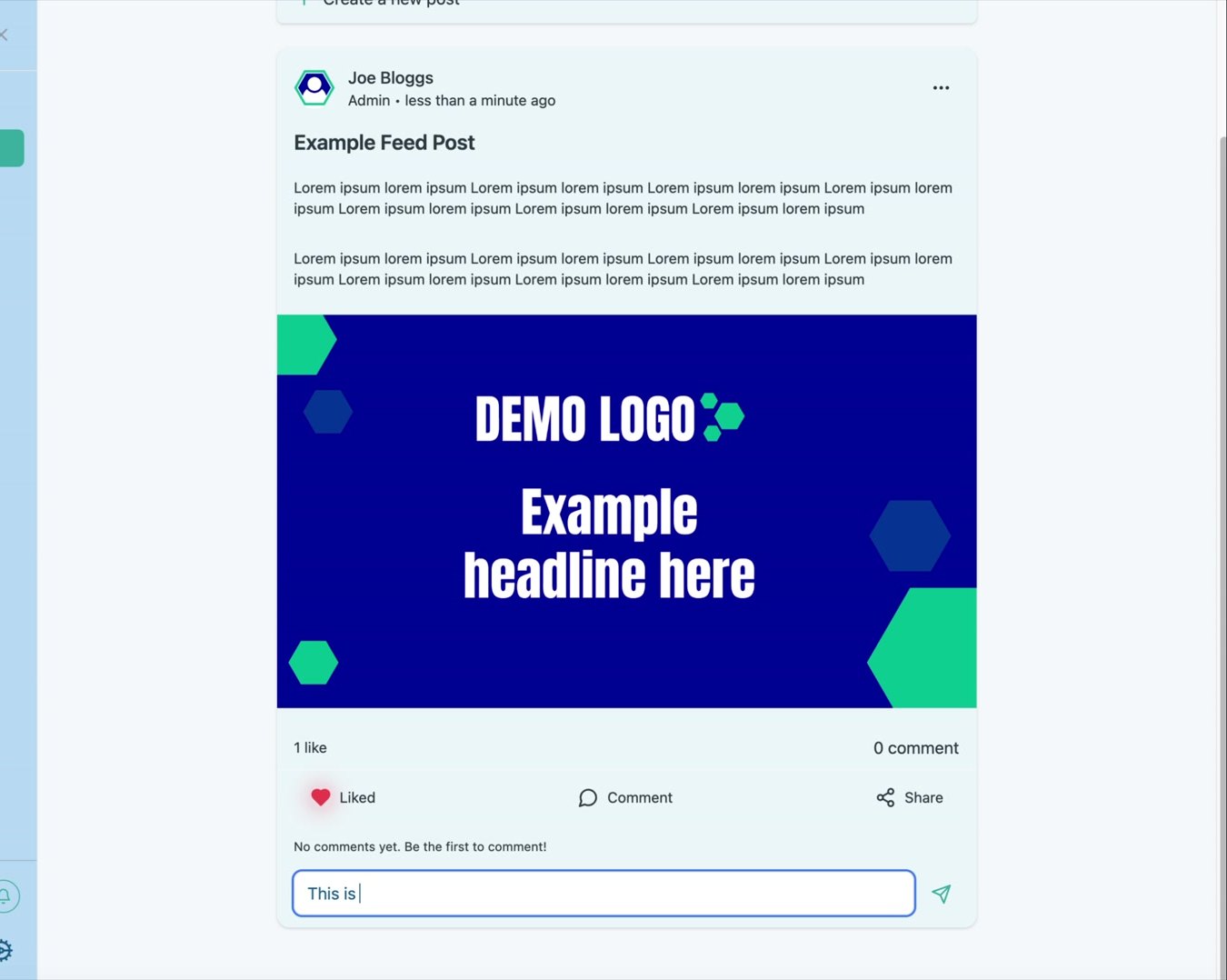
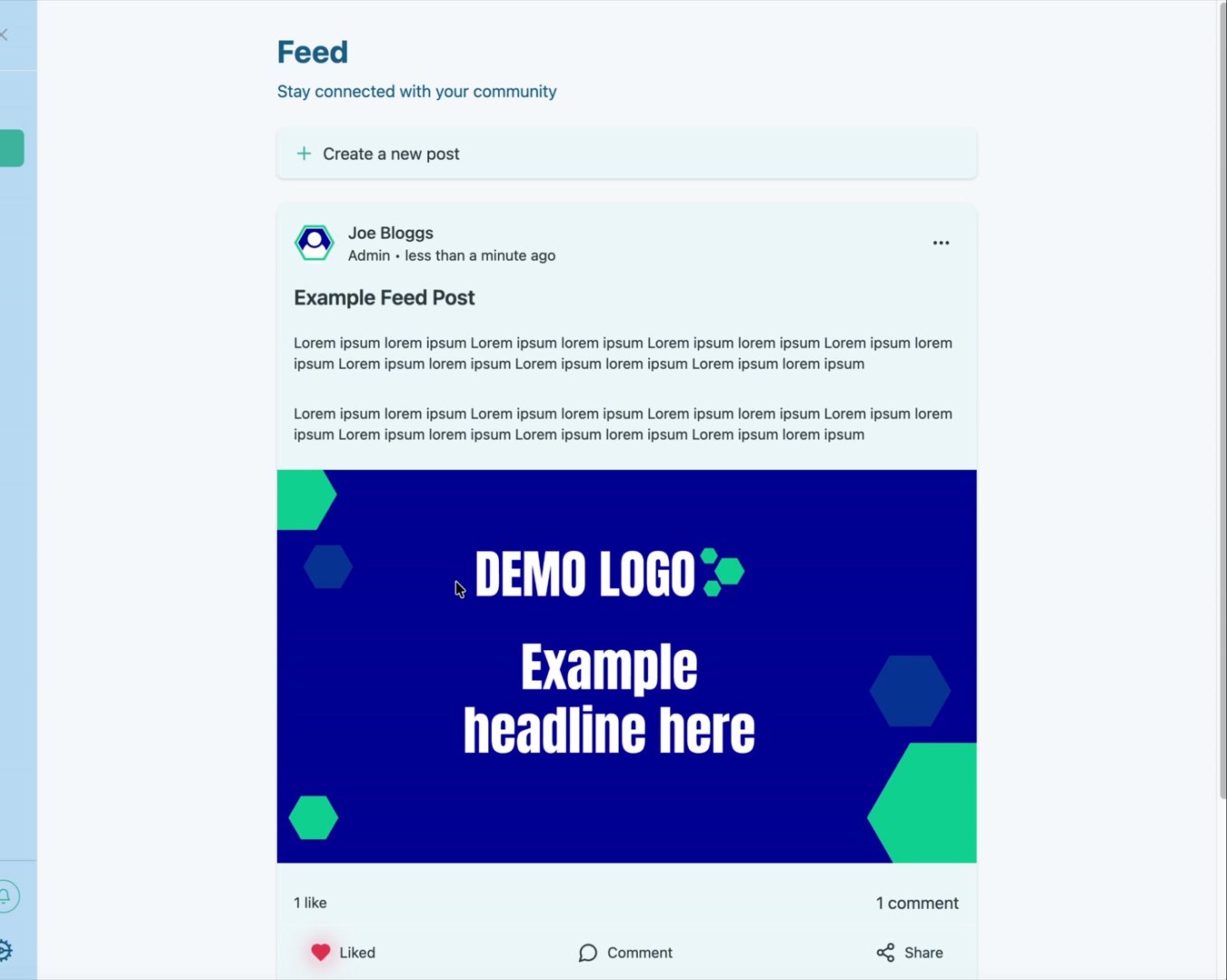
The published card displays the author, role and time, followed by the title, formatted body and uploaded image. Engagement totals and actions appear underneath.
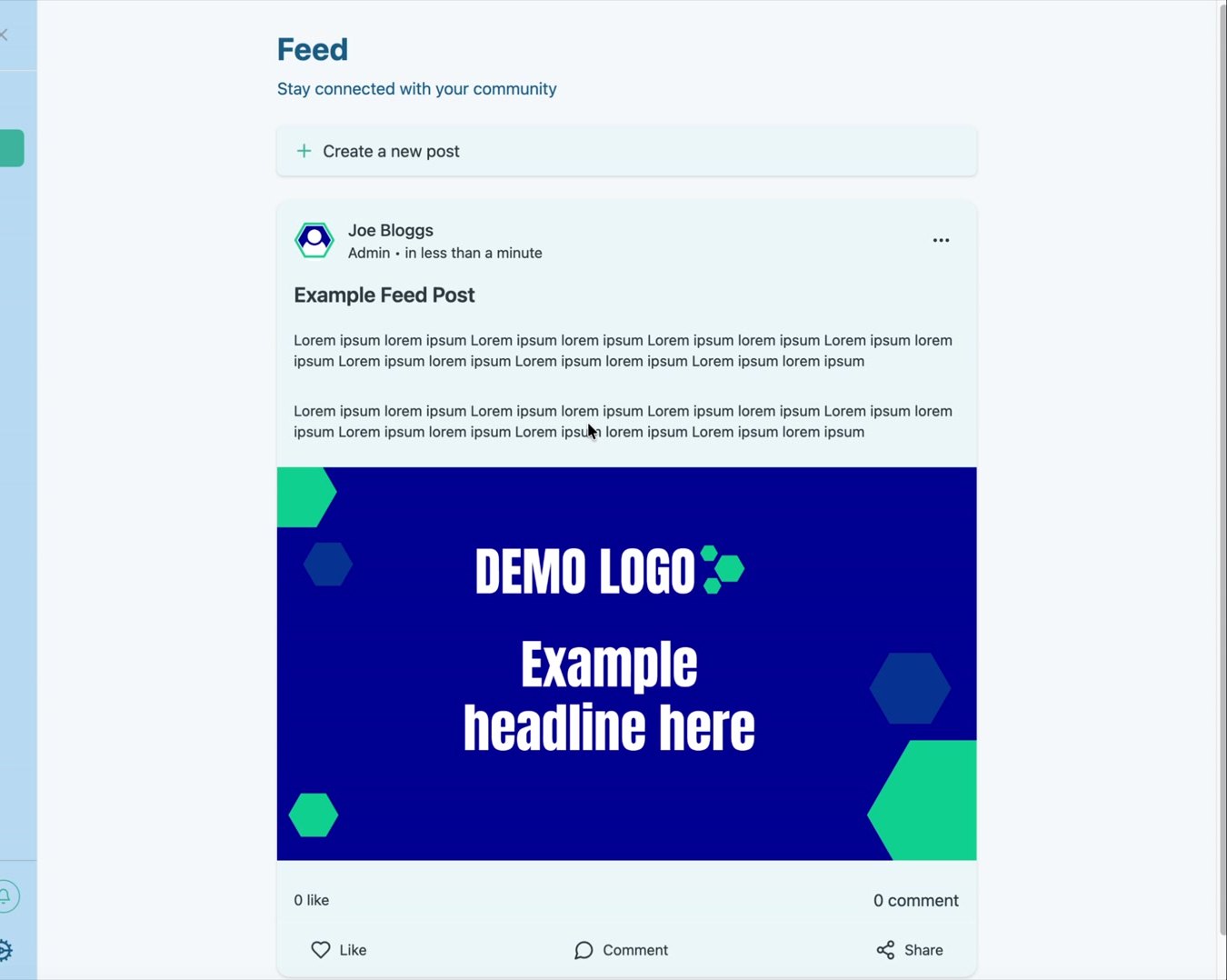
Like, comment and share
Acknowledge the post
Select Like to register a reaction. The control changes to Liked and the total updates.
Join the discussion
When comments are enabled, select Comment, enter a response and use the send control.
Use the available share action
The post includes a Share control. Its exact destination or behaviour can depend on the portal configuration and browser.
See engagement at a glance
Like and comment totals are displayed beneath the post content.
Feed publishing best practice
- Use one purpose per post.Announcements, questions and calls to action are easier to understand when they are not combined.
- Lead with the useful information.Members may only scan the first few lines.
- Use images intentionally.The image should add context, not simply repeat the title.
- Enable comments only when somebody can monitor them.Set expectations and respond where a reply is needed.
- Use News for formal or long-lived information.The Feed works best for timely community conversation.
Post checklist
- The title is clear and free from placeholder text.
- The body is readable on a narrow screen.
- Links open the intended destination.
- The image is approved and displays correctly.
- The comment setting matches the purpose of the post.
- The published item appears in the correct portal.
- Somebody is responsible for monitoring replies where comments are enabled.
Common issues
The post does not appear
Confirm that Post was selected successfully, then refresh the Feed. Check that you are signed into the correct portal.
Members cannot comment
Comments may not have been enabled when the post was created, or the member’s permissions may restrict interaction.
The image will not upload
Confirm the file uses one of the supported formats and is not unusually large or corrupt.
Formatting looks inconsistent
Remove unnecessary styling, use a simple paragraph structure and preview the published result rather than relying only on the editor.
Hub version 0.3.7 · Last updated 16 July 2026