Build and complete Courses
Create a structured Course, add Modules and Lessons, include resources and assessment, and test the learner journey.
courses.mov · Reviewed against the Buzzmint Engage interface on 16 July 2026. The original full-motion master remains in the private BUZZMINT VIDEOS Drive folder.
- 00:00Create the Course category
Set up the category used for discovery.
- 00:59Create the Course
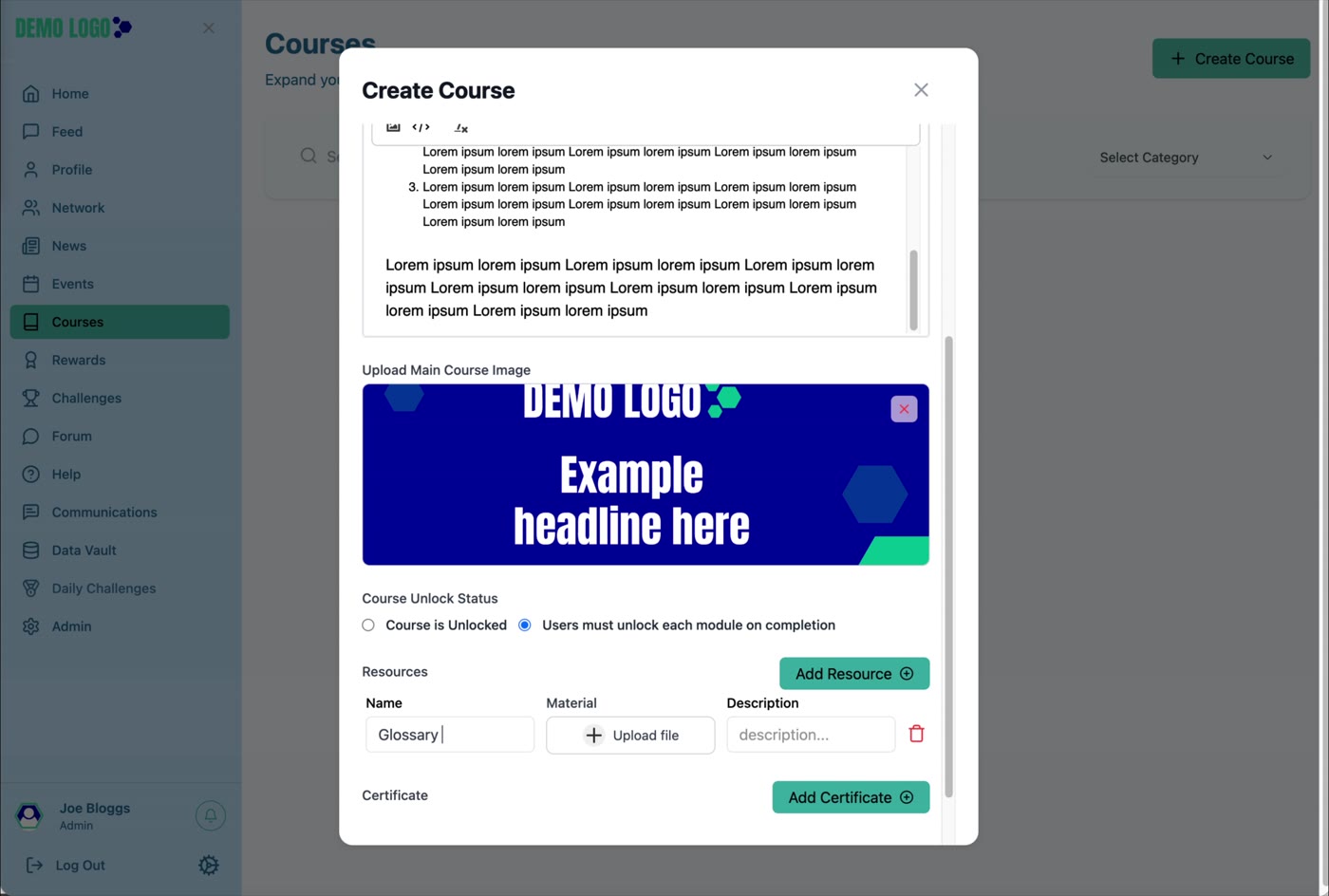
Configure enrolment, qualification, duration, description, image and unlock behaviour.
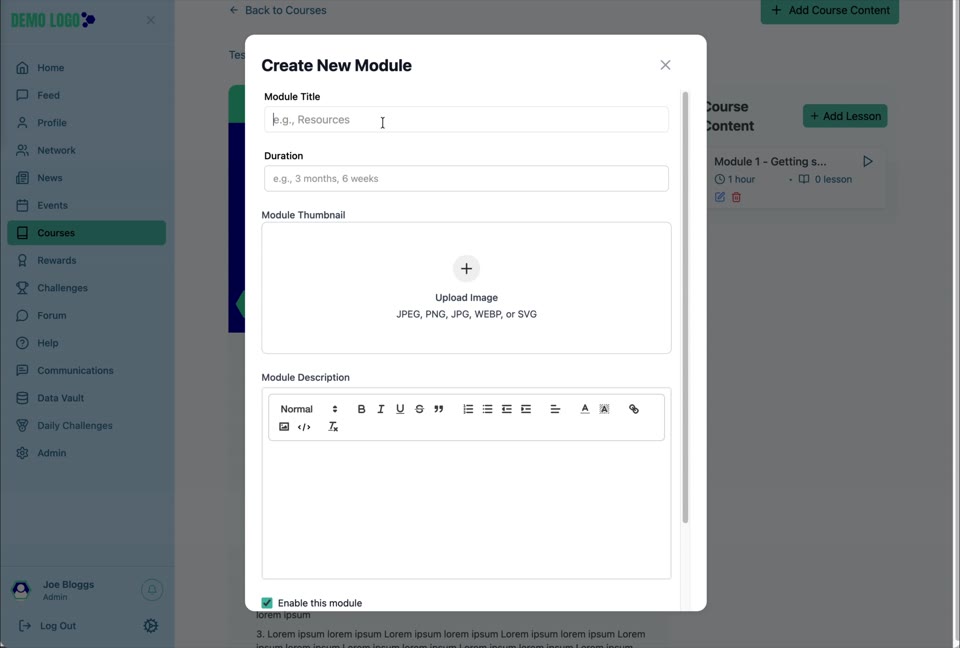
- 04:52Add a Module
Create the module title, duration, thumbnail and description.
- 06:20Add a Lesson
Add lesson content, video URL, resources and questions.
- 07:18Build the assessment
Create lesson questions or assign an existing quiz.
- 07:47Review the learner view
Open the lesson and submit the assessment response.
- 09:15Return to Courses
Confirm the published course card and module count.
How Courses are structured
A Course is the overall learning experience. It contains one or more Modules, and each Module can contain Lessons. Lessons may include video, resources and assessment questions. Unlock settings determine whether learners can move freely or progress in sequence.
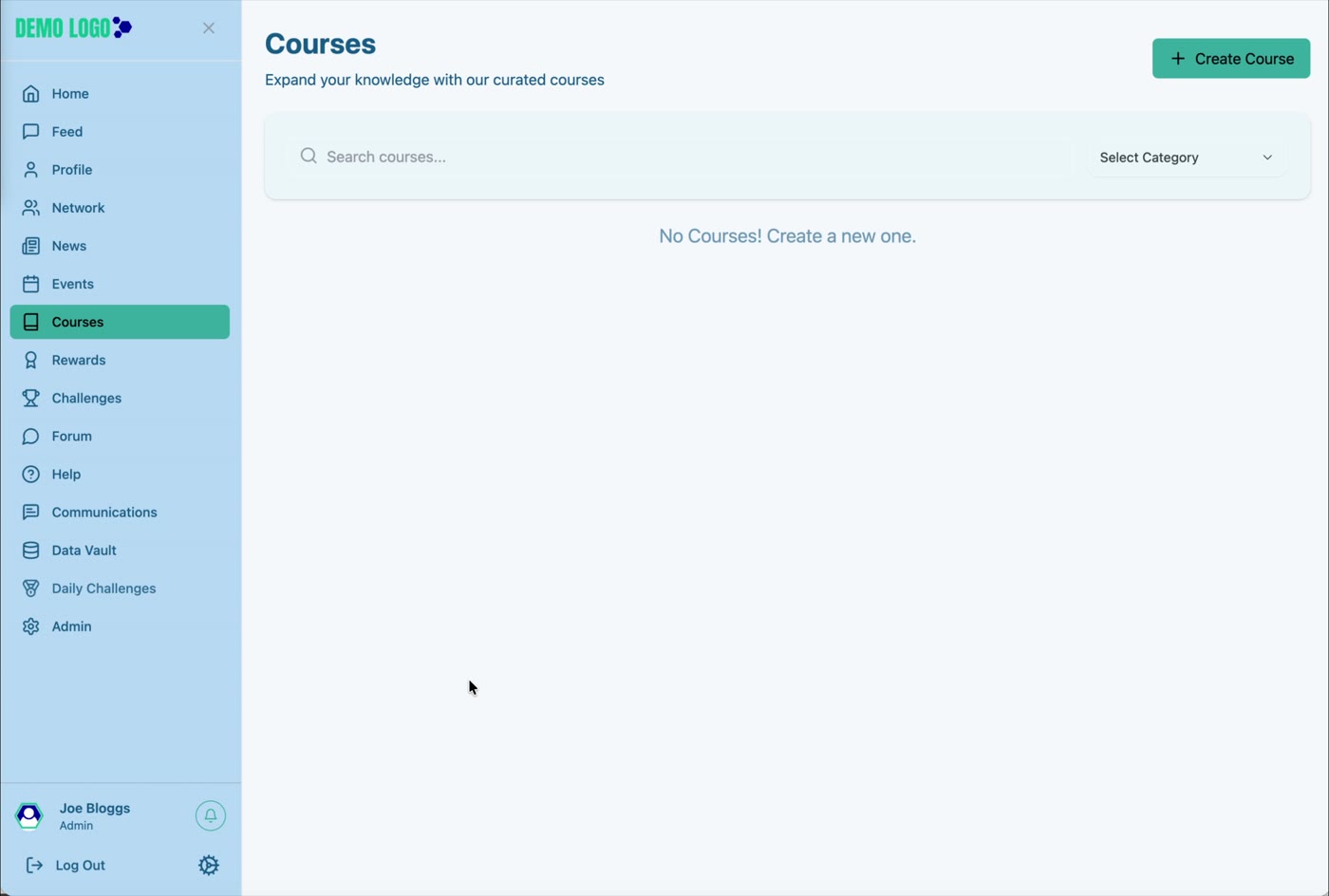
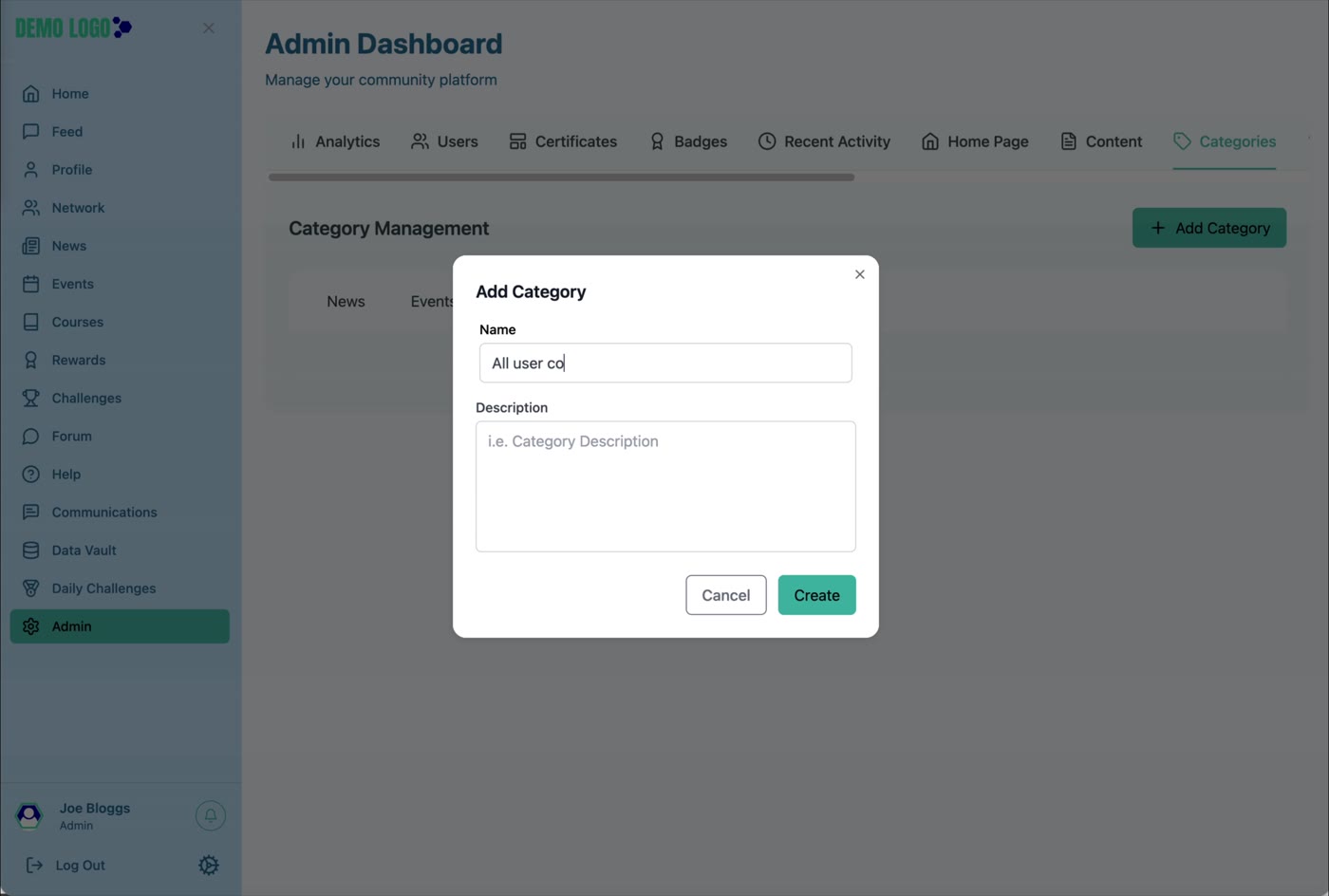
Create the Course category
Use Admin → Categories → Courses to create the category name and description. Activate it before opening Create Course.
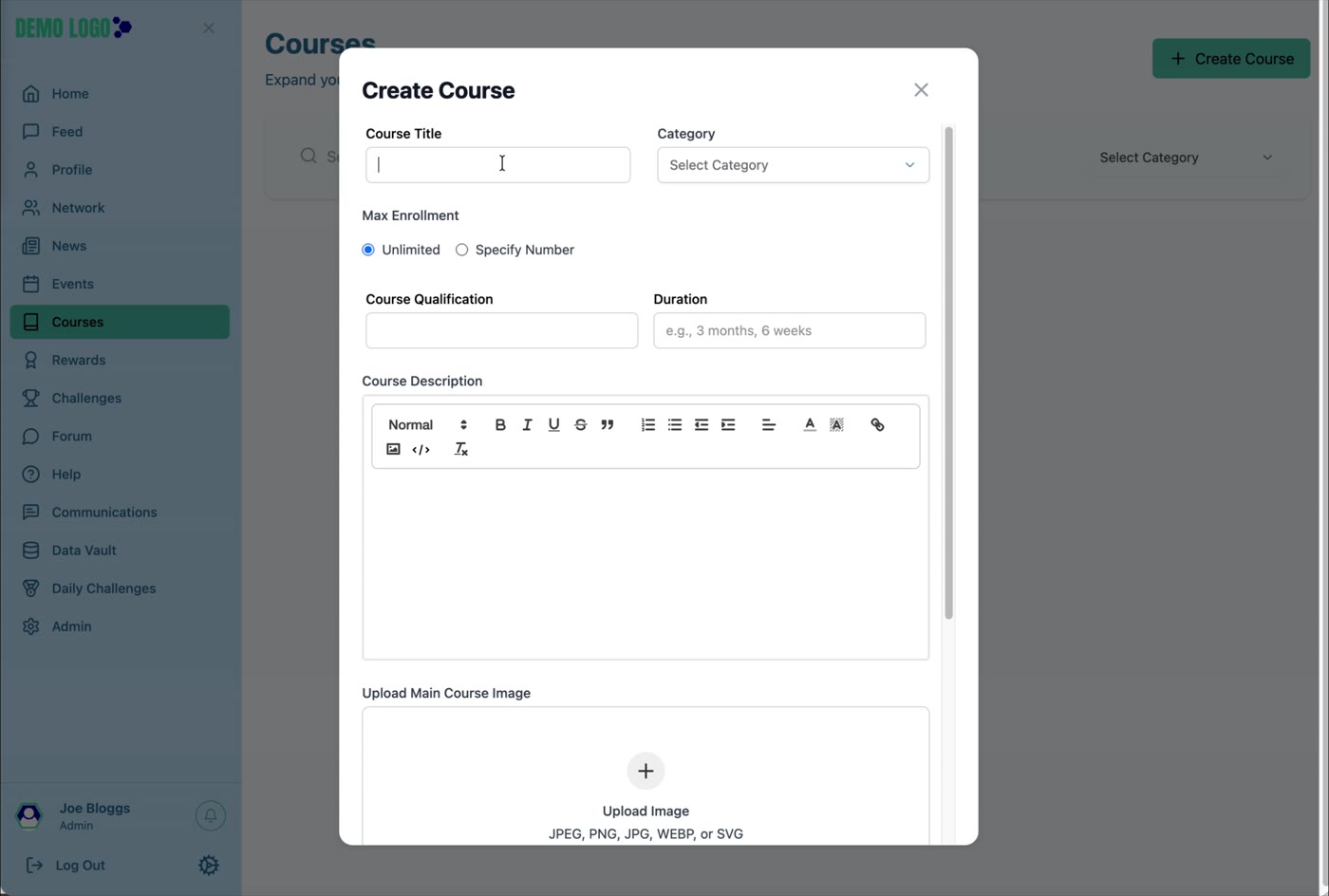
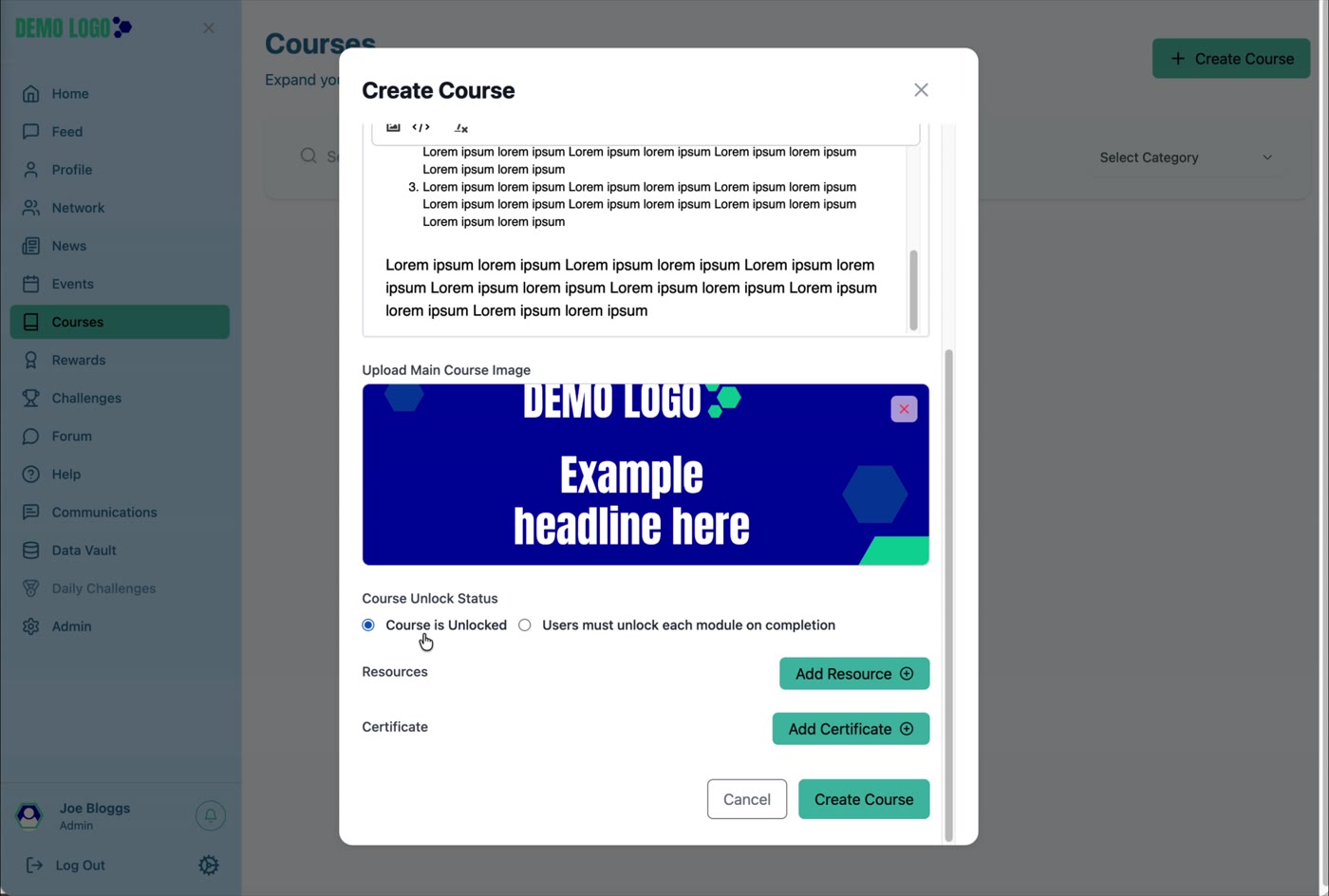
Create the Course
| Field or control | Purpose | Guidance |
|---|---|---|
| Course Title | Names the learning experience. | Use a specific outcome or subject rather than an internal project code. |
| Category | Groups the Course for search and filtering. | Select an active Course category. |
| Max Enrolment | Sets Unlimited or a specified number. | Apply a limit only when access or support capacity requires it. |
| Course Qualification | Describes the qualification or level. | Use the approved qualification wording. |
| Duration | Communicates expected study time. | Use a human-readable value such as “3 hours” or “6 weeks”. |
| Course Description | Explains the value and content. | Include learning outcomes, audience and prerequisites. |
| Main Course Image | Creates the Course visual. | Use approved imagery in the supported formats. |
| Course Unlock Status | Controls open or sequential progress. | Choose whether the Course is fully unlocked or each Module unlocks on completion. |
| Resources | Adds supporting materials. | Use descriptive titles and current files or links. |
| Certificate | Connects Course completion to a certificate. | Confirm award rules and certificate ownership before launch. |
Add a Module
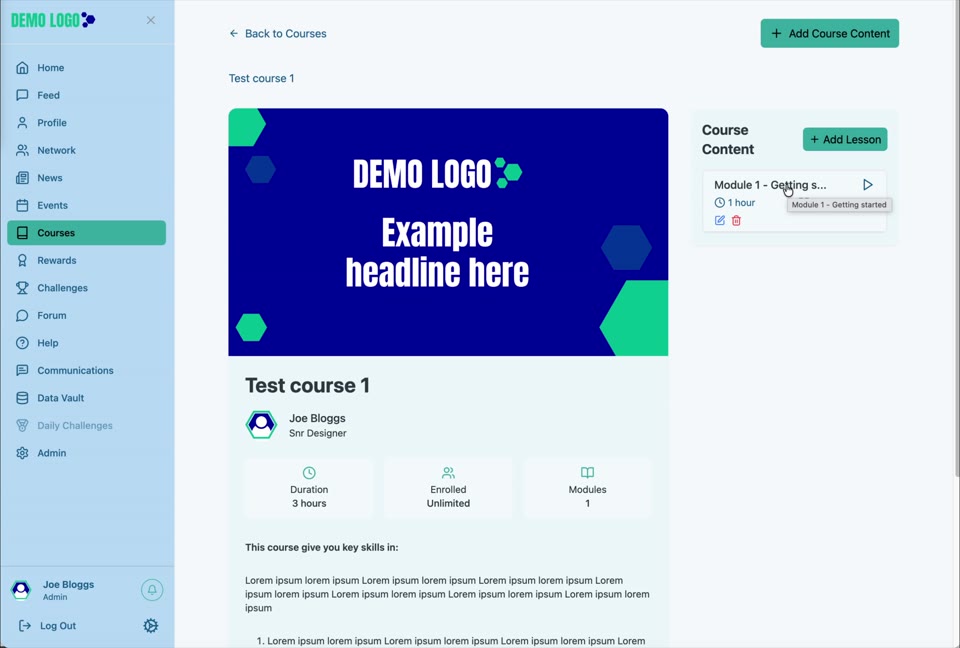
Open the Course and select Add Course Content. Enter the Module Title and Duration, upload a Module Thumbnail, write the Module Description and use Enable this module when it should be available.
Add a Lesson
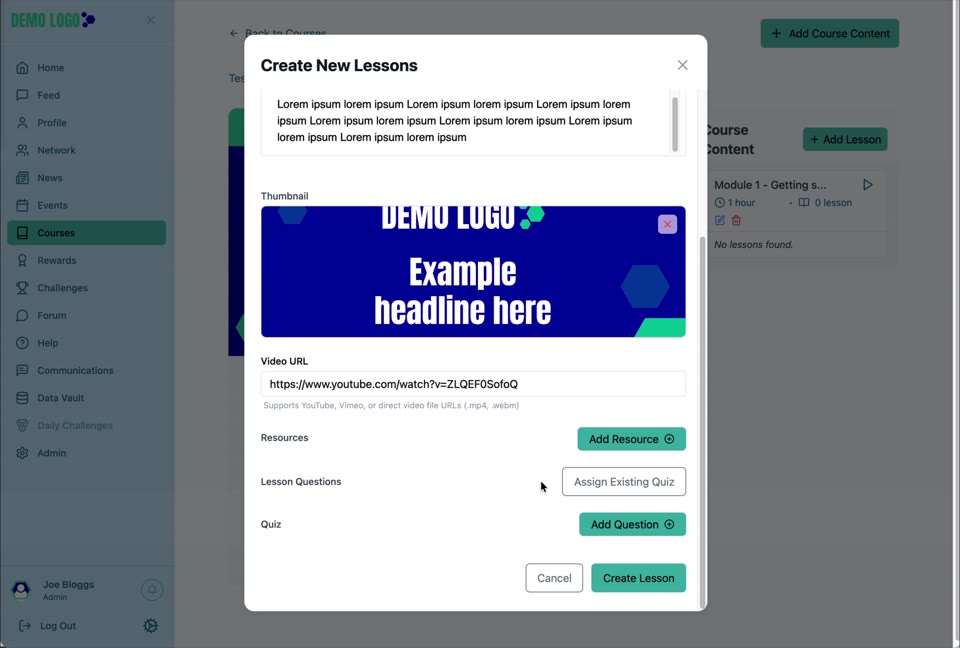
Select Add Lesson from the Course Content panel. Choose the Module, then enter the Lesson Title and Description. Add a thumbnail and a supported video URL, then attach any resources.
Add Lesson questions
Use Assign Existing Quiz when the assessment already exists, or Add Question to create it within the Lesson. Make the question, response type, requirement and completion rule clear to the learner.
Review the learner experience
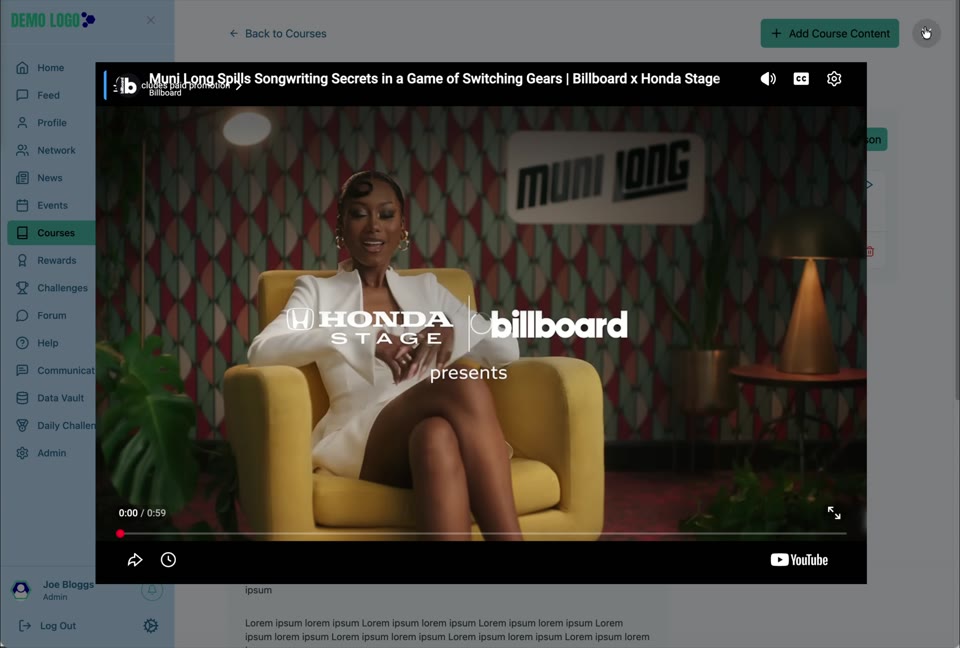
Open the Course as a learner. Check Course information, Module and Lesson navigation, video or resource access, assessment response and progression. When sequential unlocking is enabled, confirm the next Module remains unavailable until completion.
Course design best practice
- Start with learning outcomes, not the number of Modules.
- Keep Lessons focused and estimate the real completion time.
- Use sequential unlocking only where order is educationally necessary.
- Test every video URL, resource and question as a learner.
- Explain qualification and certificate rules before enrolment.
- Use assessments that test the stated outcome rather than trivia.
Course checklist
- Category is active.
- Course title, qualification and duration are accurate.
- Enrolment limit is intentional.
- Image, description and resources are approved.
- Unlock behaviour is tested.
- Every Module is enabled when required.
- Lessons open in the intended order.
- Video URLs and resources work.
- Assessment questions and required settings are correct.
- Certificate rules are tested.
Common issues
A Module or Lesson is missing
Confirm it was created under the correct Course and Module, and check its enabled status.
The learner cannot continue
Review the unlock setting and confirm the preceding Lesson or assessment has been completed successfully.
The video does not play
Test the URL, its sharing permissions and whether the source is supported by the platform and browser.
Hub version 0.3.7 · Last updated 16 July 2026