Create, submit and review Challenges
Build a clear Challenge, collect member evidence, record a score and feedback, and confirm the reward outcome.
challenges.mov · Reviewed against the Buzzmint Engage interface on 16 July 2026. The original full-motion master remains in the private BUZZMINT VIDEOS Drive folder.
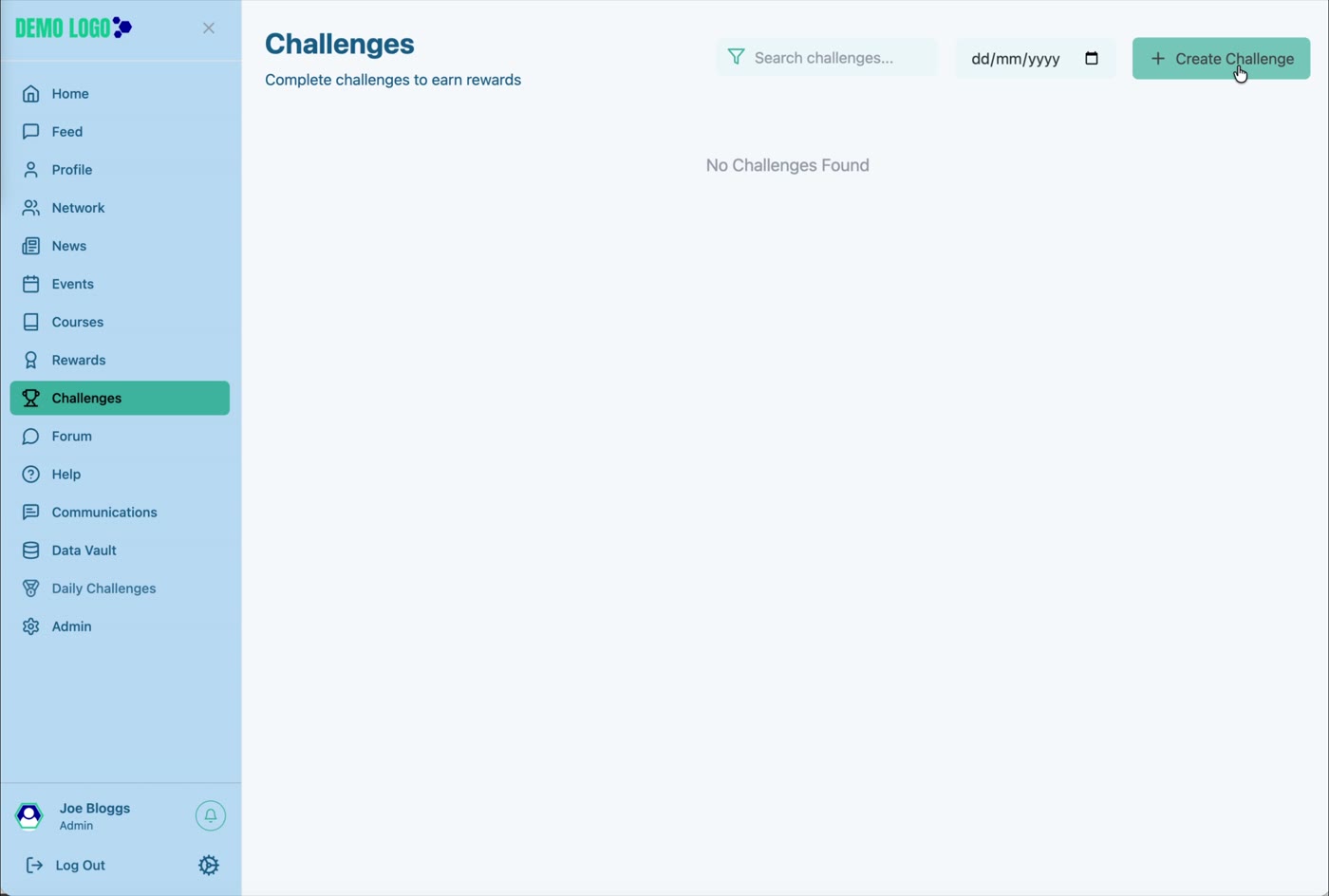
- 00:00Review Challenges
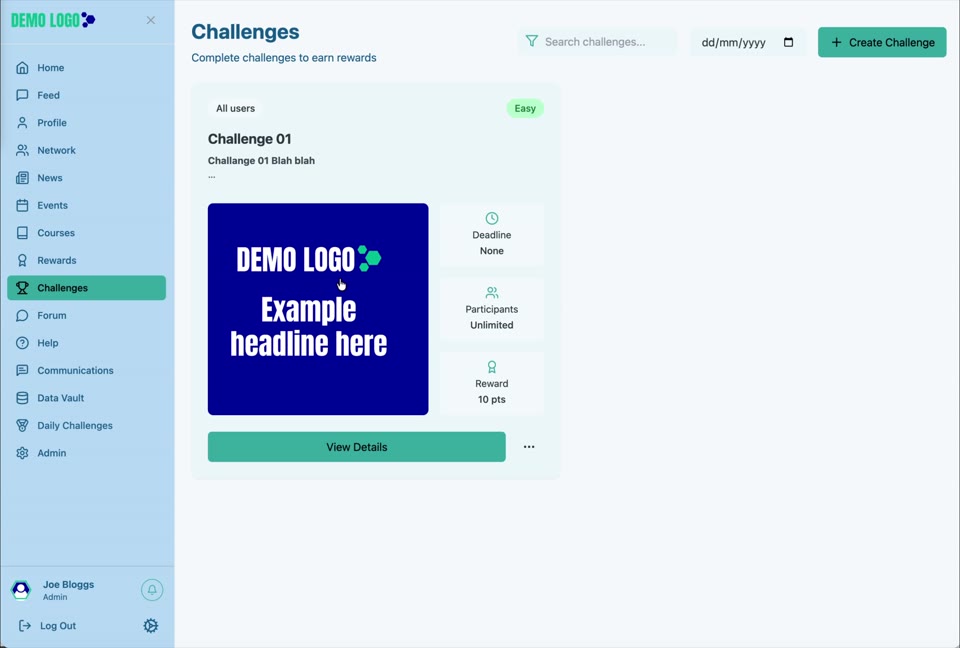
See search, deadline filtering and Create Challenge.
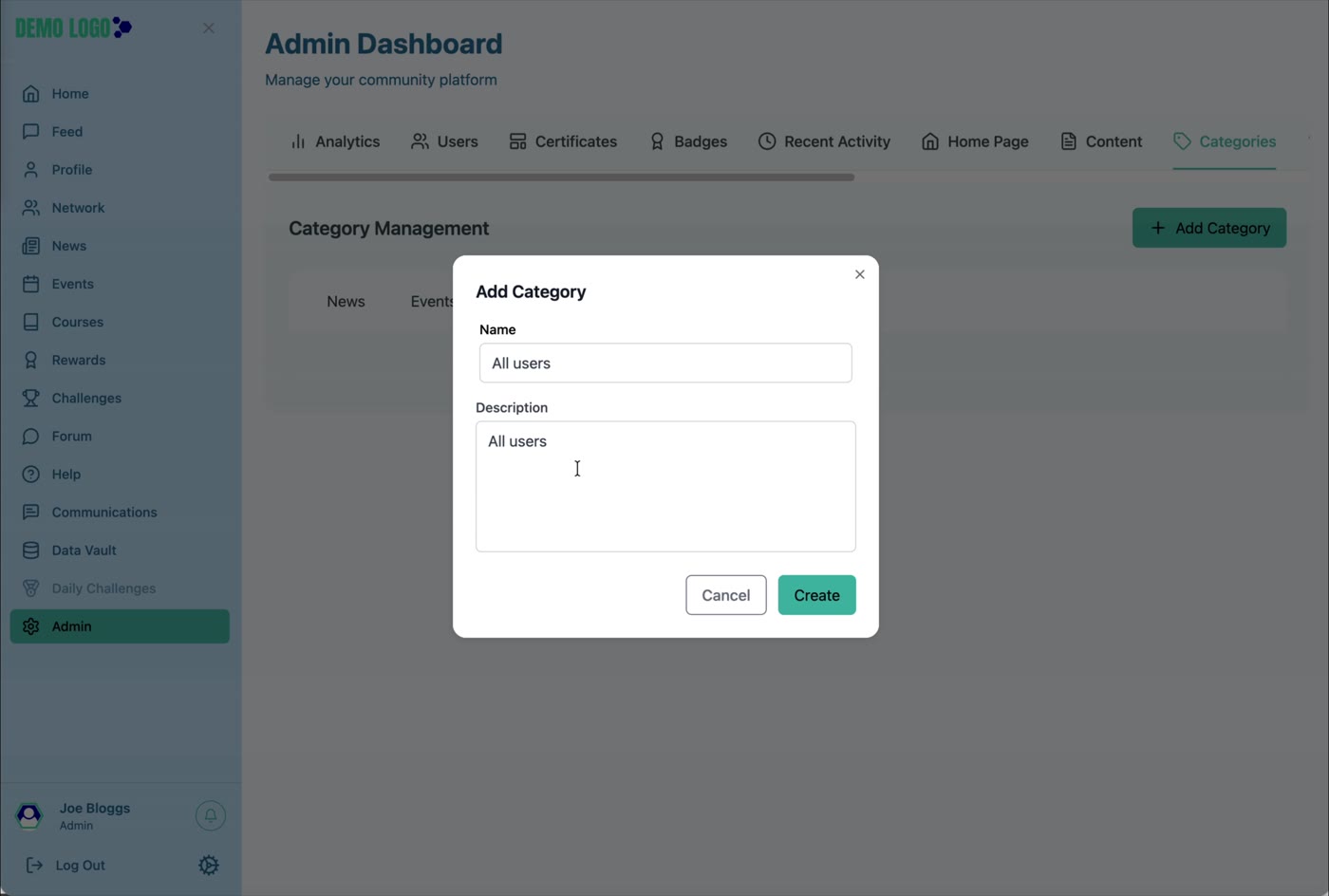
- 00:24Create the category
Add the Challenge category in Admin.
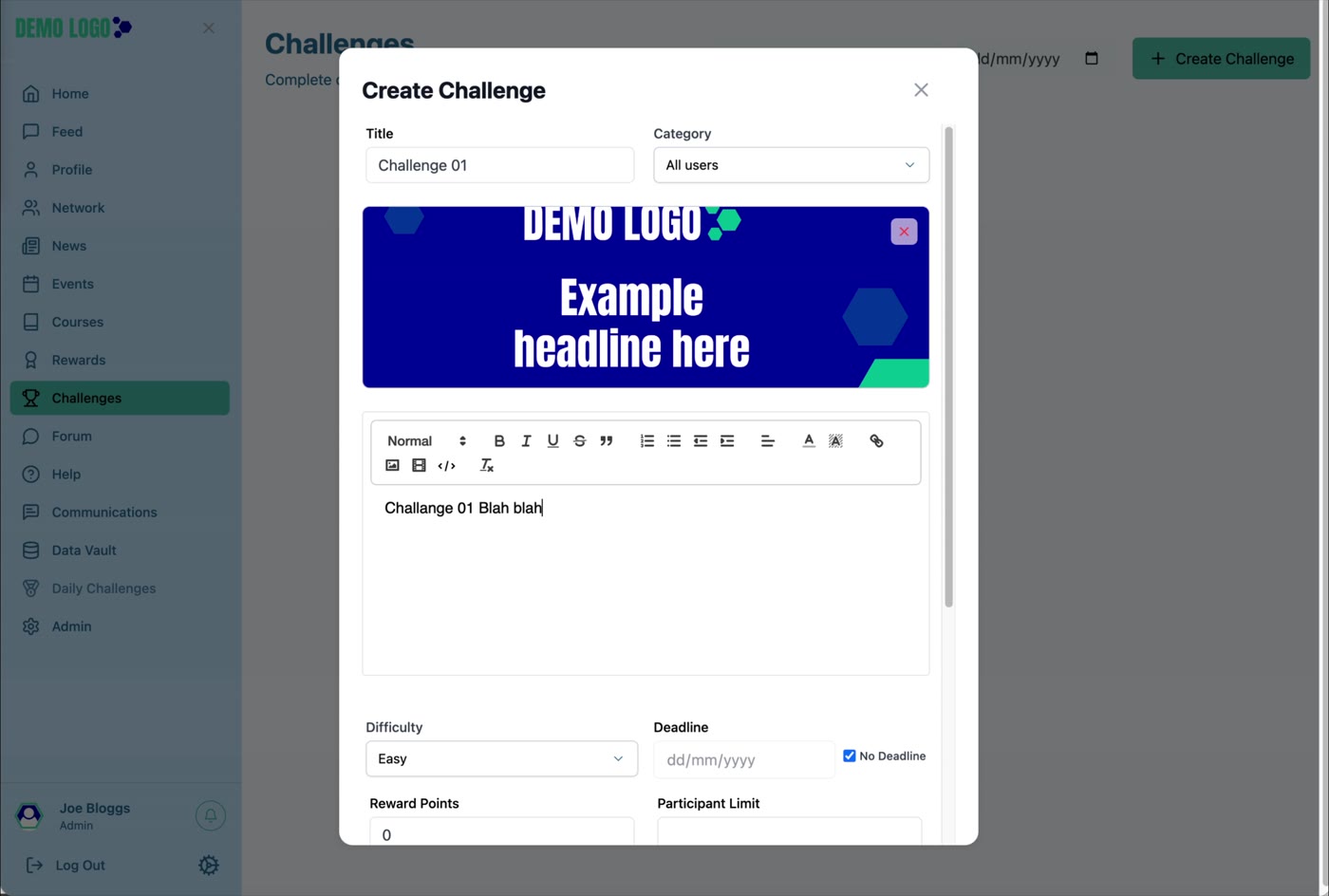
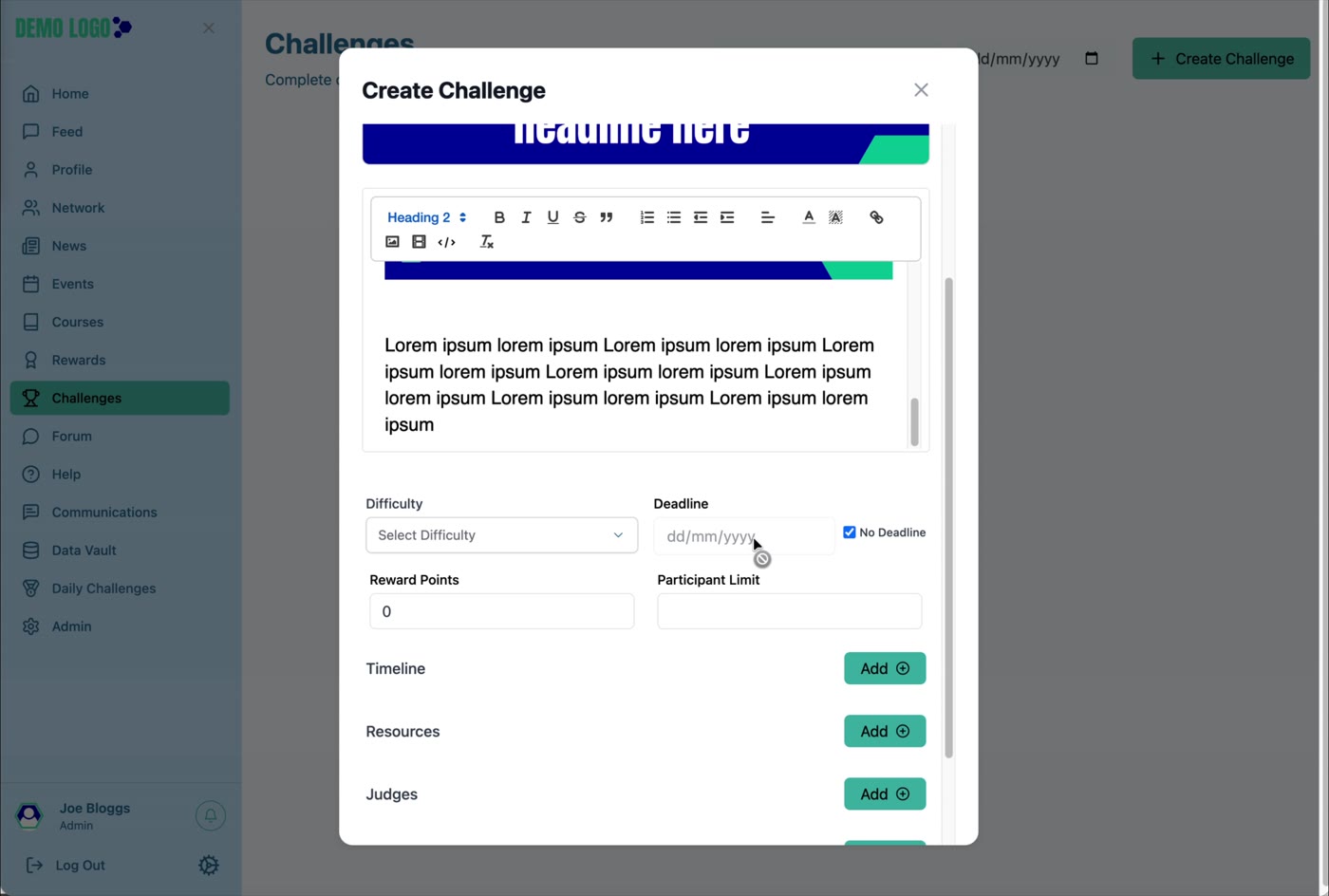
- 00:48Build the Challenge
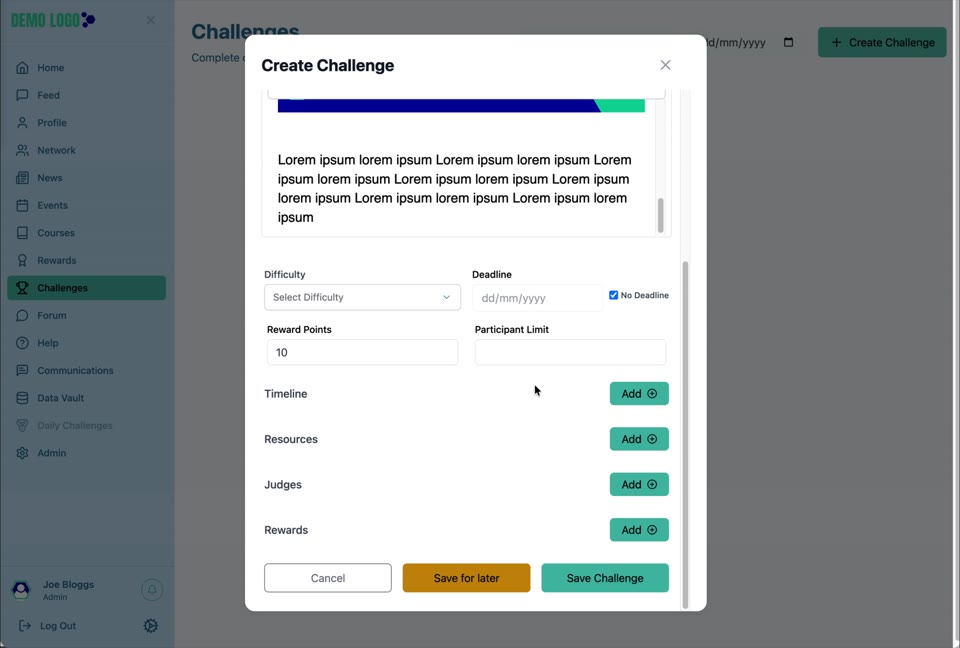
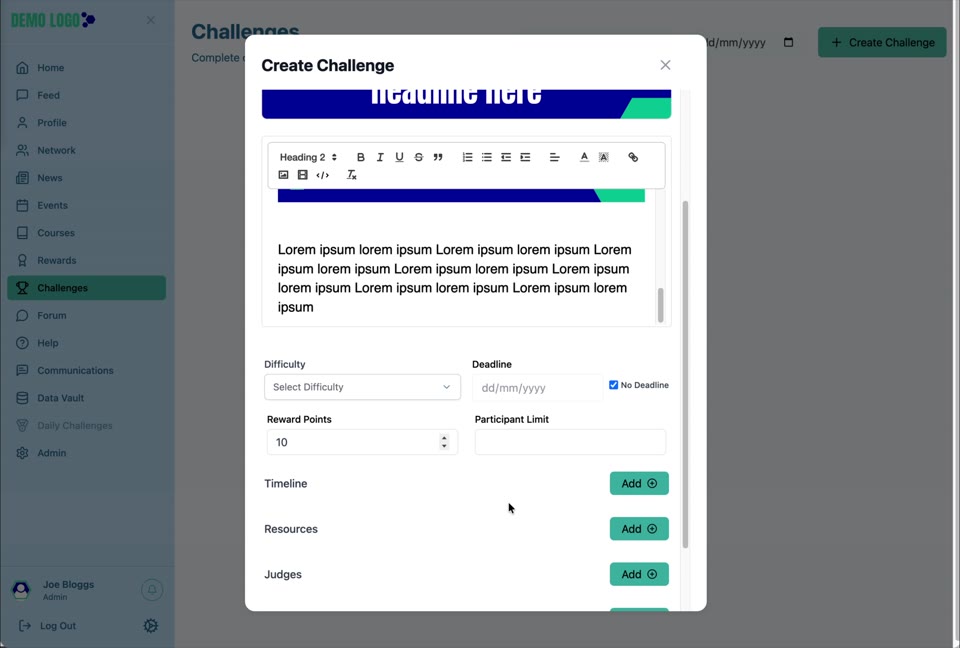
Add content, difficulty, deadline, points, participants and supporting items.
- 04:27Open and submit
Review the member detail and submit an entry.
- 06:04Score and give feedback
Record the score and written response.
- 06:29Review completion
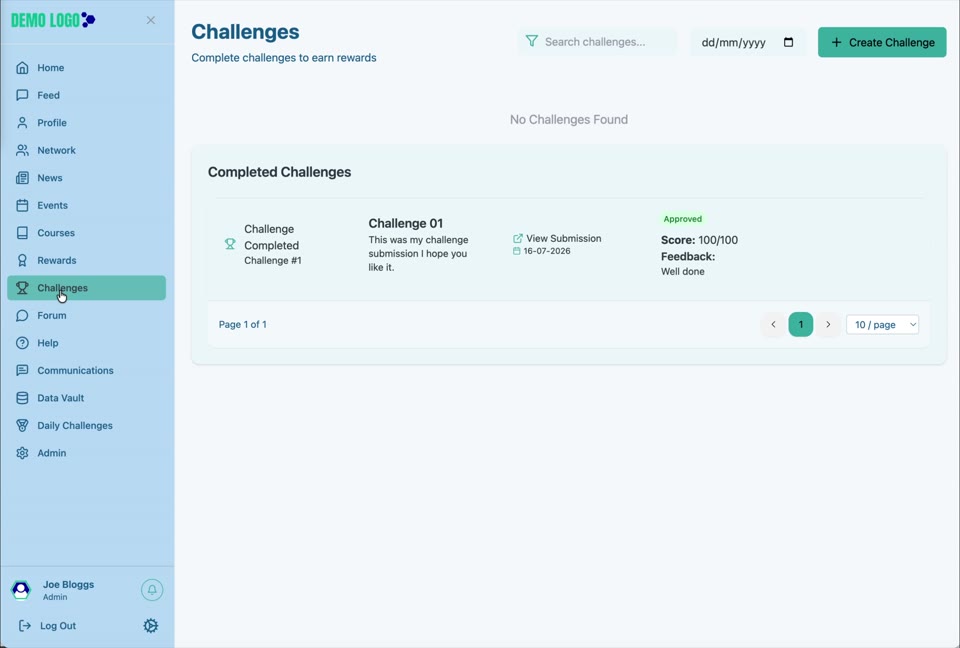
See the completed entry and awarded Reward.
What Challenges is for
Challenges invite members to complete a defined activity, submit evidence and receive feedback, points or another reward. A good Challenge makes the outcome, deadline and judging process clear before participation begins.
Create the Challenge category
Open Admin → Categories → Challenges, add the category name and description and confirm it is Active.
Create the Challenge
| Field or control | Purpose | Guidance |
|---|---|---|
| Title and Category | Names and groups the Challenge. | Use a title that describes the task, not only the campaign. |
| Image and Description | Explains the activity visually and in detail. | State the deliverable, eligibility and success criteria. |
| Difficulty | Signals expected complexity. | Use a consistent Easy, Medium or higher scale. |
| Deadline / No Deadline | Controls the final submission date. | Use No Deadline only for genuinely ongoing activity. |
| Reward Points | Sets points associated with the Challenge. | Align the value with effort and the wider points model. |
| Participant Limit | Limits the number of participants. | Leave empty only when capacity is genuinely unlimited. |
| Timeline | Adds dated milestones. | Use for staged or multi-step work. |
| Resources | Provides supporting files or links. | Use current, approved material. |
| Judges | Identifies reviewers. | Confirm reviewers have access and understand the criteria. |
| Rewards | Adds points or other reward outcomes. | Check fulfilment before publication. |
| Save for later / Save Challenge | Stores draft or publishes the configured Challenge. | Use the draft option while any dependency is incomplete. |
Member submission journey
The Challenge detail shows the brief, deadline, resources, judges and rewards. Select Submit Entry, attach the required evidence and provide the requested response before submitting.
Review, score and give feedback
An authorised reviewer opens the submission, records a score and adds feedback. The completed Challenge displays the approval status, score, feedback and a route to view the submission.
Confirm the reward outcome
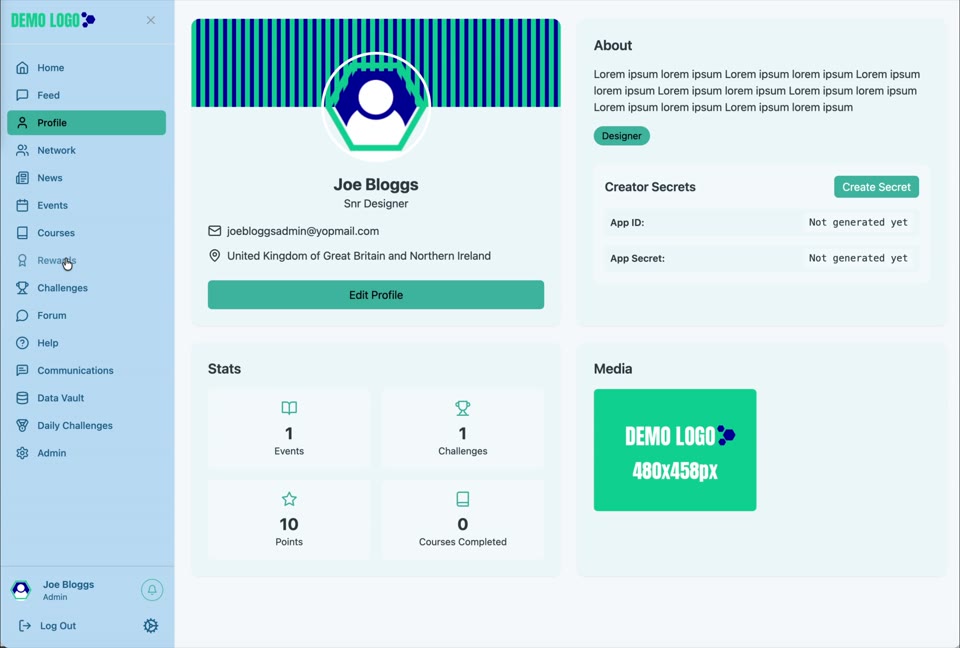
Where a Reward or points outcome is connected, confirm it appears in the member experience and that the profile or Rewards balance updates as intended.
Challenge best practice
- Write measurable success criteria.
- Explain accepted evidence formats and file limits.
- Name judges and expected response times.
- Use points proportionate to effort.
- Give specific, respectful feedback.
- Test submission, review and reward with separate accounts.
Challenge checklist
- Category and difficulty are correct.
- Deadline and participant limit are intentional.
- Brief and evidence requirements are unambiguous.
- Resources open successfully.
- Judges have access.
- Submission works.
- Score and feedback are saved.
- Reward or points are applied correctly.
Common issues
The Challenge card does not appear
Check whether it was saved for later, category status, portal and deadline filters.
A member cannot submit
Review the deadline, participant limit, evidence requirements and account permissions.
The Reward was not applied
Confirm the review status, score, connected Reward and points configuration.
Hub version 0.3.7 · Last updated 16 July 2026