Administer the home page
Update banners and build linked Home cards, then verify the complete member-facing layout.
admin_home page.mov · Reviewed against the Buzzmint Engage Admin interface on 16 July 2026. The full-motion master remains in the private BUZZMINT VIDEOS Drive folder.
- 00:00Open Home Page Layout
Review banners, content banners and sections.
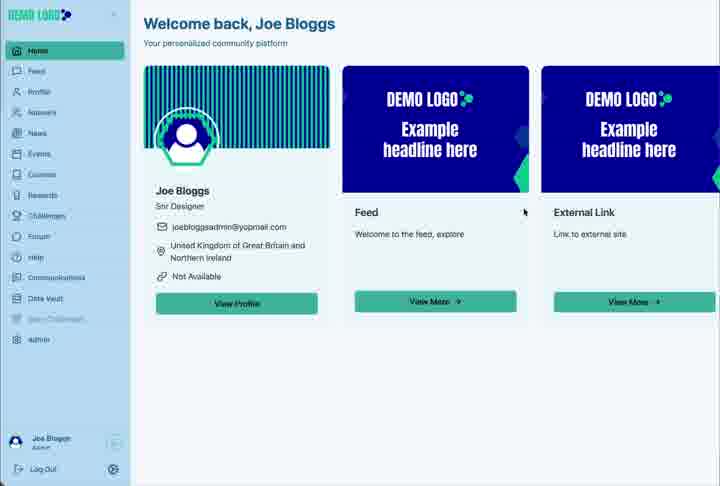
- 00:11Check the member Home view
Understand the result before editing.
- 00:18Update the banner
Replace desktop/mobile artwork and the optional link.
- 00:33Add a section
Create a linked image card with content and button text.
- 01:19Verify the result
Confirm the new card in the member experience.
What Home Page administration controls
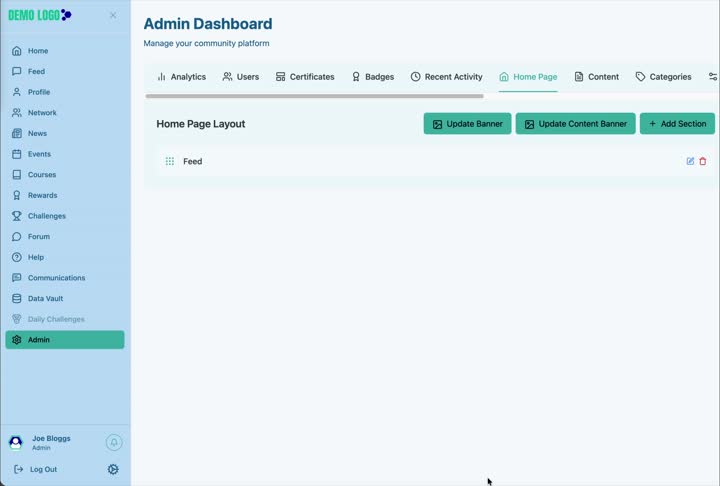
The Home Page area controls the desktop and mobile banner, the content banner and the ordered cards that members see when they open Engage.
Update the main banner
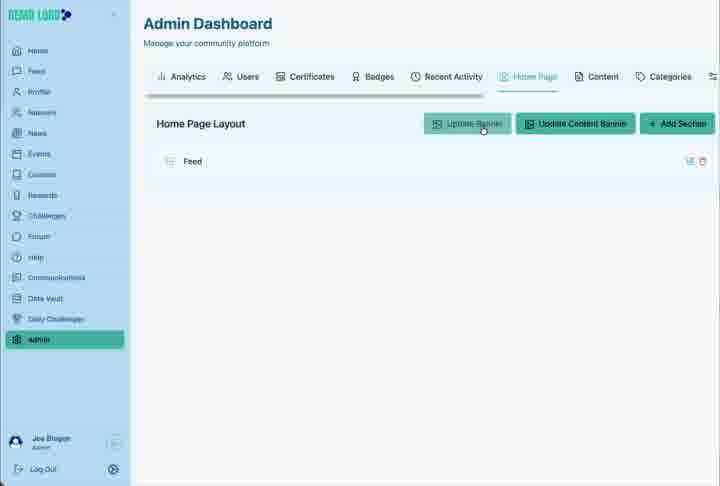
Select Update Banner to replace the main desktop image, optional mobile image and optional hyperlink. Use the approved artwork sizes defined in the member Home guide.
Add a home-page section
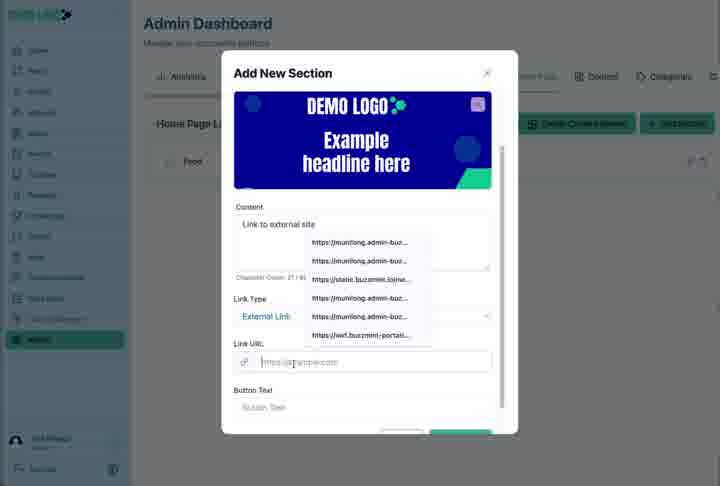
Select Add Section
Create another card in the Home Page Layout.
Add a concise section title
Use the title to explain the destination or action.
Upload the card image
Choose artwork that remains understandable at card size.
Write supporting content
Use one short sentence where possible.
Choose the link type
Select an internal or external link and provide the destination.
Add button text
Use an action phrase such as View more or Open resources.
Add the section
Save and confirm it appears in the layout.
Verify the member experience
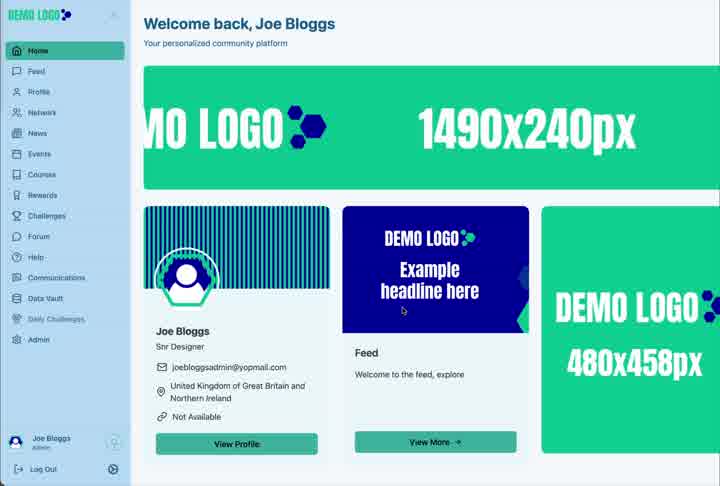
Return to Home and confirm the banner, profile card, sections and content banner appear in the expected order. Test every new destination.
Home-page best practice
- Prioritise the most useful member journeys rather than every available feature.
- Keep card titles and descriptions brief.
- Use a dedicated mobile banner rather than relying on a desktop crop.
- Test external links in a private browser window.
- Review Home after every module or role change.
Home-page checklist
- Desktop and mobile banners are current.
- Every card uses approved artwork.
- Internal and external destinations open correctly.
- Button text describes the action.
- The layout works on desktop and mobile.
- No disabled module is promoted from Home.
Common issues
A section links to the wrong place
Edit the section and confirm both link type and destination.
The mobile crop is poor
Upload a dedicated mobile banner rather than reusing the desktop image.
A card is visible but the module is not
Review Module Control and the member’s role access.
Hub version 0.3.7 · Last updated 16 July 2026