Manage user roles and signup links
Build permission sets, verify member visibility and generate controlled signup routes for a specific role.
admin_userroles.mov · Reviewed against the Buzzmint Engage Admin interface on 16 July 2026. The full-motion master remains in the private BUZZMINT VIDEOS Drive folder.
- 00:00Review roles
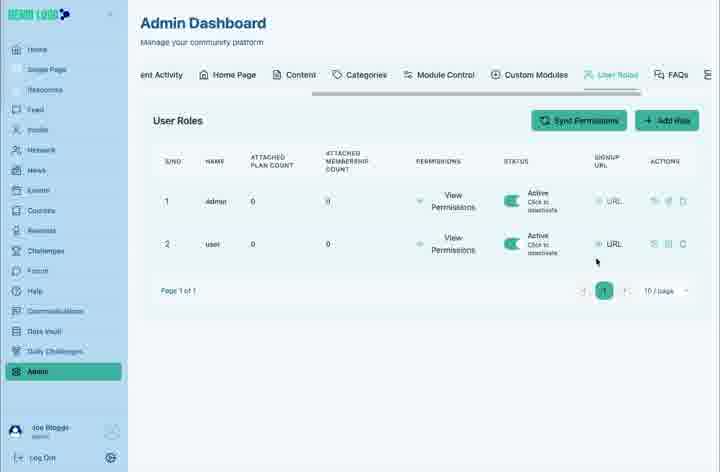
Inspect attached users, permissions, status and links.
- 00:48Edit permissions
Open the available and assigned permission lists.
- 01:33Assign module actions
Move the required module permissions into the role.
- 02:07Verify member access
Check the resulting member experience.
- 03:04Generate a signup link
Create the role-specific onboarding URL.
- 03:39Test registration
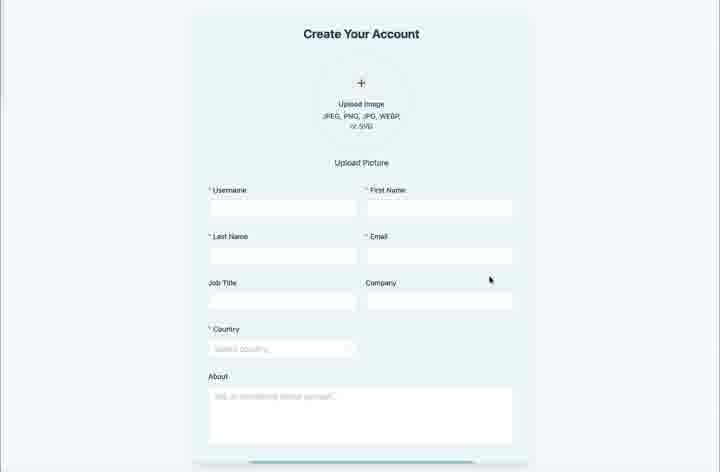
Complete the public account form and sign in.
What User Roles controls
User Roles defines permission bundles and can generate public signup links that automatically assign a role. Changes here affect both administration capability and the member modules visible after registration.
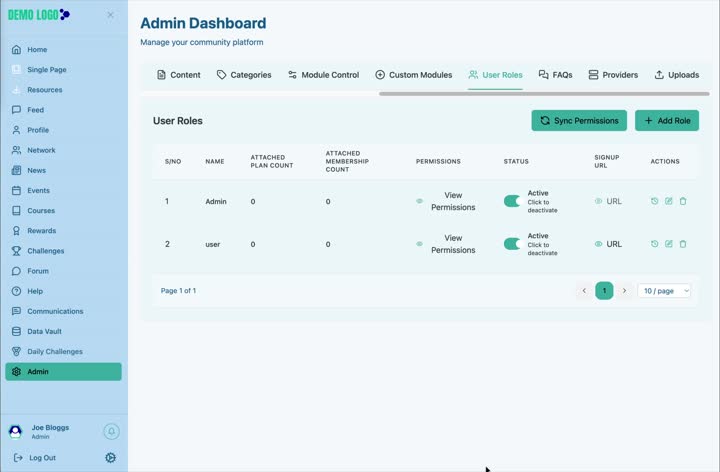
Edit role permissions
Open the role action
Choose the permissions action for the role you need to change.
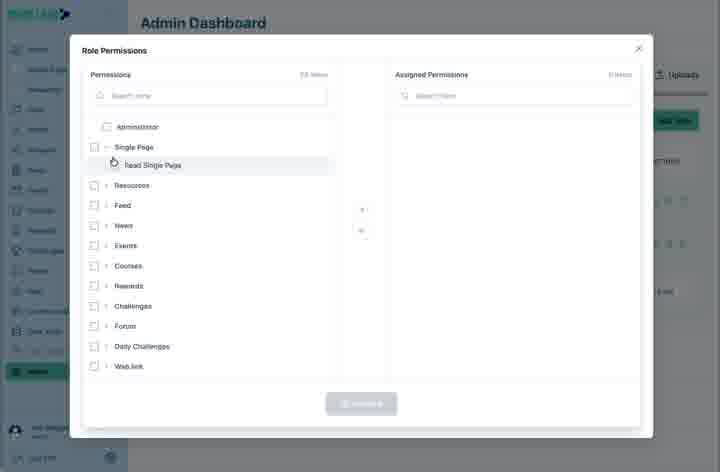
Review available permissions
Use the module tree and search to find the required capability.
Review assigned permissions
Confirm what the role already contains before adding more.
Move selected permissions
Assign only the actions needed by this role.
Save and test
Save the role and verify it with a representative account.
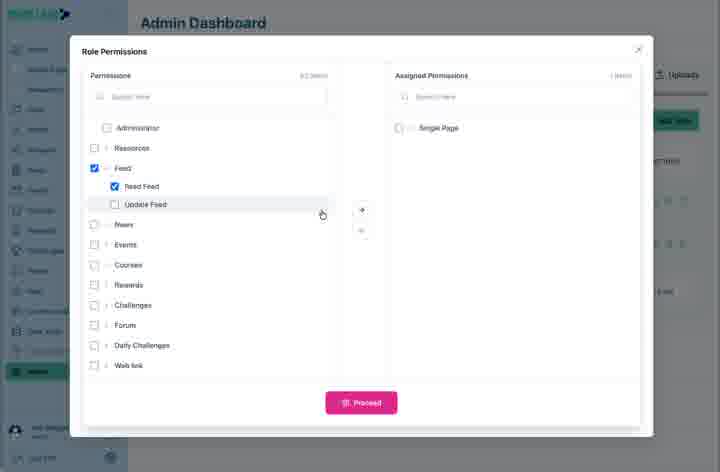
Verify the member experience
The walkthrough checks the News page using a role-limited account. Combine User Roles with Module Control: a permission can exist while the module remains hidden, or a module can be visible without a privileged administration action.
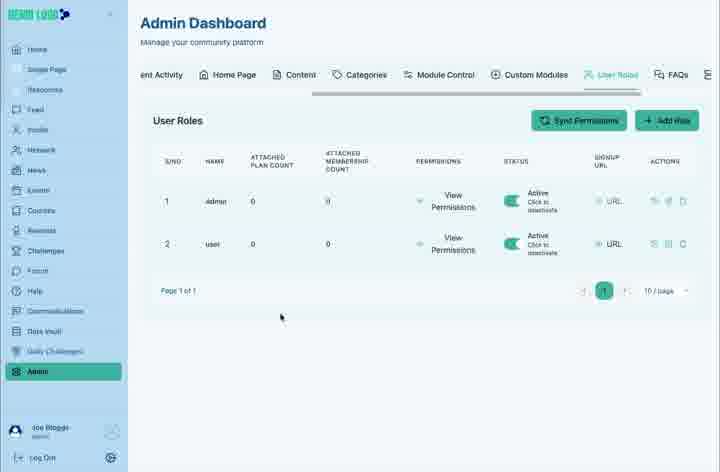
Generate a role signup link
A signup link provides a public account-creation form associated with the selected role. Generate, copy and distribute it only through an approved onboarding route.
Role-management best practice
- Design roles around responsibilities, not individual people.
- Apply least privilege and add access only when justified.
- Use separate roles for member and administrator responsibilities.
- Review attached users before changing a live role.
- Test generated signup links in a private browser.
- Use Sync Permissions only when you understand the intended effect.
User Roles checklist
- The role name and purpose are clear.
- Assigned permissions match the responsibility.
- Module Control visibility supports the role.
- Existing attached users were considered.
- The signup link assigns the intended role.
- Privileged links are distributed securely.
Common issues
A user has a permission but cannot see the module
Check the role in Module Control as well as User Roles.
A signup creates the wrong access
Confirm the link belongs to the intended role and remove obsolete links.
Changing a role affects existing users
Role edits normally apply to attached users; review the attached-user count before saving.
Hub version 0.3.7 · Last updated 16 July 2026