Use Communications
Navigate direct and group conversations, send text or attachments, and understand the available voice, video and call controls.
Communications.mov · Reviewed against the Buzzmint Engage interface on 16 July 2026. The original full-motion master remains in the private BUZZMINT VIDEOS Drive folder.
- 00:00Review conversations
See direct messages, group conversations and the active thread.
- 00:27Open attachment options
Attach from Data Vault, upload from the computer or record video or voice.
- 00:38Switch conversation
Move between direct and group threads.
What Communications provides
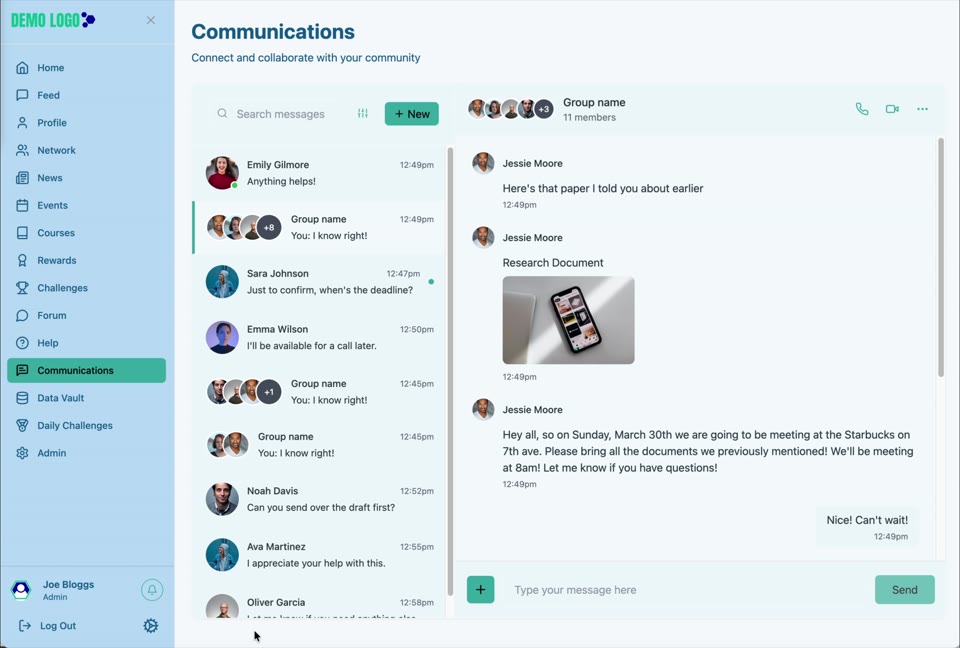
Communications is the private messaging area for direct and group conversation. It combines a searchable conversation list, active message thread and controls for text, files, media and supported calls.
Navigate conversations
- Use Search messages to locate a conversation or matching content.
- Select a person or Group name from the conversation list.
- Use New to start a new communication where permissions allow.
- The active header shows participants and phone or video controls where enabled.
Send content
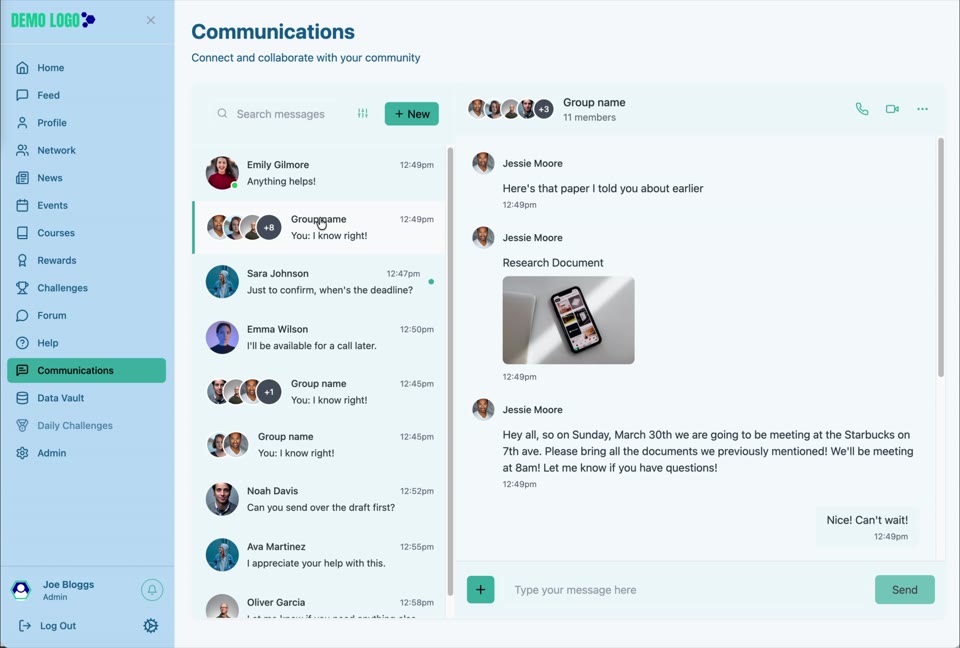
Enter text in the message field and select Send. The plus control exposes additional options:
Attach from Vault
Choose a file already governed in Data Vault.
Upload from your computer
Select an authorised local file.
Video message
Record or attach a short visual response where supported.
Voice message
Send an audio response where supported.
Calls and group threads
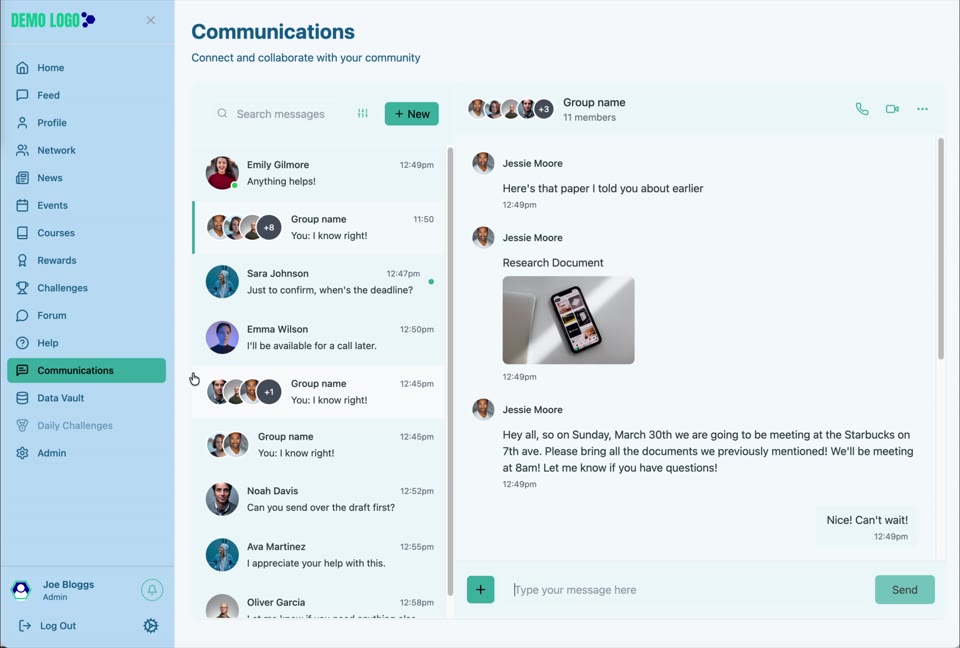
The active conversation header displays phone and video icons in the walkthrough. Availability can depend on browser permissions, platform configuration and the participants’ access. Group threads should have a clear purpose and appropriate membership.
Communication best practice
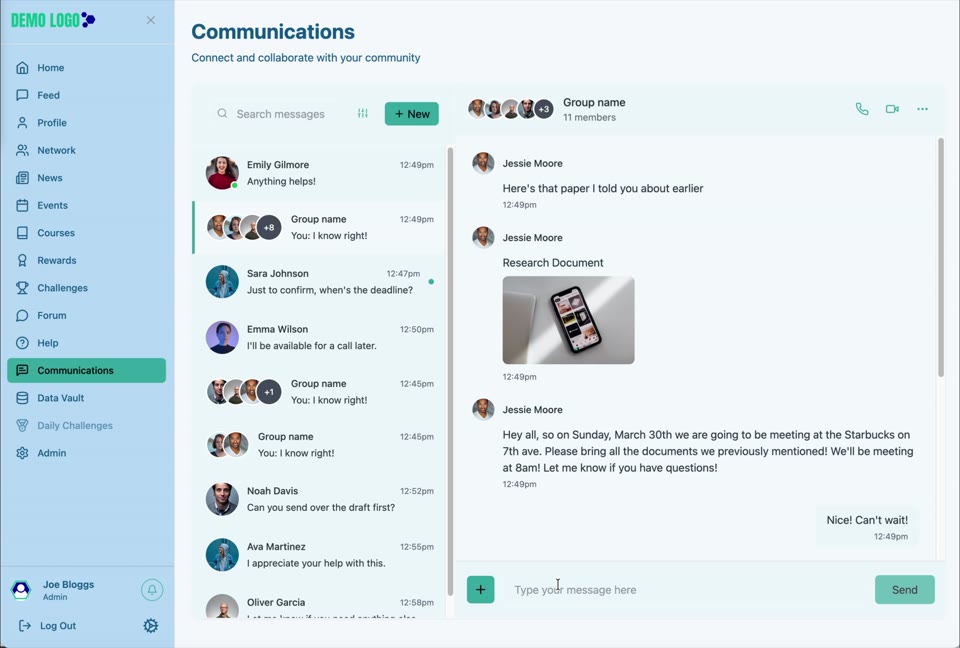
- Use governed platform messaging for work that should remain inside the community.
- Check recipients before sending sensitive information.
- Prefer Data Vault attachments when the file already has managed access.
- Do not record voice or video without appropriate consent.
- Keep group membership current.
- Use formal News or Forum content when information should be widely discoverable.
Communications checklist
- Correct person or group is selected.
- Message content is appropriate for the audience.
- Attachment permissions are understood.
- Browser microphone or camera permission is deliberate.
- Group membership is current.
- Sensitive material is not copied outside the governed environment.
Common issues
A conversation cannot be found
Use search, confirm the user account is active and check whether a new conversation must be created.
An attachment cannot be sent
Check file permissions, supported size and whether the user can access the selected Data Vault item.
Call controls do not work
Check browser microphone and camera permissions, network access and whether calling is enabled for the portal.
Hub version 0.3.7 · Last updated 16 July 2026