Use Admin Analytics
Review user, course and event performance, inspect participant records and export reporting data safely.
admin_analytics.mov · Reviewed against the Buzzmint Engage Admin interface on 16 July 2026. The full-motion master remains in the private BUZZMINT VIDEOS Drive folder.
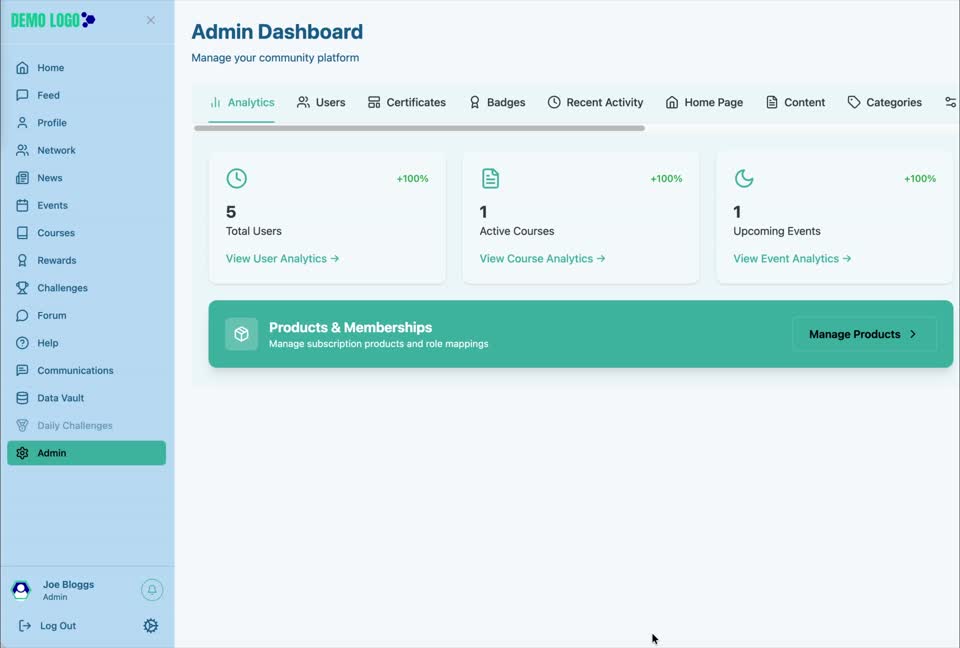
- 00:00Open Analytics
Review headline platform totals and available reporting routes.
- 00:27User Analytics
Inspect user totals, engagement bands and recent activity.
- 01:18Course Analytics
Review enrolment, completion, ratings and participants.
- 01:50Event Analytics
Inspect attendance, status and event participants.
What Admin Analytics is for
Analytics brings together member, course and event reporting so administrators can monitor participation, identify inactivity and inspect the records behind headline totals.
Review user analytics
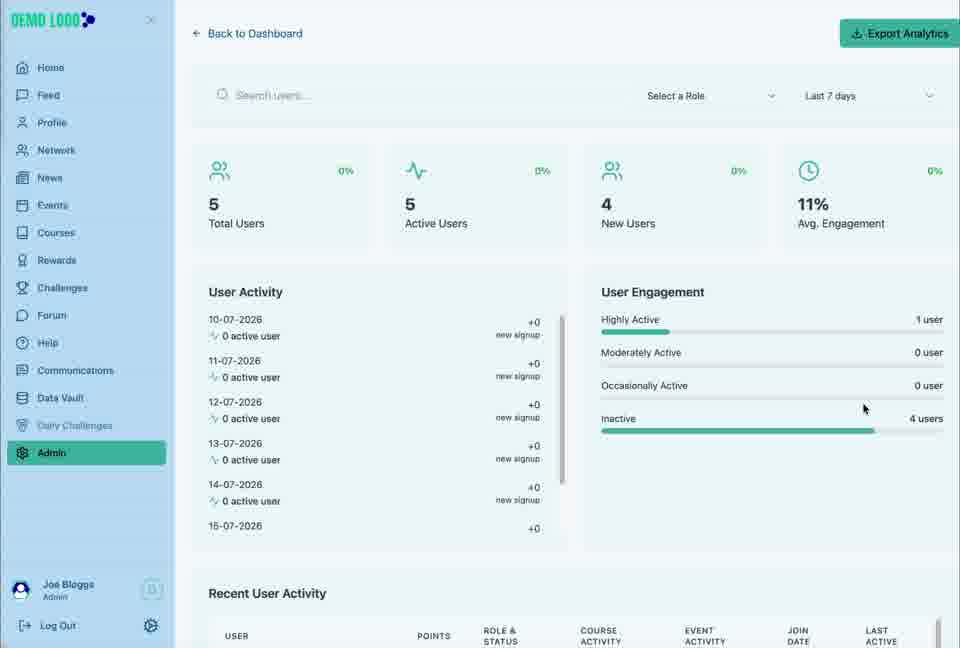
Select View User Analytics to open the member reporting view. Use search, status and date controls to narrow the results before drawing conclusions.
User totals
Compare total, active and new users for the selected period.
Average engagement
Review the overall engagement percentage and engagement bands.
Understand the activity table
The recent activity table can include points, role and status, course activity, event activity, join date and last active information. Treat these fields as indicators for follow-up rather than a complete measure of member value.
Review course analytics
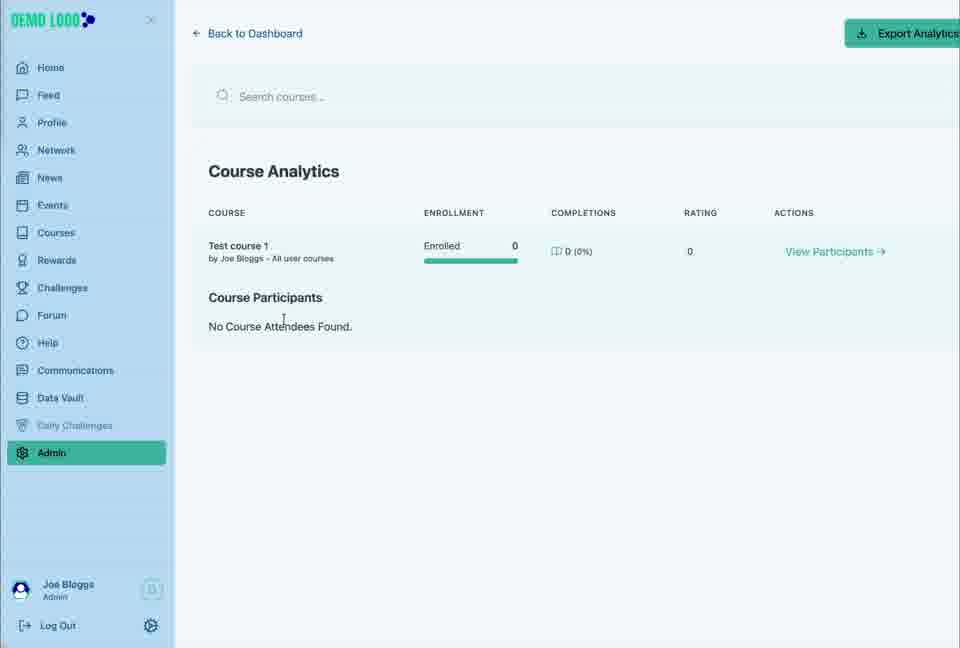
Select View Course Analytics to compare course enrolment, completion and rating. Use View Participants when you need the underlying learner list rather than the summary row.
Review event analytics
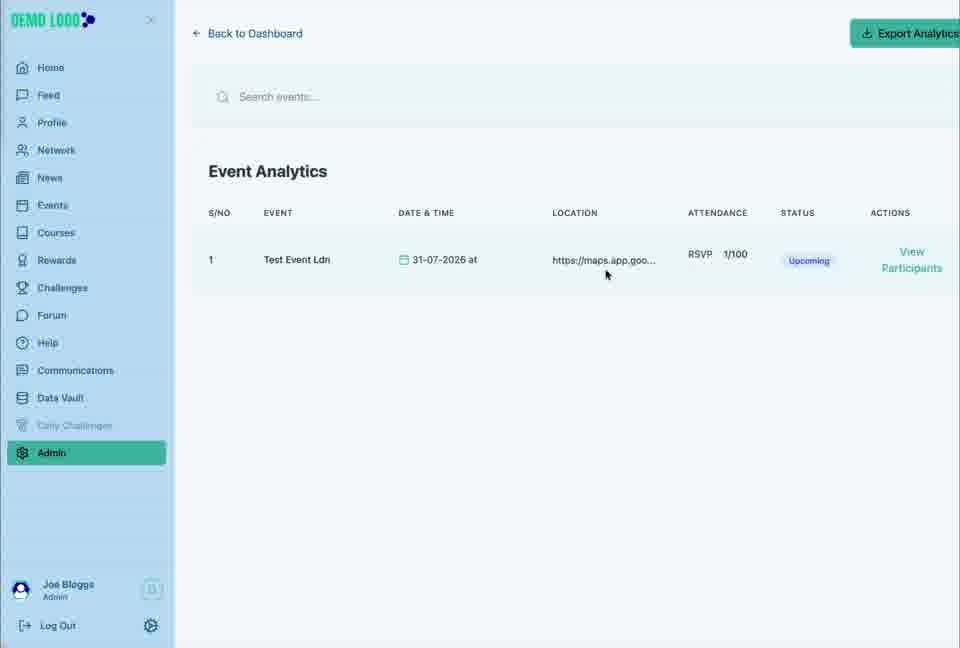
Select View Event Analytics to review event timing, location, attendance and status. Open the participant view to confirm who is associated with a specific event.
Filter and export responsibly
Apply the smallest useful filter set before exporting. Exported analytics may contain member information, so store and share files only through approved Buzzmint or client processes.
Reporting best practice
- Agree the reporting period before comparing results.
- Use participation and completion alongside qualitative feedback.
- Investigate sudden drops before assuming they represent disengagement.
- Restrict exported member-level information to people who need it.
- Record the action taken as a result of each report.
Analytics checklist
- The correct portal and date range are selected.
- Status and role filters are intentional.
- Headline metrics are supported by the detailed records.
- Course and event participant lists have been checked where relevant.
- Any export is stored in an approved location.
Common issues
A total looks unexpectedly low
Clear active filters, expand the date range and confirm the portal contains the expected users or content.
A course has no participants
Confirm that enrolment is enabled and that learners have actually joined the course.
The export contains more information than expected
Reapply a narrower filter and follow the client’s data-handling policy before sharing the file.
Hub version 0.3.7 · Last updated 16 July 2026