Manage categories
Create and maintain module-specific categories so administrators and members can organise and filter content consistently.
admin_categories.mov · Reviewed against the Buzzmint Engage Admin interface on 16 July 2026. The full-motion master remains in the private BUZZMINT VIDEOS Drive folder.
- 00:00Open Category Management
Review the module tabs and category actions.
- 00:07Review News categories
See category descriptions, status and actions.
- 00:40Compare module categories
Move through Events, Forum and Courses.
- 00:56Review Challenges
Confirm module-specific category behaviour.
What Categories controls
Category Management creates the labels used to organise and filter content. Categories are maintained separately for News, Events, Forum, Courses and Challenges.
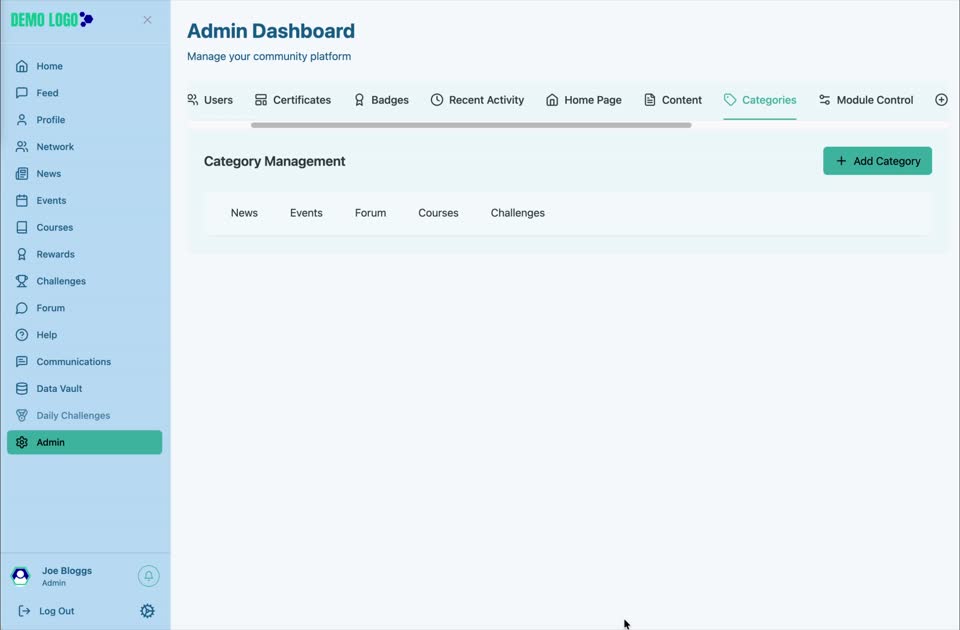
Choose the correct module tab
Always select the intended module before adding or editing a category. A News category will not automatically become available in Events or Courses.
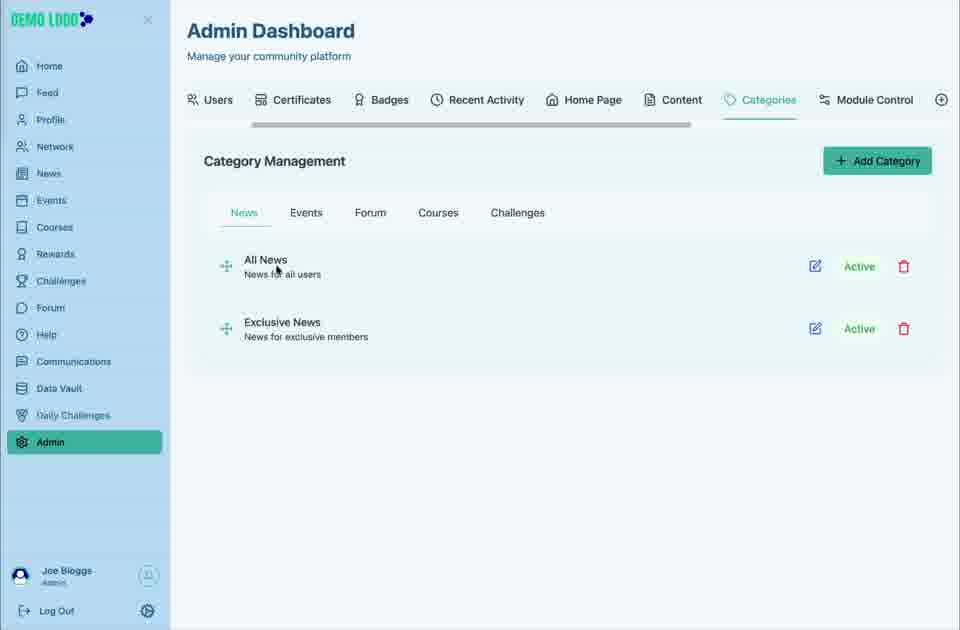
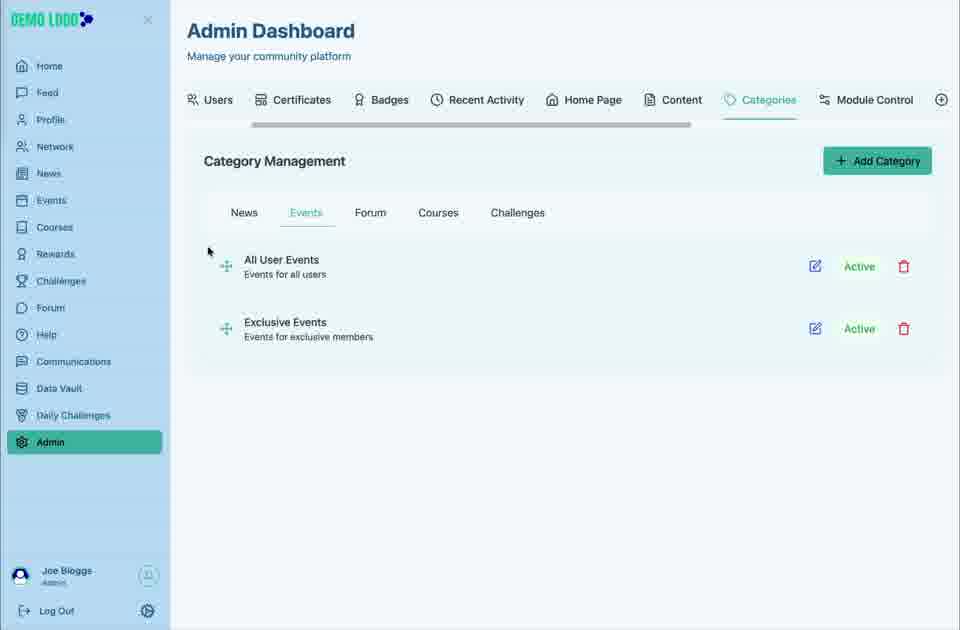
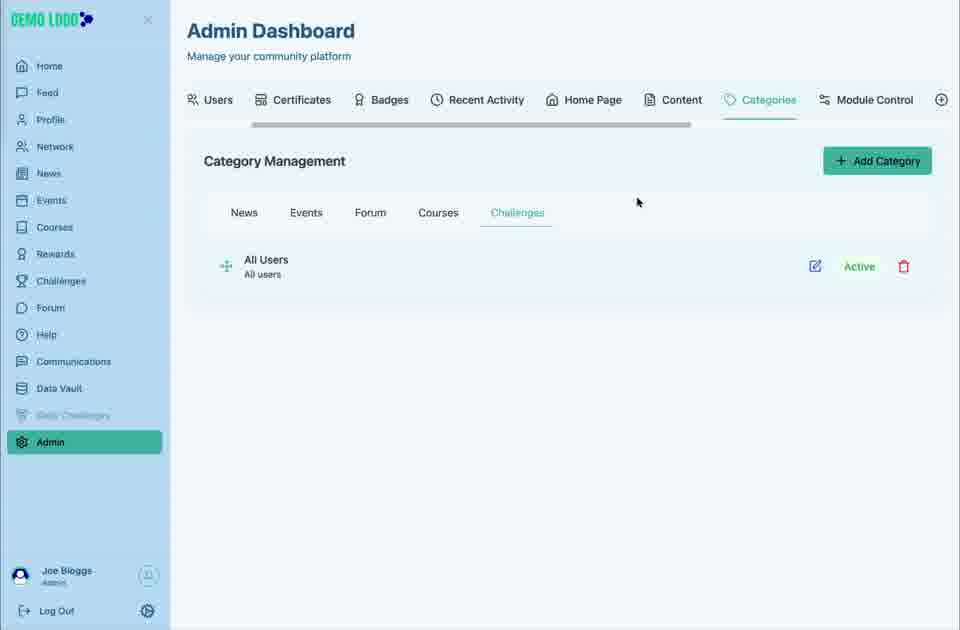
Add, edit, activate or remove a category
- Use Add Category to create a new label in the selected module.
- Use the edit action to update the category name or description.
- Use the status control to make the category available or unavailable.
- Delete only after confirming no live content relies on it.
Category naming best practice
- Use language members already understand.
- Avoid overlapping labels such as Updates and Latest Updates.
- Keep the number of categories manageable.
- Use audience-based categories only when the visibility model is clear.
- Review unused categories before adding new ones.
Category checklist
- The correct module tab is selected.
- The name is concise and distinct.
- The description explains the intended content.
- Status is Active when creators need to use it.
- Existing content remains findable after a change.
Common issues
A category is missing from a creation form
Confirm it was created under the same module and remains Active.
Members see duplicate filters
Merge or retire overlapping categories after checking existing content.
Deleting a category may affect content
Deactivate first and review dependent items before permanent removal.
Hub version 0.3.7 · Last updated 16 July 2026