Manage uploaded media
Upload files, copy reusable media links, filter the library and remove files without breaking live content.
admin_uploads.mov · Reviewed against the Buzzmint Engage Admin interface on 16 July 2026. The full-motion master remains in the private BUZZMINT VIDEOS Drive folder.
- 00:00Review Uploads
See search, date, media-type and ordering controls.
- 00:17Upload a file
Choose an approved local asset.
- 00:28Review and copy the link
Confirm the record and copy its media URL.
- 00:44Filter the library
Narrow uploads by media type or date.
What Uploads is for
Uploads is the central file library for media uploaded through Admin. It records the file name, reusable link, size, media type, creation date and available actions.
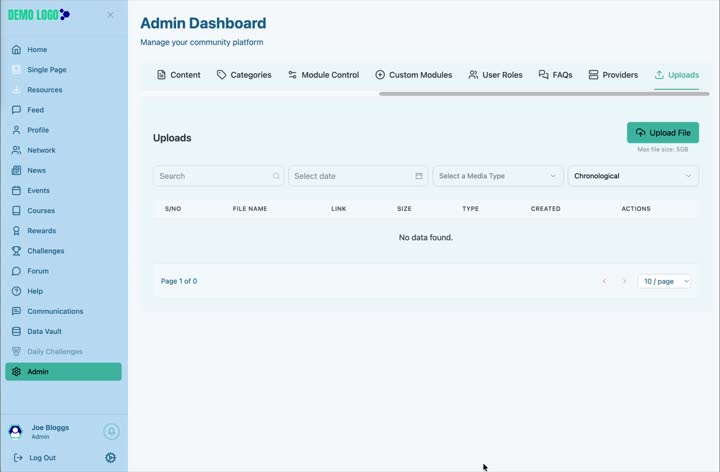
Upload a file
Select Upload File
Open the local file selector.
Choose the approved file
Check the filename and format before confirming.
Wait for completion
Do not leave the page until the upload appears in the library.
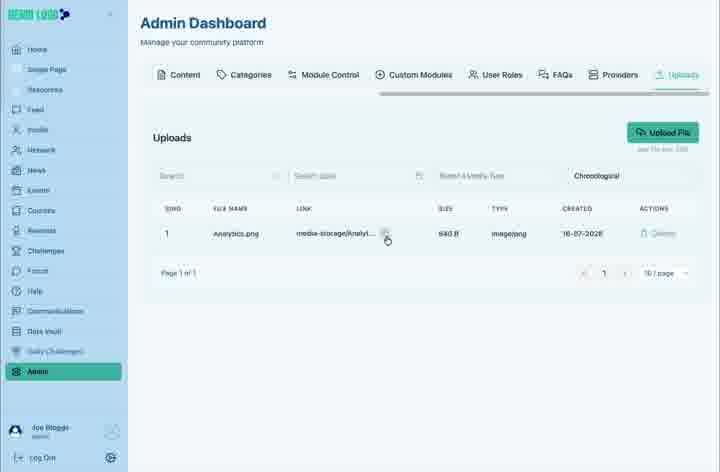
Review the record
Confirm file name, size, type and created date.
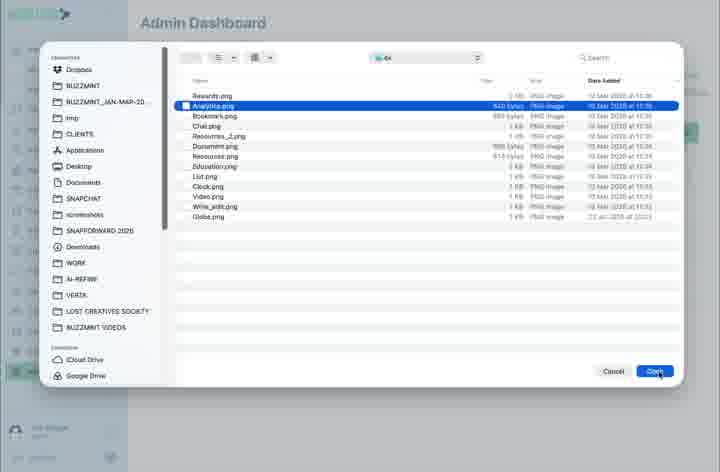
Copy and reuse the file link
Select the link-copy action to copy the media URL. Paste it only into an approved field or document, and test it using the intended member access context.
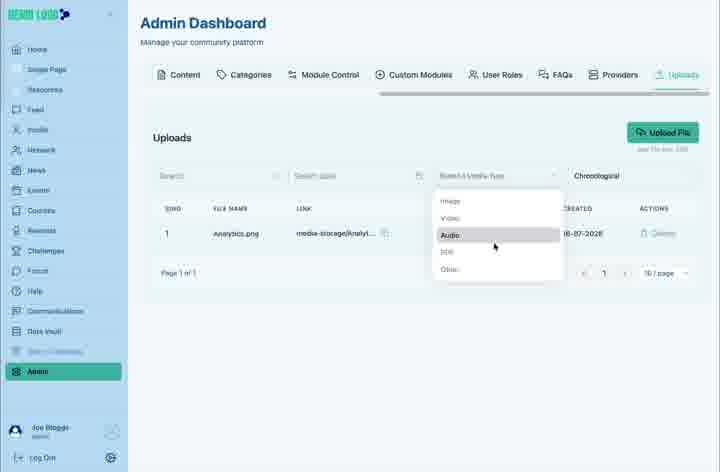
Search and filter uploads
Filter by date or media type such as Image, Video, Audio, PDF or Other. Change the ordering when reviewing the newest or oldest files.
Delete with care
A file link may already be used by content, a custom module or an external document. Confirm dependencies before deleting an uploaded file.
Upload-library best practice
- Use clear filenames before upload.
- Avoid uploading sensitive files unless the delivery model is approved.
- Do not keep unnecessary duplicates.
- Record where important media links are used.
- Check image dimensions and file size before publishing.
Uploads checklist
- The file is approved for the intended audience.
- The filename is understandable.
- Media type and size are appropriate.
- The copied link opens successfully.
- No live dependency will be broken before deletion.
Common issues
The upload does not appear
Wait for completion, refresh the library and clear filters.
A copied link does not open
Confirm the full link was copied and test the access context.
The library appears empty
Clear the date and media-type filters and switch the ordering back to the default.
Hub version 0.3.7 · Last updated 16 July 2026