Explore the member Network
Find community members, review the information they have chosen to share and open their full profiles.
Network.mov · Reviewed against the Buzzmint Engage interface on 16 July 2026. The original full-motion master remains in the private BUZZMINT VIDEOS Drive folder.
- 00:00Browse the directory
Review searchable member cards and online indicators.
- 00:22Open a member profile
View a member’s About information, media and participation.
- 00:43Return to Network
Continue browsing or use the search field to find another member.
What the Network is for
The Network is the member directory for a Buzzmint Engage community. It helps people discover colleagues, peers and specialists without relying on an external social network.
Find a member
Open Network
Select Network from the left-hand navigation.
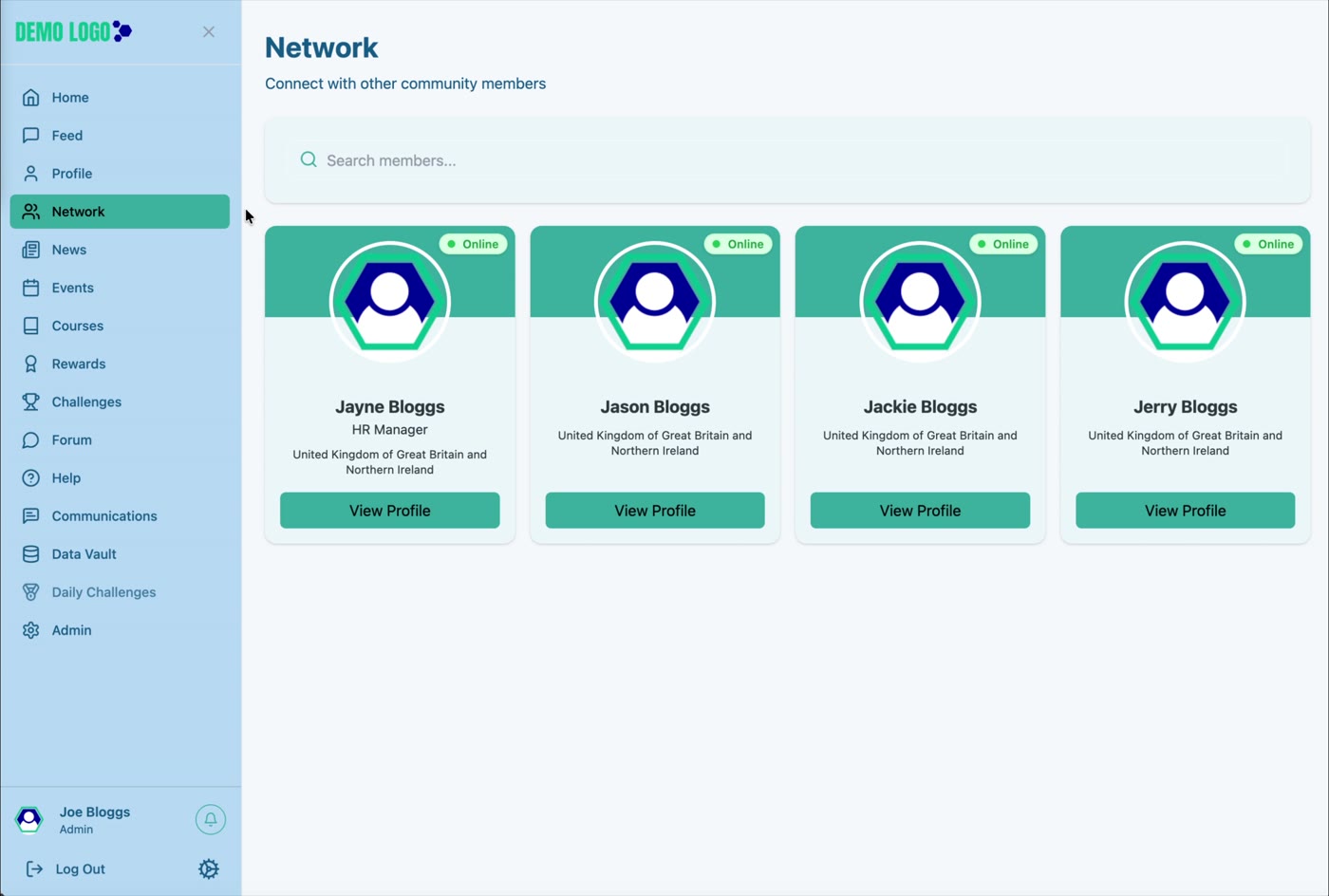
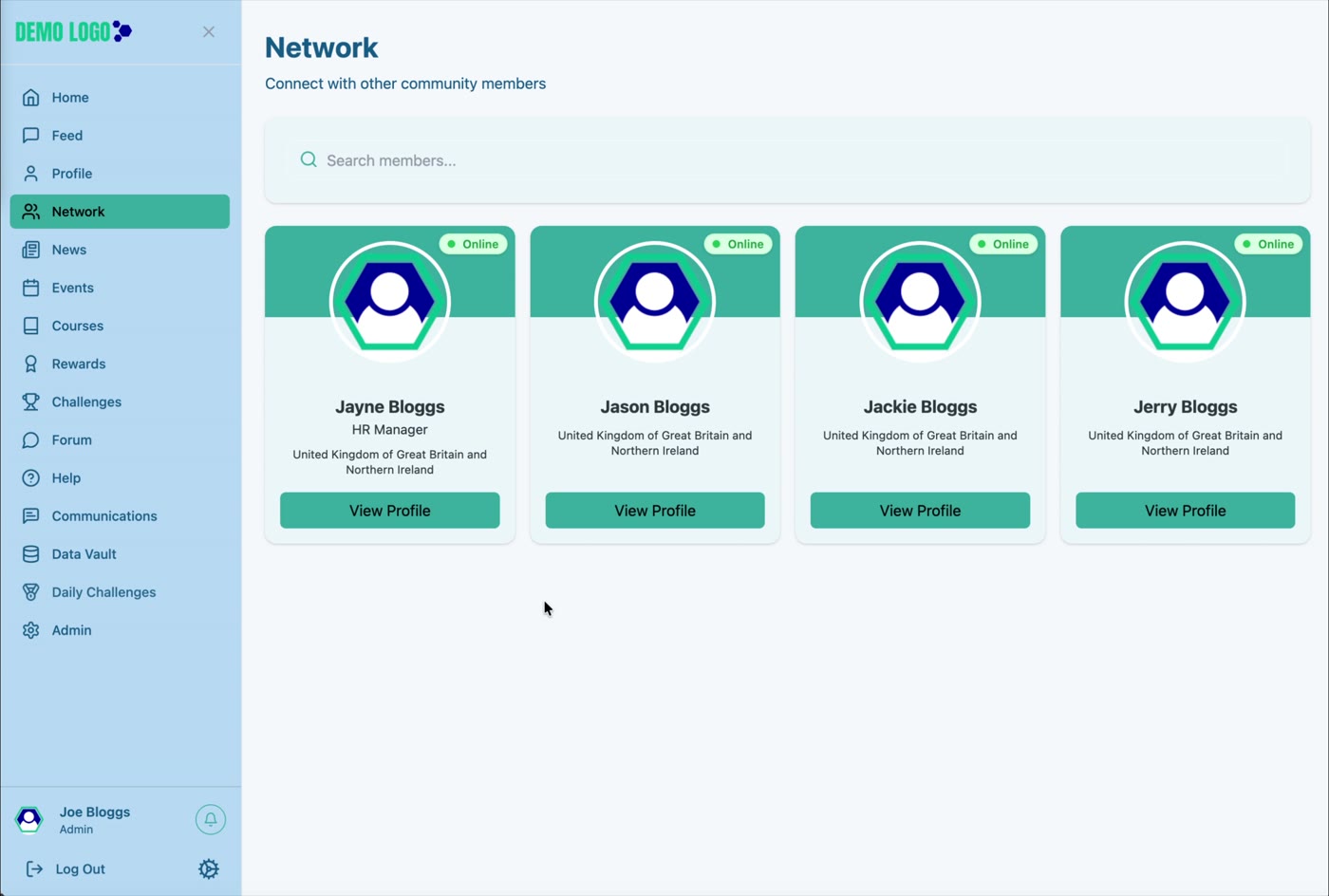
Use Search members
Enter a name, role or other supported term in the search field to narrow the directory.
Review a member card
Cards show the profile image, member name, job title and location. An Online badge may be shown when availability information is enabled.
Select View Profile
Open the full member profile to see the details that the member has chosen to share.
Read a member profile
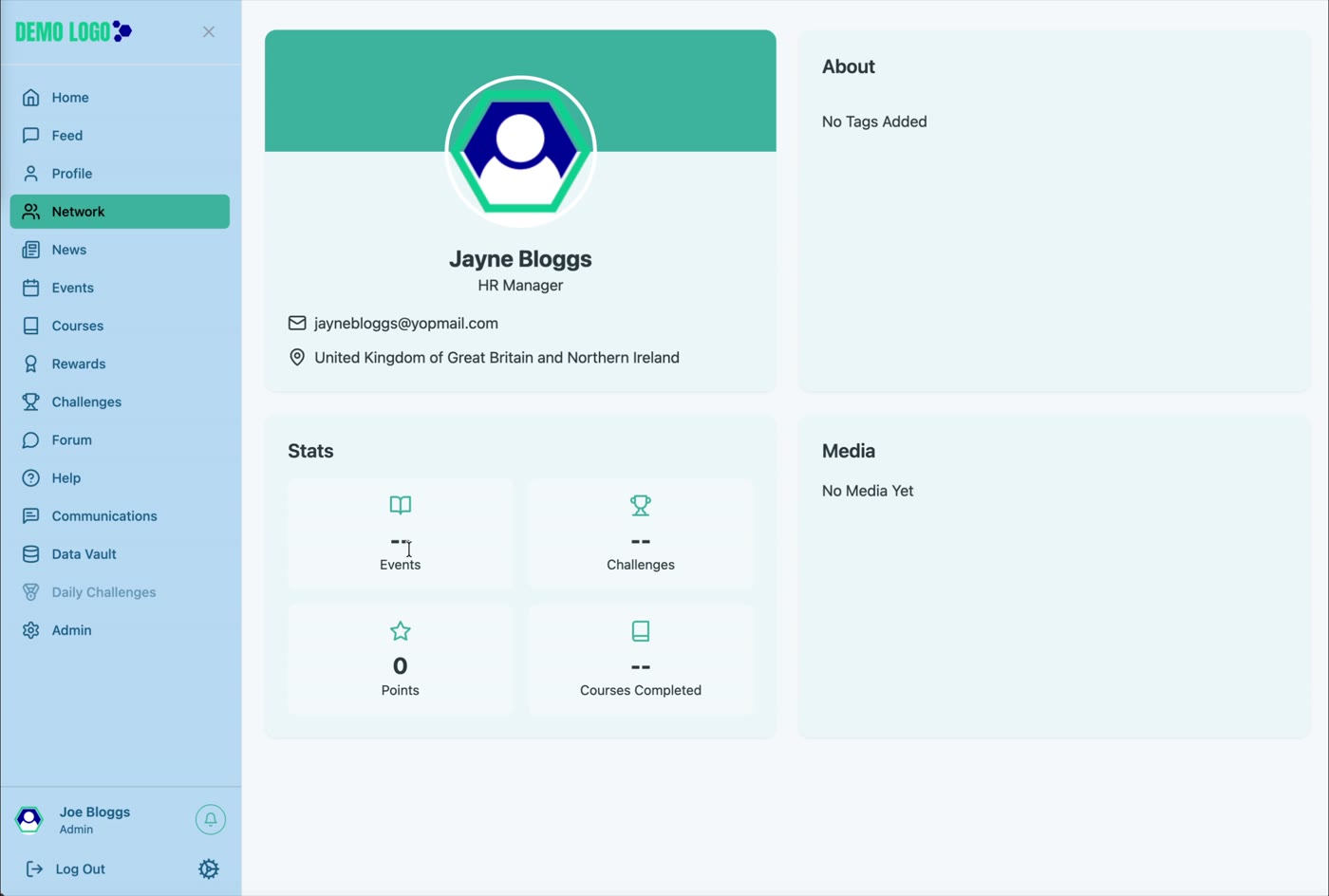
The profile view may include About text, media, skills or interests and statistics for activity such as events, challenges, points and course completion. The exact information depends on the member’s profile and privacy settings.
Network best practice
- Encourage members to use accurate names and roles.
- Explain which profile fields are visible to other members.
- Keep the directory focused on the purpose of the community.
- Use Communications for an appropriate follow-up rather than copying details elsewhere.
- Provide a clear route for reporting unwanted contact.
Directory checklist
- Member cards display consistently.
- Search returns expected members.
- Private profiles are not exposed.
- View Profile opens the correct account.
- Job title and location are readable.
- Community conduct guidance is available.
Common issues
A member cannot be found
Check spelling, account status and the member’s profile privacy setting.
Profile information is incomplete
The member may not have completed those fields. Direct them to Profile rather than editing personal information without authority.
The Online indicator appears inaccurate
Availability indicators can depend on session status and platform configuration; do not treat them as a guaranteed presence signal.
Hub version 0.3.7 · Last updated 16 July 2026