Create and assign certificates
Build a reusable certificate template, position dynamic fields and connect the finished design to a course.
admin_certificates.mov · Reviewed against the Buzzmint Engage Admin interface on 16 July 2026. The full-motion master remains in the private BUZZMINT VIDEOS Drive folder.
- 00:00Open Certificates
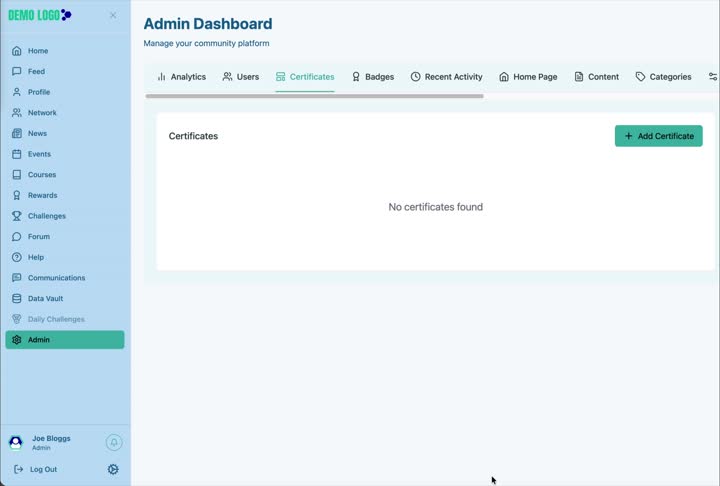
Review existing templates and start a new certificate.
- 00:20Define fields
Add recipient, qualification, logo and date fields.
- 00:49Choose the design
Select page size and upload the background.
- 01:14Position and style fields
Adjust field placement and text properties.
- 02:12Save and assign
Save the template and attach it to a course.
What Certificates controls
Certificates lets administrators build reusable certificate templates and connect them to completion rules in Courses. The template controls the background, page format and dynamic fields placed on the final certificate.
Define certificate fields
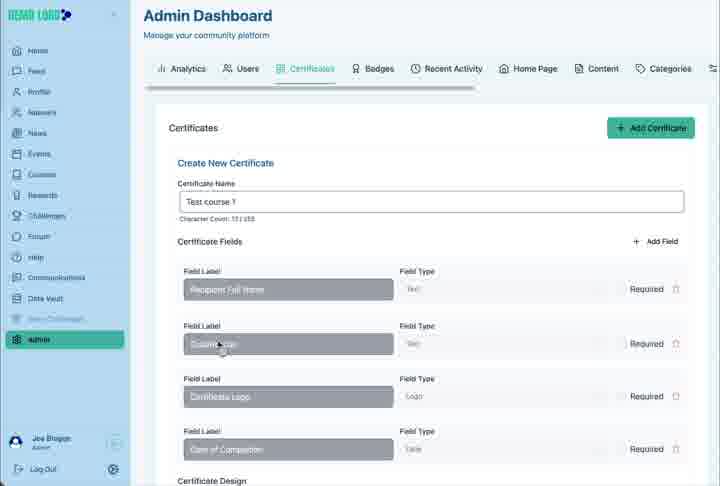
Enter a certificate name, then define the fields the template will use. The walkthrough includes examples for recipient name, qualification, certificate logo and date of completion.
| Field type | Typical use | Check |
|---|---|---|
| Text | Recipient name, qualification or other generated wording | Mark required only when the value must always be available. |
| Logo | Organisation or certificate branding | Use an approved high-quality asset. |
| Date | Completion or issue date | Confirm the displayed date convention. |
Choose the page and design the template
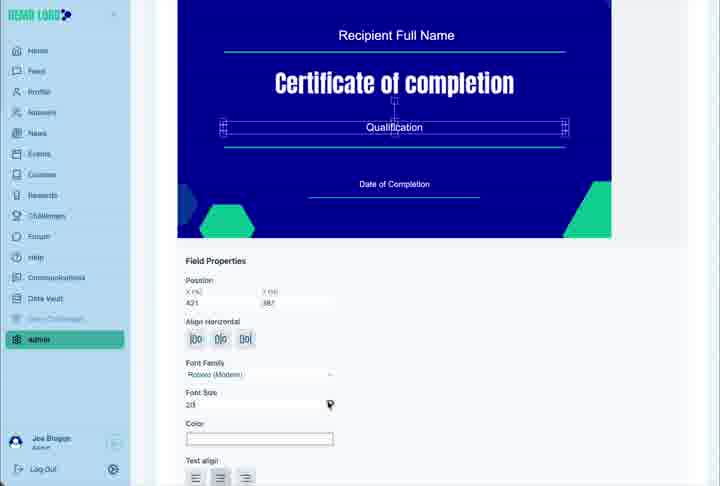
Select the appropriate page format, upload the background artwork and position each field on the canvas. Available formats shown in the walkthrough include square, A4 and A3 landscape or portrait options.
Configure field properties
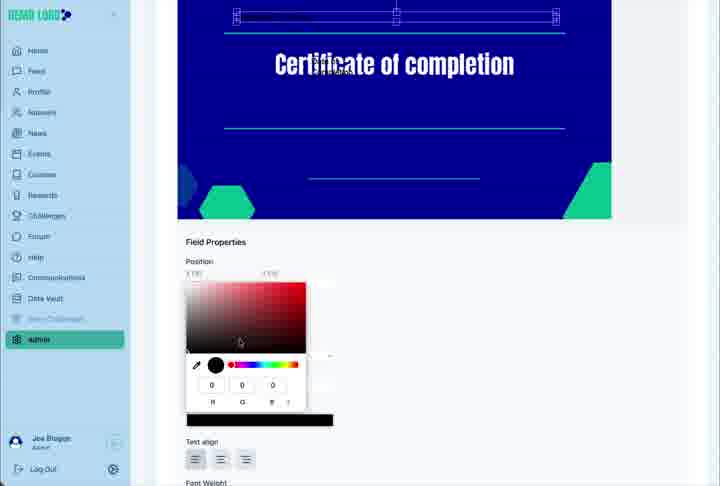
Select a field to control its position, alignment, font family, size, colour and text alignment. Check the full certificate rather than judging one field in isolation.
Assign a certificate to a course
Save the certificate template
Confirm the design and save the reusable certificate.
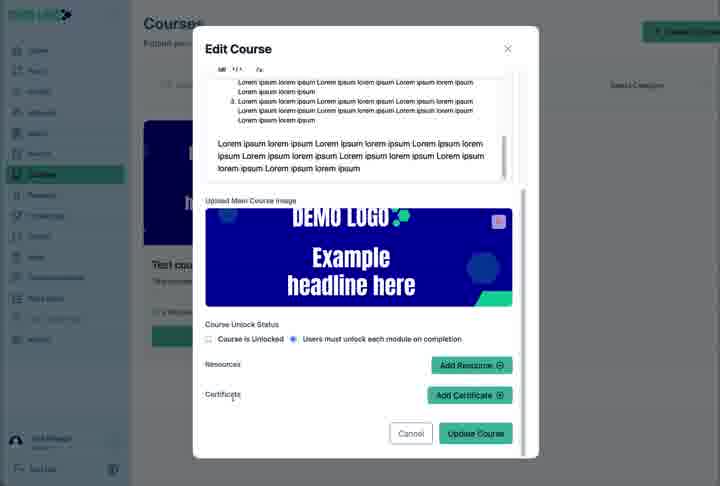
Open the relevant course
Go to Courses and edit the course that should issue the certificate.
Add a certificate rule
Choose the saved certificate and confirm the course completion behaviour.
Update the course
Save the course and complete a test journey before release.
Certificate best practice
- Use a descriptive internal template name.
- Keep legal or credential wording approved and stable.
- Leave safe margins around variable text.
- Test unusually long names and qualifications.
- Verify the course completion rule before inviting learners.
Certificate checklist
- The background matches the selected page format.
- Every required field has a reliable data source.
- Text remains readable at the final export size.
- Logos are not stretched or pixelated.
- The correct course uses the correct certificate.
- A test learner can complete the course and receive the expected result.
Common issues
A field is empty on the certificate
Confirm the field is mapped to information collected during the user or course journey.
Text overlaps the artwork
Move or resize the field and test with longer sample values.
The course does not issue a certificate
Check that the saved template is attached to the course and that the learner meets the completion rule.
Hub version 0.3.7 · Last updated 16 July 2026