Create and complete Daily Challenges
Publish a date-based prompt, configure points and question types, and test the member submission experience.
daily challenge.mov · Reviewed against the Buzzmint Engage interface on 16 July 2026. The original full-motion master remains in the private BUZZMINT VIDEOS Drive folder.
- 00:00Review Daily Challenge
See today’s state and Create Challenge.
- 00:08Configure the Daily Challenge
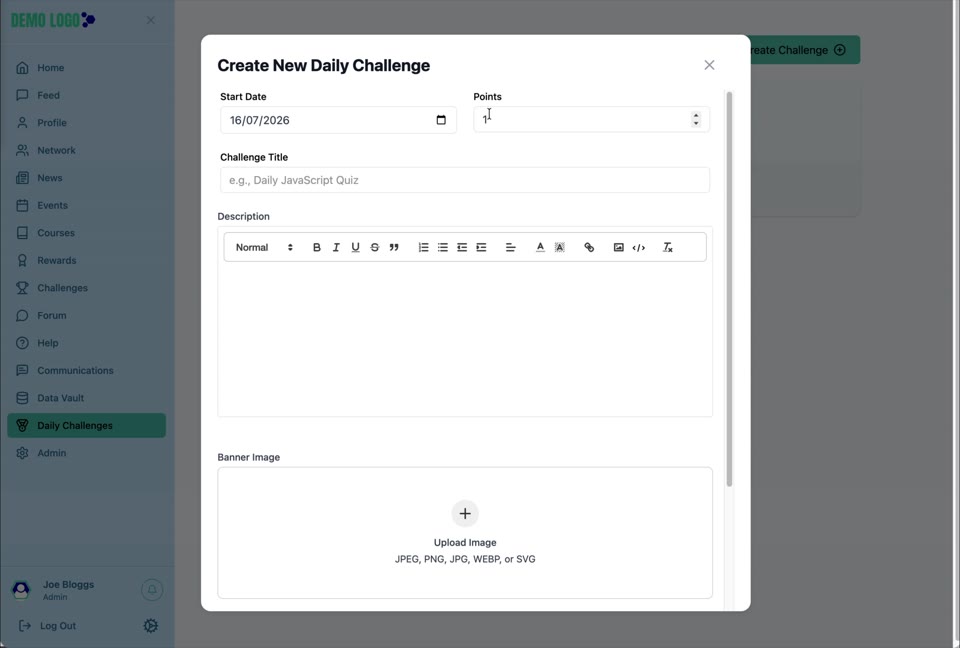
Set start date, points, title, description and banner.
- 01:00Build the questions
Assign an existing quiz or add question types.
- 01:24Complete the Challenge
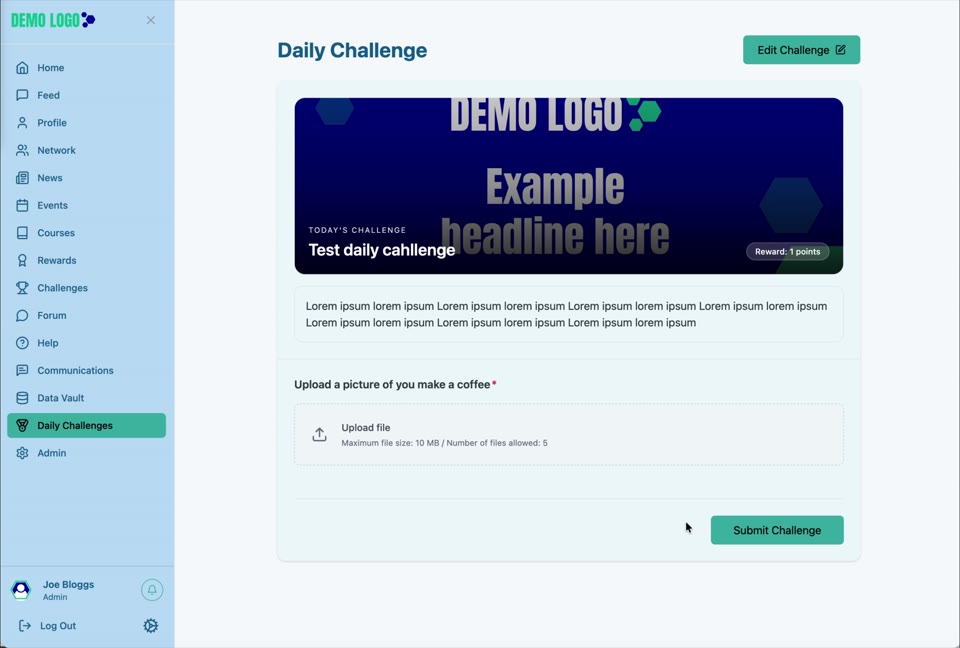
Open the live item, upload the answer and submit.
What Daily Challenges are for
Daily Challenges provide a focused, date-based prompt that can award points and collect one or more answers. They work best for short actions, knowledge checks or lightweight participation.
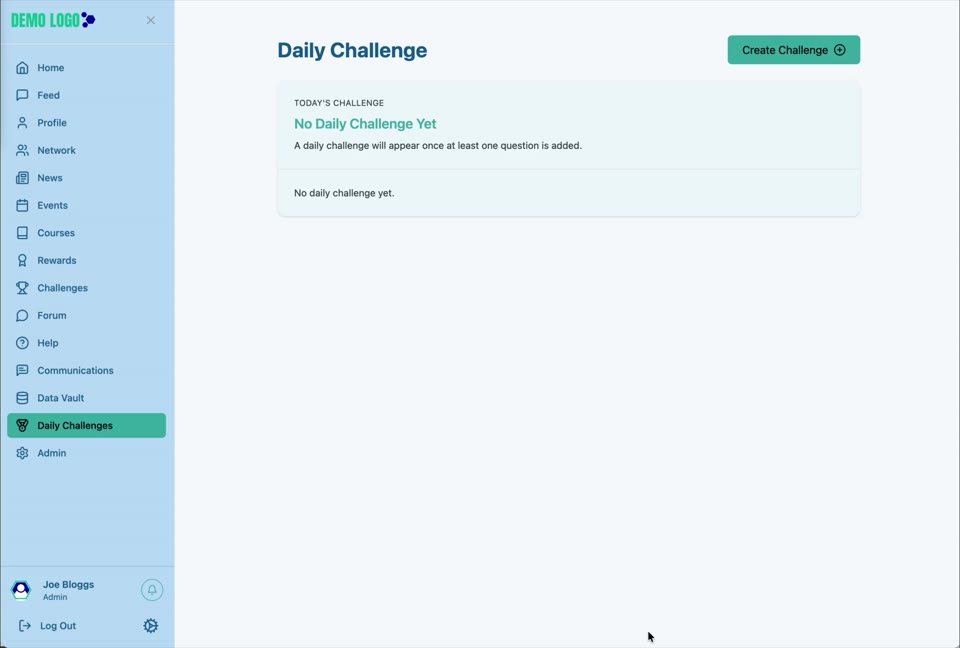
Create the Daily Challenge
| Field or control | Purpose | Guidance |
|---|---|---|
| Start Date | Controls when the Daily Challenge becomes current. | Confirm the date and portal time assumptions. |
| Points | Sets the points associated with completion. | Keep the value proportionate to effort. |
| Challenge Title | Names the prompt. | Use a short, action-led title. |
| Description | Explains the activity. | State what to do, what evidence is required and any limits. |
| Banner Image | Creates the main visual. | Use an approved, readable image. |
| Assign Existing Quiz | Connects a previously created quiz. | Use when the question set is already governed and tested. |
| Add Questions | Builds questions directly. | Choose the response type, wording and whether it is Required. |
| Bulk Upload / Sample | Supports question import. | Validate imported questions before launch. |
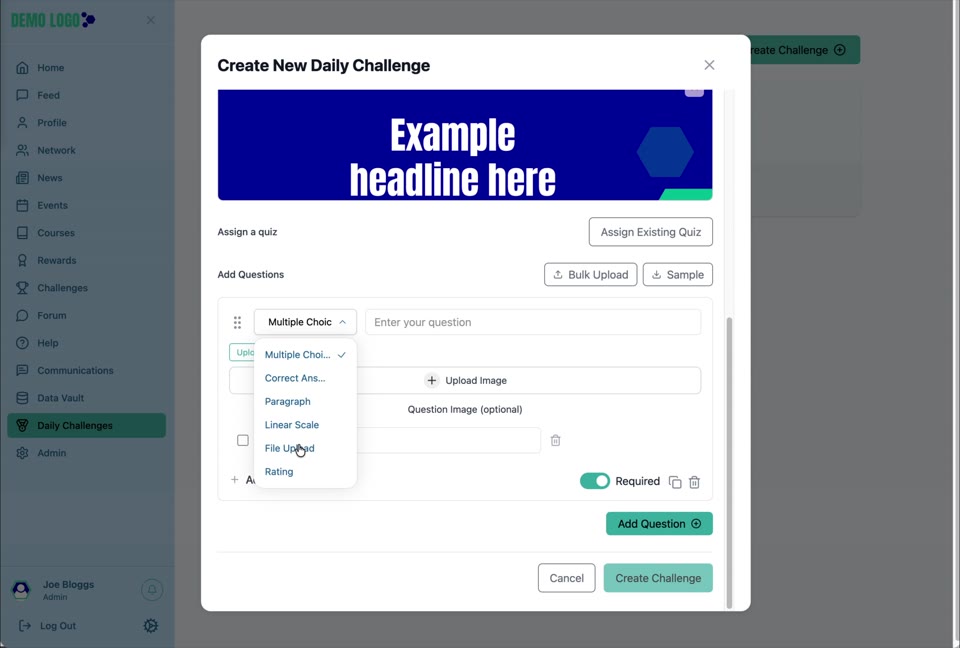
Choose the question type
The walkthrough shows a question-type menu including options such as Multiple Choice, Paragraph, Linear Scale, File Upload and Rating. For File Upload, configure the prompt, optional question image, maximum file size, file count and Required setting.
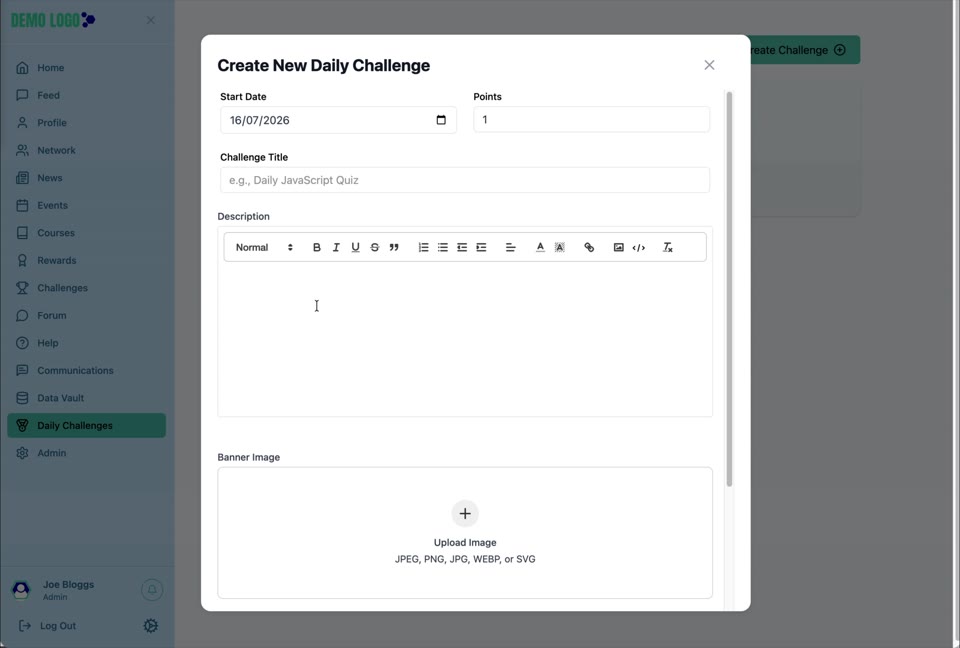
Complete the Daily Challenge
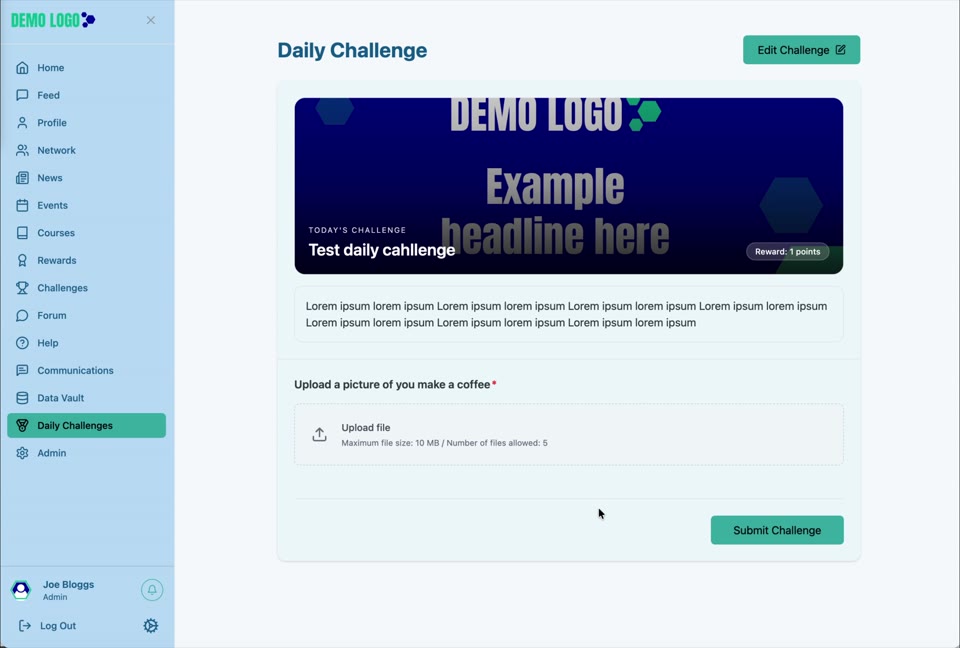
The live page displays the banner, title, description, points and question. The member supplies the requested answer or file and selects Submit Challenge.
Daily Challenge best practice
- Keep the activity achievable within the stated day.
- Use one clear outcome.
- Explain accepted file types and limits.
- Use Required only for answers essential to completion.
- Test mobile upload as well as desktop.
- Confirm points are applied once, at the intended stage.
Daily Challenge checklist
- Start date is correct.
- Points value is proportionate.
- Title and description are clear.
- Banner is readable.
- Question type matches the task.
- Required and file limits are correct.
- Submission works on desktop and mobile.
- Review and points behaviour are understood.
Common issues
No Daily Challenge appears
Check the Start Date, whether the item was created successfully and the portal date or time zone.
A file cannot be submitted
Check the maximum size, allowed number of files, browser access and whether the question requires a file.
Points were not added
Confirm the completion and review rules; the walkthrough does not show the final points-award stage.
Hub version 0.3.7 · Last updated 16 July 2026