Activate the client administrator
Verify the account-creation email, password setup and first sign-in for the portal’s initial administrator.
Screen Recording 2026-07-15 at 09.44.33.mov · Documentation status: ready for Buzzmint team review. The unrestricted master remains in the private Buzzmint Drive folder.
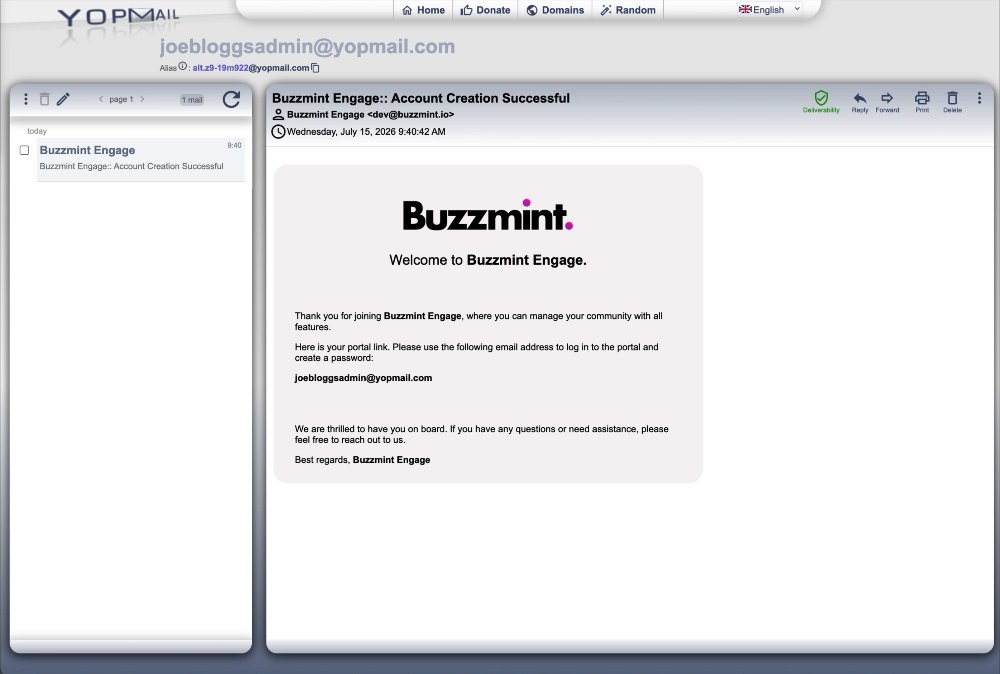
Confirm the welcome email
Creating the portal triggers an account-creation email to the administrator address entered in Basic Info. Confirm the email has arrived and that the branding and organisation name are appropriate.
Create the administrator password
Open the invitation link
The administrator selects the account-creation link from the welcome email.
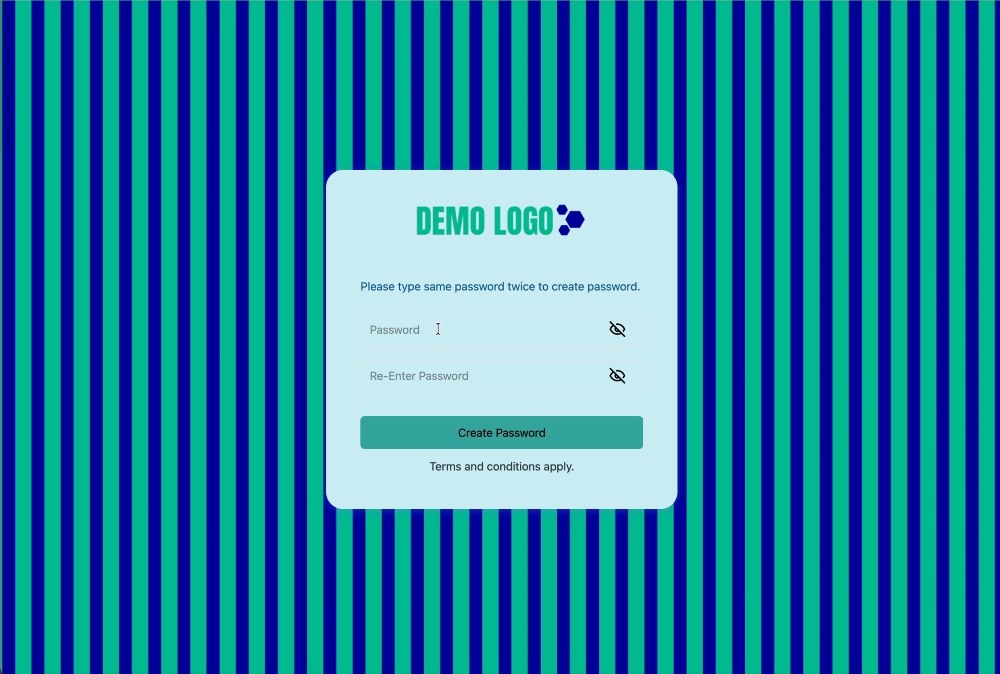
Enter and confirm a password
The password and confirmation must match and satisfy the platform’s current requirements.
Accept the terms
The screen states that terms and conditions apply. Confirm the linked legal content is the expected client-approved version.
Create Password
Submit the form and wait for confirmation or redirection.
Verify the first login
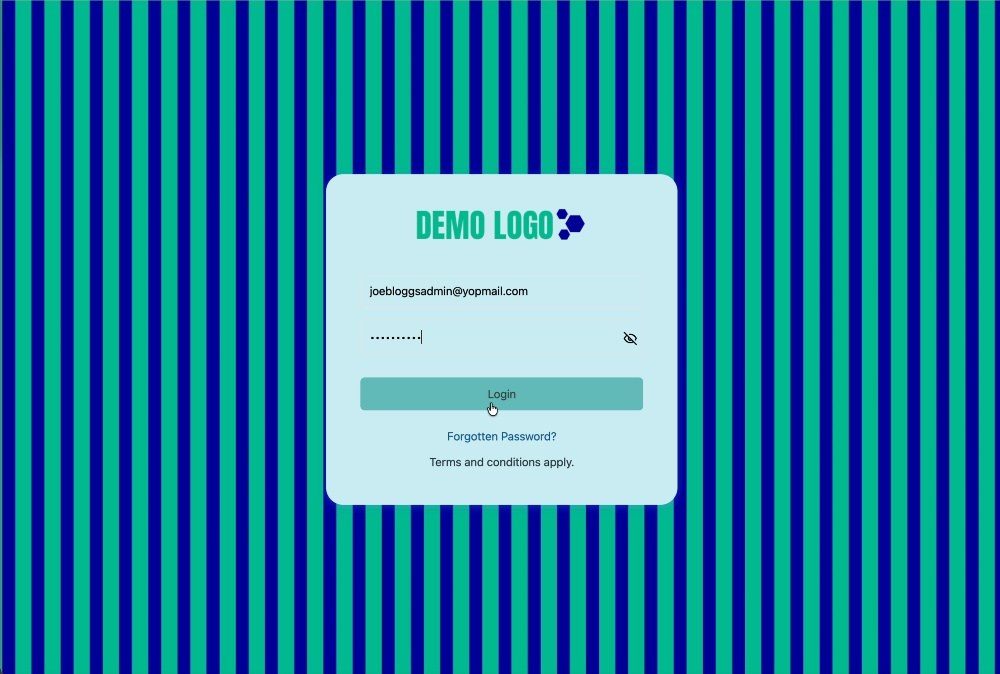
After activation, sign in using the administrator email and newly created password. Confirm that:
- The expected login background is visible.
- The portal logo is clear and not stretched.
- The email address is recognised.
- The terms link works.
- The login completes without an error.
- The user lands in the correct client portal.
Internal handover note
For live client onboarding, the client administrator should create their own password. Buzzmint may test the invitation process with an agreed test account, but passwords must never be stored in project documents or sent through the questionnaire.
Hub version 0.2.0 · Last updated 15 July 2026